
Skip to content

Booking your child's club through ClubDock

If your child's club, class or holiday camp sent you here, it uses ClubDock to take bookings. This page explains how that works from your side.

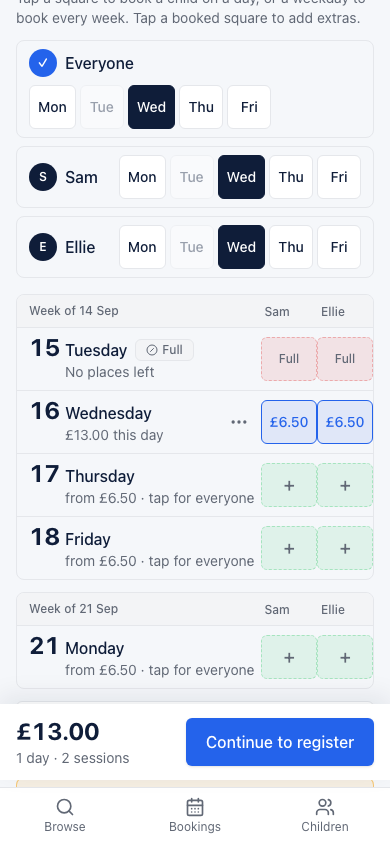
A parent's phone, booking Wednesday for Sam and Ellie at £13.00, with Tuesday shown as full

Your club runs its bookings. ClubDock is the system it uses.

The club sets its prices, its dates, who can book, how you can pay, and when you can cancel. ClubDock does not. You pay the club, and a question about a booking, a payment or a place is one for the club, and replying to your booking confirmation reaches the club. The information you give is held for your club alone: another club using ClubDock cannot see it, and if you use two clubs, each one only sees what you gave it.

Making a booking

  1. Find your club’s page

    Your club has its own page on ClubDock, at an address like clubdock.co.uk/your-club, usually linked from its newsletter or website. You can see every programme on it, with its dates, times and prices, without signing in. Where programmes are for different children, you can filter by your child’s age or school year.

  2. Sign in with a code, not a password

    There are no passwords. You type your email address and ClubDock emails you a six-digit code. On your club’s own sign-in page, the first code also creates your account. Sign-in codes always come from ClubDock, never from the club. You can add a passkey afterwards, so your phone’s fingerprint or face unlock signs you in instead.

  3. Tell the club about your family, once

    Before your first booking you give your own details, your children’s, and accept the club’s terms. The club decides what it asks: medical notes, allergies, who may collect, and so on. You are not asked again next time, unless the club changes its terms. Some clubs look at each new child before taking bookings, and email you once they have.

  4. Choose the days

    Open a programme and tap the days each child needs. Every Thursday for one child is one tap, and so is every child on one day. Where the club sells mornings, afternoons or extras like late pickup, you choose those first. A running total shows what it comes to as you go.

  5. Your basket holds the places

    When you press Book, the places are held for you for thirty minutes, with a countdown, so nobody else can take them while you pay. If the time runs out they go back on sale and you can choose again. The club’s cancellation rule is shown above the button before you confirm.

  6. Pay the way your club takes payment

    You choose from the ways your club accepts, such as bank transfer, Tax-Free Childcare, childcare vouchers or cash, each with the club’s own instructions. You are booked straight away and pay the club afterwards. Any credit the club owes you is taken off automatically.

  7. You get a confirmation from the club

    A confirmation screen and an email list every place booked, with the child, day and time, what it cost, what is left to pay, when it is due, how to pay and the reference to quote. The email comes from your club, and replying to it reaches the club.

After you have booked

Your bookings, and what you owe

Bookings shows one card for each booking, saying whether it is paid, with a To pay panel giving the total across all of them and when the next payment is due. A Payment receipts card makes a PDF from the club of what you paid over the dates you choose, for an employer, a benefits claim or your own records.

Cancelling or moving a place

Open a booking’s sessions to cancel a place or move it to another date of the same programme. You can do either within the club’s cancellation rule, and you are shown what it means for the money before you confirm. Money already paid for a cancelled place becomes credit with the club, taken off your next booking. Outside the rule, the screen tells you which deadline has passed, and the club is the one to ask.

A calendar of who is in when

Calendar shows the week, or the month, with every session your children are booked on. Open one to see what to bring, anything the club wants you to know, and where to go. If the club cancels a session, it stays on your calendar marked Cancelled, with the reason.

Your children’s details

Children shows each child, what they still need before they can be booked, and when they are next at club. You can check and change their details at any time, including allergies, medical notes and who may collect them.

Your agreement about places, prices and refunds is with your club, on the club's own terms. ClubDock's terms for parents cover your use of ClubDock itself, and the privacy notice says what ClubDock does with your information.