

Before you start
- You are signed in and registered, with at least one child added.
- If you owe the club money that is overdue, your club may pause new bookings until it is paid. See If bookings are paused.
Find the programme
Your club’s page lists everything it runs, earliest start time first, with the days, venue, price per session and how full it is. Where the club runs programmes for different children, choose your Child’s age or School year to see only what your child can go to. If the club runs at several venues, pick a venue to narrow the list. How full a programme is shows as places available, limited or sold out, never as an exact number. Open a programme to see its Dates, Times, Price and Who it is for, then About, Need to know, What to bring and Where it is. The booking cut-off and the cancellation rule are under Need to know. Read these before you book.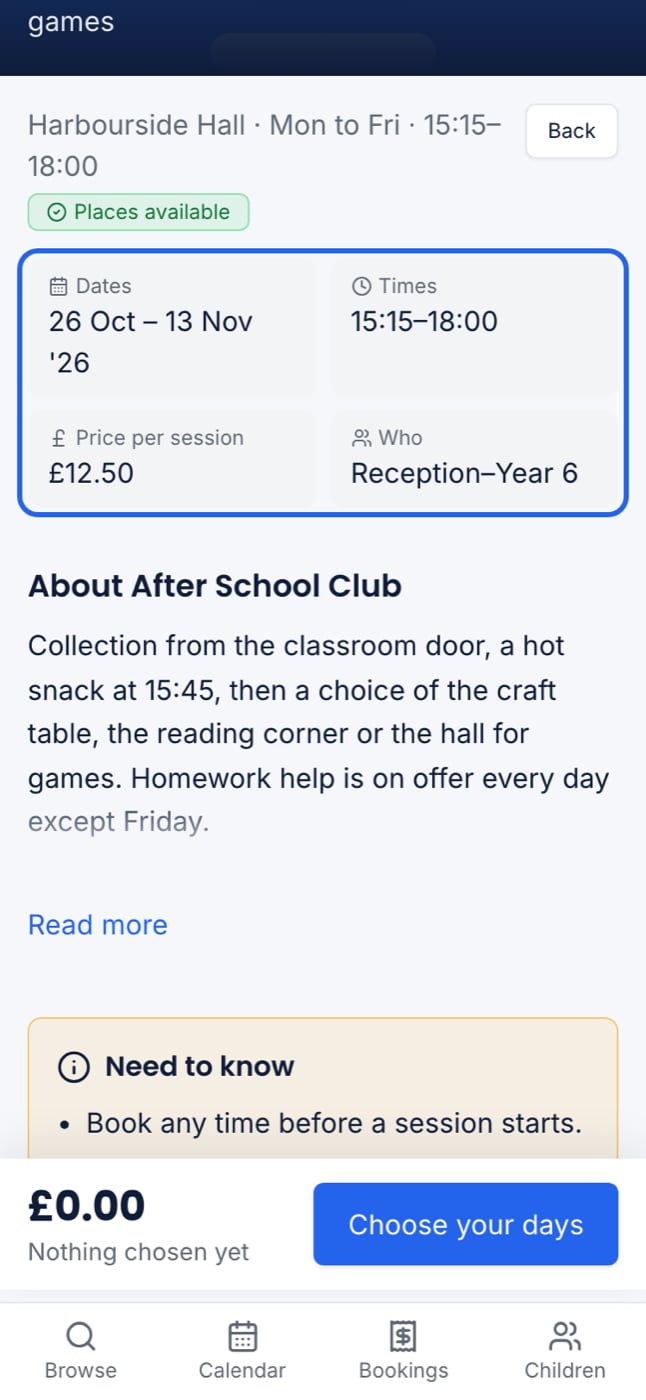
If an early bird price is running, the Price box shows today’s price and the date it ends. You keep the early bird price for any place you put in your basket before it ends.
Choose your days
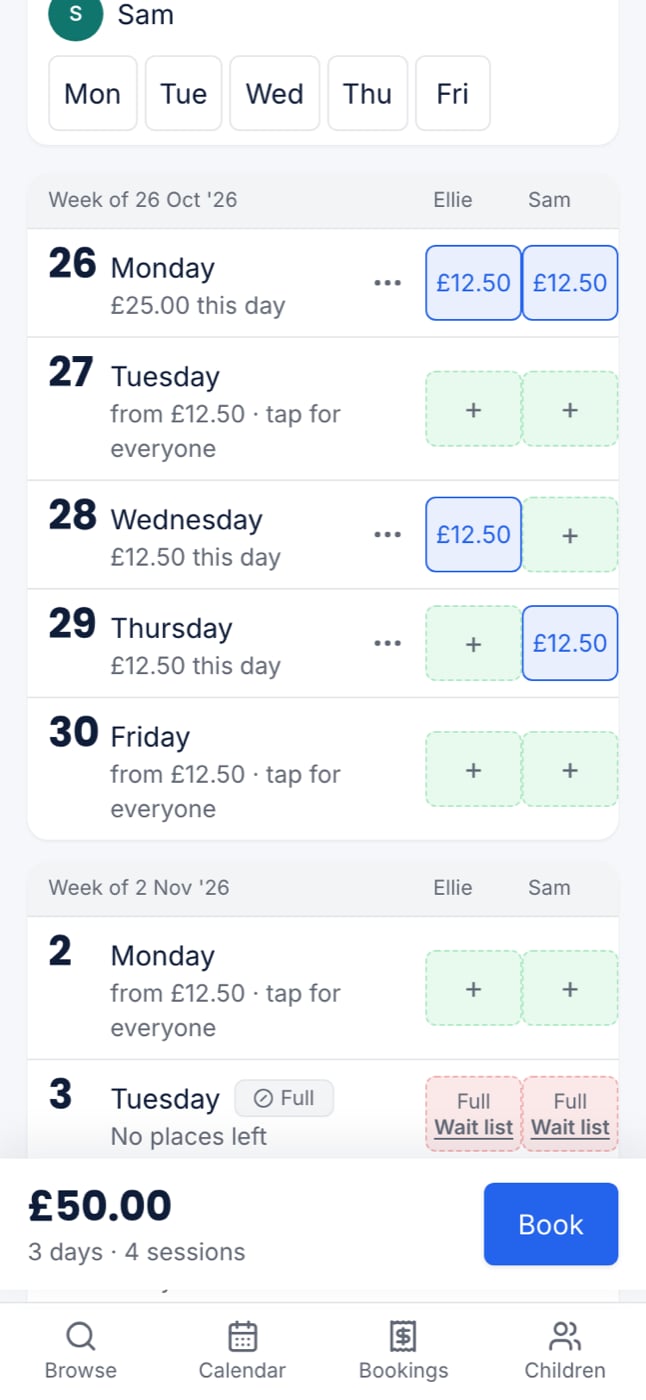
Below the programme’s details is a grid, with one square per child per day. Tap a square to book that child on that day. On a phone, Choose your days at the bottom takes you straight there.- Every Thursday for one child: tap that child’s weekday shortcut.
- Every child on one day: tap the date.
- Change your mind: tap a square again to take it off.
If the programme has more than one session a day
Some programmes sell, say, a morning, an afternoon and a full day. Choose which sessions you want first, from the tick boxes above the grid. The days cannot be tapped until you have chosen.- Tick Morning and Afternoon to book both.
- Tick Full day after Morning and the full day replaces the morning. Each box says what it replaces before you tap it.
Add extras
Extras are things like early drop-off, late pickup or a packed lunch, each with its own price.- To add an extra to every day you book, use Any extras? (or the extras beside the sessions) above the grid. It applies to every chosen day that offers it, and to days you add afterwards.
- To change one day only, tap that day to open it. Anything you change there affects that day and no other.