

Moving follows the same cancellation rule as cancelling. If it is too late to cancel the place, it is too late to move it.
Move a place
1
Find the place
Go to Bookings and press View sessions on the booking.
2
Press Move
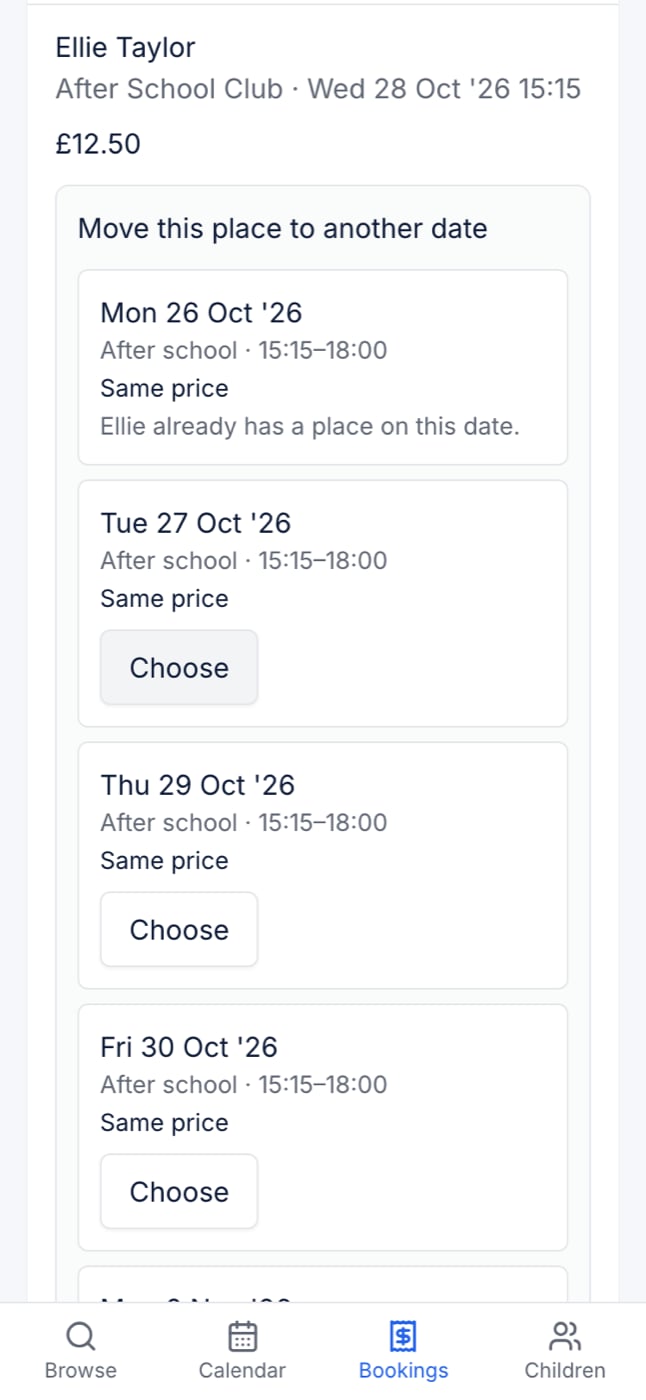
Next to the place you want to move. You see Move this place to another date, with the other dates you can choose.
3
Choose a date
Each date says what it would cost compared with the place you have: £4.00 more, Same price or £2.00 less. This includes any extras you booked, such as late pickup.
4
Confirm
Press Move to this date. If the new date costs more, the button says Move and pay £X more.
Prices and extras
- A dearer date: you owe the difference, and you are emailed the figure.
- A discount on your place moves with it. The same discount comes off the new date’s price.
- Extras, such as late pickup, move with the place at the new date’s price. If the new date does not offer an extra, it is dropped, and the price you are shown says so.
Dates you cannot choose
- Full dates are shown but cannot be chosen.
- Dates that are Filling up can still be chosen.
- If there are no other dates, you see No other dates to move to.
When you cannot move a place
- The deadline has passed. You see the same message as for cancelling, naming the deadline.
- It is a whole block. A block is booked as all its sessions or none, so you cannot move one of them.
- It is a different programme. You can only move to another date on the same programme. To change programme, cancel the place and book the new one.