

Before you start
- You have signed in on your club’s page.
- Have to hand anything the club may ask for: your children’s dates of birth, school, medical and allergy details, and the names and numbers of anyone who may collect them.
Set up your account
The first time you sign in, you see Set up your account. Steps you have already finished are skipped. To go back to an earlier step, use Back to your details or Back to your children below the step you are on. What you saved there is kept.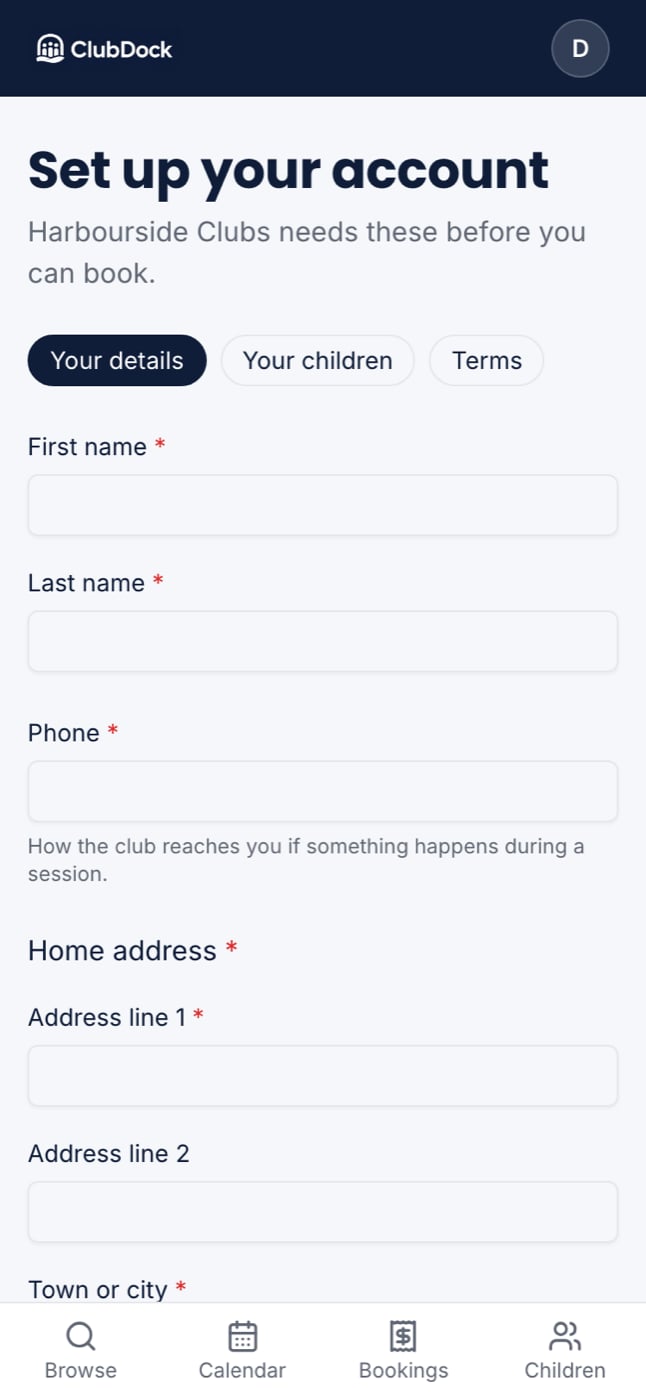
Your details
You always give your first name, last name and email address. Your club may also ask for things like your phone number, address and postcode, and questions of its own.Your children
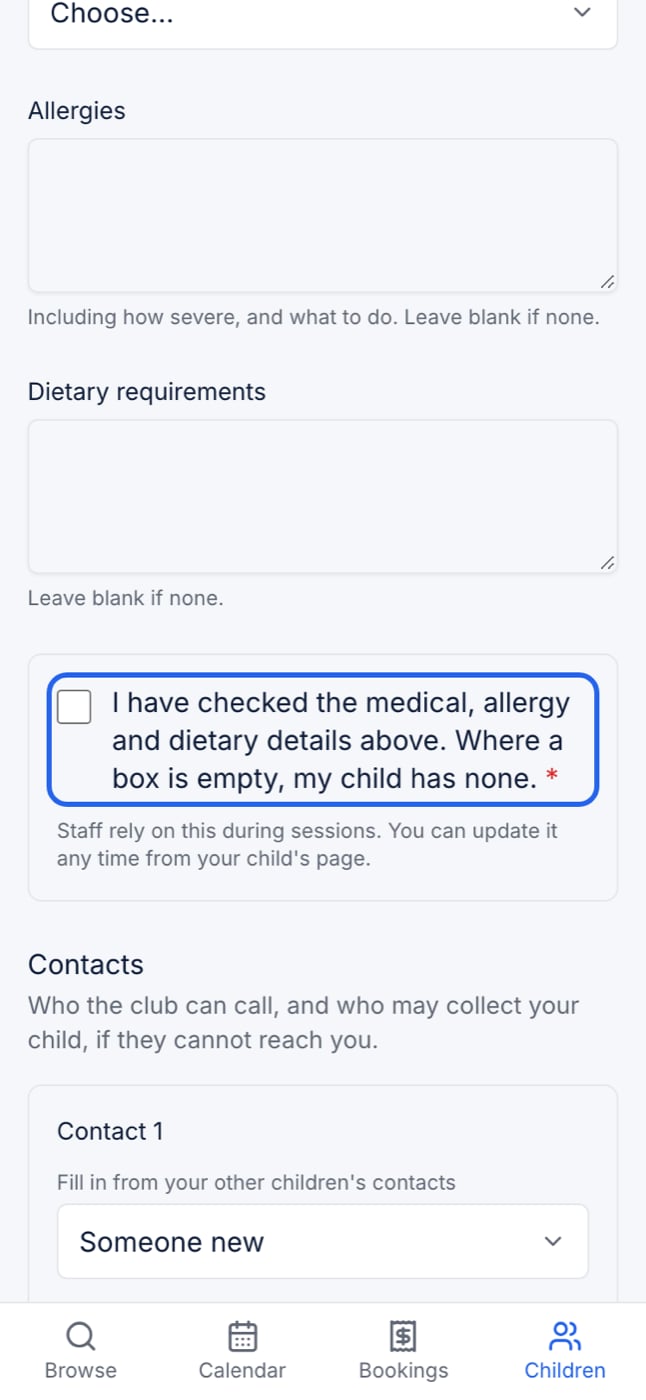
Press Add a child for each child you book for, fill in the form, and press Add child to save it. You always give their first name, last name and date of birth. The date of birth sets their age for programmes with an age limit. Your club may also ask for:- School and year. Pick the school from the club’s list, or type it if it is not there.
- Medical, allergy and dietary details, and additional needs. If your child has none, leave the box empty. Each says “Leave blank if none”. You do not need to type “none”.
- A care confirmation. Tick to confirm you have checked the medical, allergy and dietary details, and that an empty box means your child has none. This is always required.
- Contacts. For each, a first name, last name and how they know your child. A phone number is only needed for someone the club should call in an emergency. A friend who only collects on Wednesdays needs no number. The club sets how many contacts it needs.
- A collection password. A word anyone collecting your child must tell staff. You can see what you type. Staff only see it when they check it at the door, and it is never printed.
- Consents and questions of the club’s own, such as photos or suncream. A yes/no question starts on the answer the club chose, and that is your answer unless you change it.
- Tax-Free Childcare reference. Optional here. You are only asked for it at checkout if you choose to pay that way.
If a child is outside the club’s ages
If your club takes children of certain ages only, a date of birth outside that range is refused, and the message says which ages the club takes. Leave that child out and carry on with your others. One child the club cannot take never stops the rest of the family registering. A child who has a birthday after registering keeps their place.Terms
Read your club’s terms and press Accept and continue. You are asked once for the whole family, not once per child. The terms cannot be closed without accepting them, because booking needs them. If the club publishes new terms later, you are asked to accept them again at your next booking. To re-read them at any time, use the link at the point of booking.When something is missing or wrong
If you press Continue with something missing or in the wrong shape, you stay on that step. The field’s label turns red, a message underneath says what to do (“Enter your postcode.”), and the cursor goes to the first field to fix. Each message disappears as soon as that field is right.If your club brought your details across
If your club moved to ClubDock from another system, it may already have your details. Sign in with the email address the club has for you, and you see Check what your club has for you, with your details already filled in. Check them and press Continue. Each child the club brought across then asks you to Check their details. Look carefully at allergies, medical notes and who may collect, then save. Each child is checked separately.Consents such as photos or suncream are never carried across from a club’s old system. You are always asked for them yourself.