

What each card shows
- Your child’s initials on their own colour. It is the same colour on every screen, including the calendar and your bookings.
- Their name, and their school year and school if the club asks for them.
- Where they stand with the club. See the table below.
- Next at club: the date, programme and start time of their next place, and how many more are booked after it. With nothing booked it says Nothing booked yet.
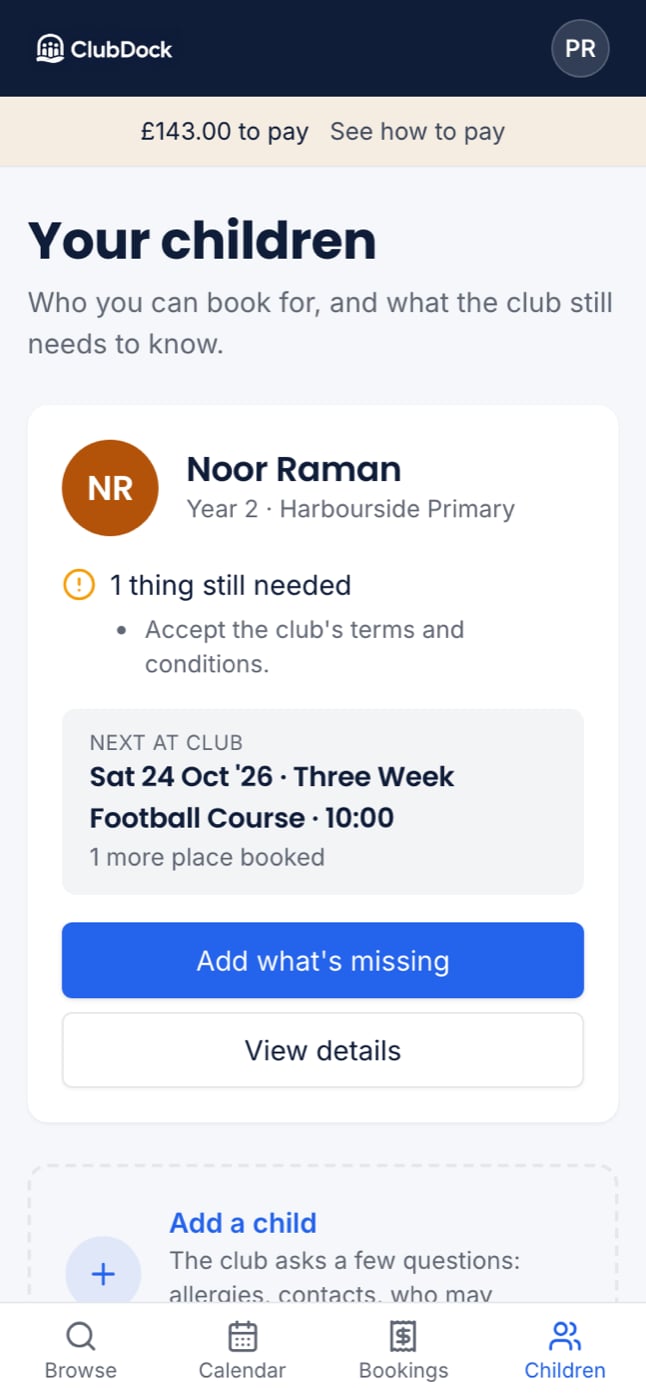
Add a child
Press Add a child, below your children. Fill in what the club asks, then press Add child. Some clubs check each new child before they can be booked.Update a child’s details
Open your child’s card and press Edit. Change what you need to, such as medical notes, allergies or emergency contacts, then press Save.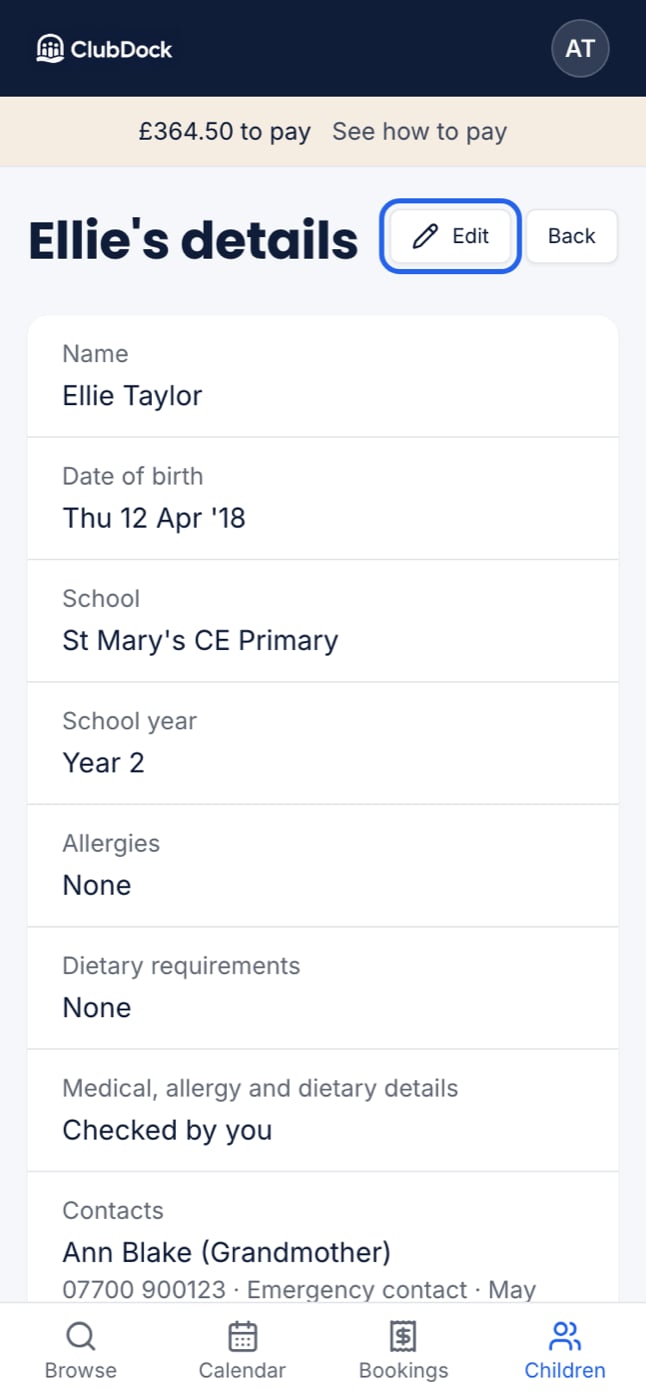
Accidents and incidents
If the club has sent you a report about an accident or incident, it is on your child’s page under Accidents and incidents, newest first. Each shows when and where it happened, what happened, any injury, what was done and who dealt with it, plus any notes added since. You cannot change a report. If the club withdrew one, for example because it was sent in error, it stays, crossed out, with the reason.Remove a child
Use this if a child no longer goes to the club, or was added by mistake.1
Open your child's page
Remove is at the foot of the page, under Removing and your child’s name.
2
Press Remove, then confirm
You are told what will happen before anything changes.
The club is not emailed when you remove a child.