

Download a receipt
1
Open Bookings
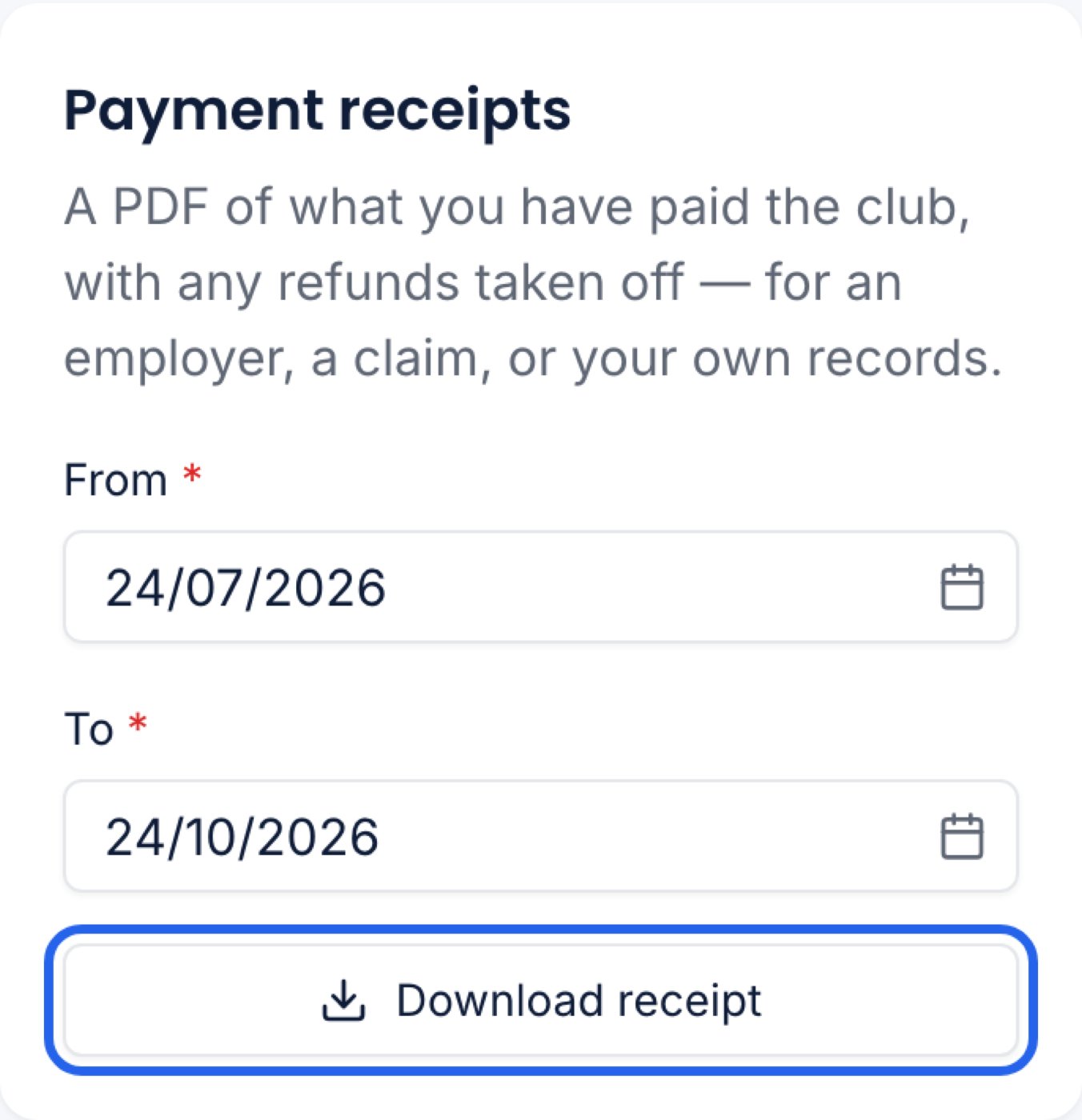
Find the Payment receipts card. On a phone it is below your list of bookings.
2
Choose the dates
From and To start as the last three months up to today. Change From for a longer period. You can choose up to two years, and both dates are included.
3
Press Download receipt
A PDF saves to your device.
What the receipt shows
The receipt is the club’s own document, with the club’s name, logo, address and contact details, and your name and address. It lists one row per payment:
Then a Total. Discounts and extra charges on a booking are named under the children on that row. Where the club has recorded an Ofsted number for a venue, it is printed under the table.
Refunds and credit
- Refunds are shown as negative rows on the day the money was paid back, so the total is what the club kept.
- A paid booking you later cancelled still appears, because the club did receive the money. A refund takes it off.
- Credit you spent on a later booking does not appear twice. The money arrived once, with the first payment.
If it does not download
Check the dates. To must be on or after From, and the period can be no more than two years. If the download fails for another reason, you are told why, and your dates stay as they were. Try again when you have a signal.The receipt only ever covers your own payments at this club.