clubdock.co.uk/your-club. That page is where you see what the club runs, book places and manage your children. You sign in with a code sent to your email, so there is no password to remember or reset.
Find your club’s page
Your club usually shares its link on its own website, in its emails or on a newsletter. You may also see its programmes on the club’s own website with a Book button, which opens the club’s page on ClubDock in a new tab. Anyone can look at the club’s page without signing in. You see what the club runs, the days and times, prices, where it is and whether places are left. You only need to sign in to choose days for your children.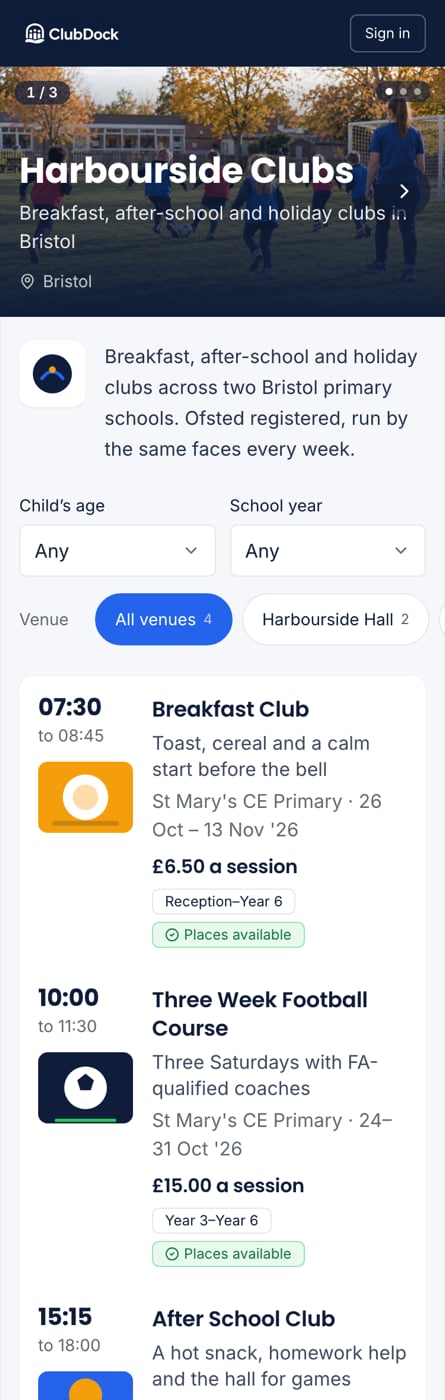
Sign in, or create your account
Signing in and creating an account are the same thing for a parent. If your email is new to the club, the code sets up your account.1
Press Sign in
Use Sign in at the top of your club’s page. On a programme, you can also press Sign in or create an account when you go to choose your days.
2
Enter your email address
Type the email you want to use with the club and continue.
3
Type the six-digit code
Check your email for a code from ClubDock. Type it into the six boxes, or paste it. You are signed in as soon as the sixth digit is in, so there is no button to press.
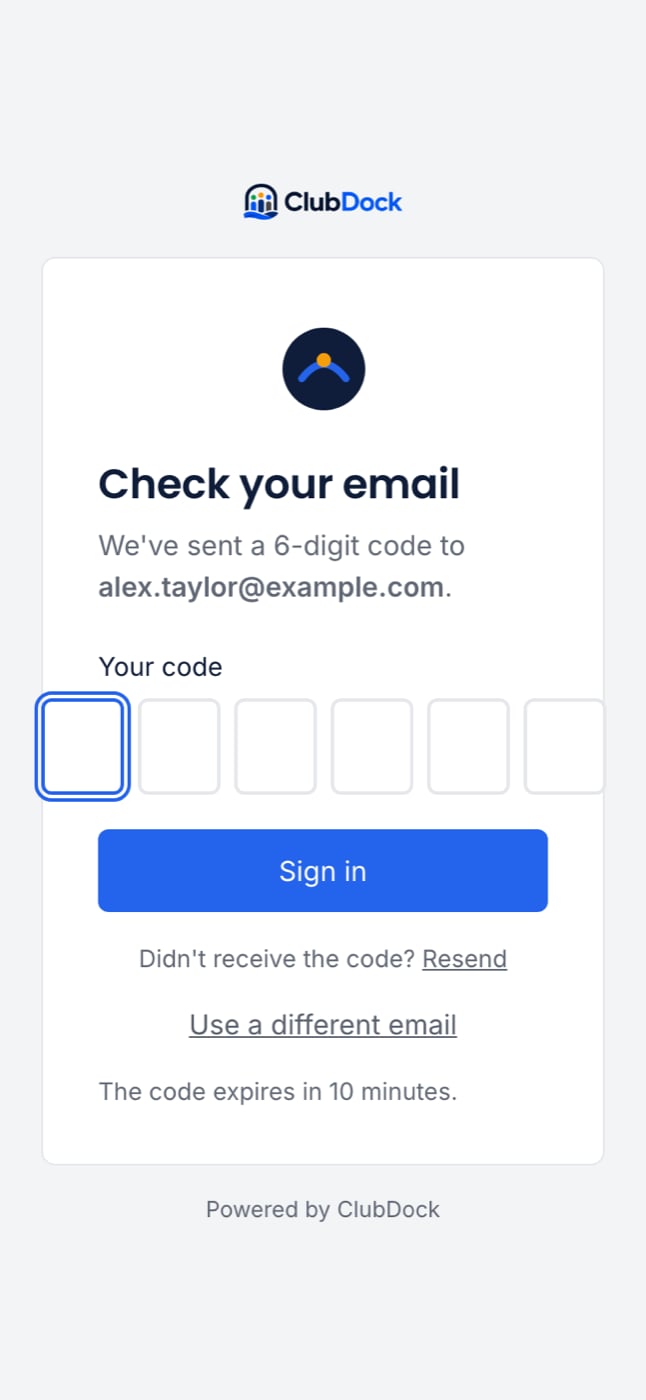
The code always comes from ClubDock, never from your club. That is on purpose: if a code ever arrives claiming to be from somewhere else, do not use it.
If the code does not arrive
- Check your spam or junk folder.
- Check you typed your email correctly. Press your browser’s Back button or Use a different email to correct it.
- Codes last ten minutes. If yours has run out, start again for a new one.
- After five wrong codes in fifteen minutes, signing in is paused for a while, even with the right code. Wait, then try again.
Use a passkey instead of a code
A passkey lets you sign in with your fingerprint, face or your phone’s PIN, with no code to fetch. The first time you sign in with a code, you are offered a passkey. Add one, or press Not now. If you choose Not now, you are not asked again on that phone or computer. Next time you enter your email, you are asked How would you like to sign in? Choose Use my passkey or Email me a code. No code is sent unless you choose it, so on a borrowed laptop just pick Email me a code. You can add or remove passkeys at any time from your account. Removing one stops it working straight away, which is useful if you lose your phone.Coming back
On the same phone or computer, your email is already filled in next time, so it is one press to continue. Signing out forgets it. You stay signed in for up to eight hours, then you are asked to sign in again.If you book with more than one club
If you have children at two clubs on ClubDock, you see a short list of your clubs after signing in. Pick the one you want. You are signed in to one club at a time. To switch, go to the other club’s page and you are signed in there without another code.Sign out
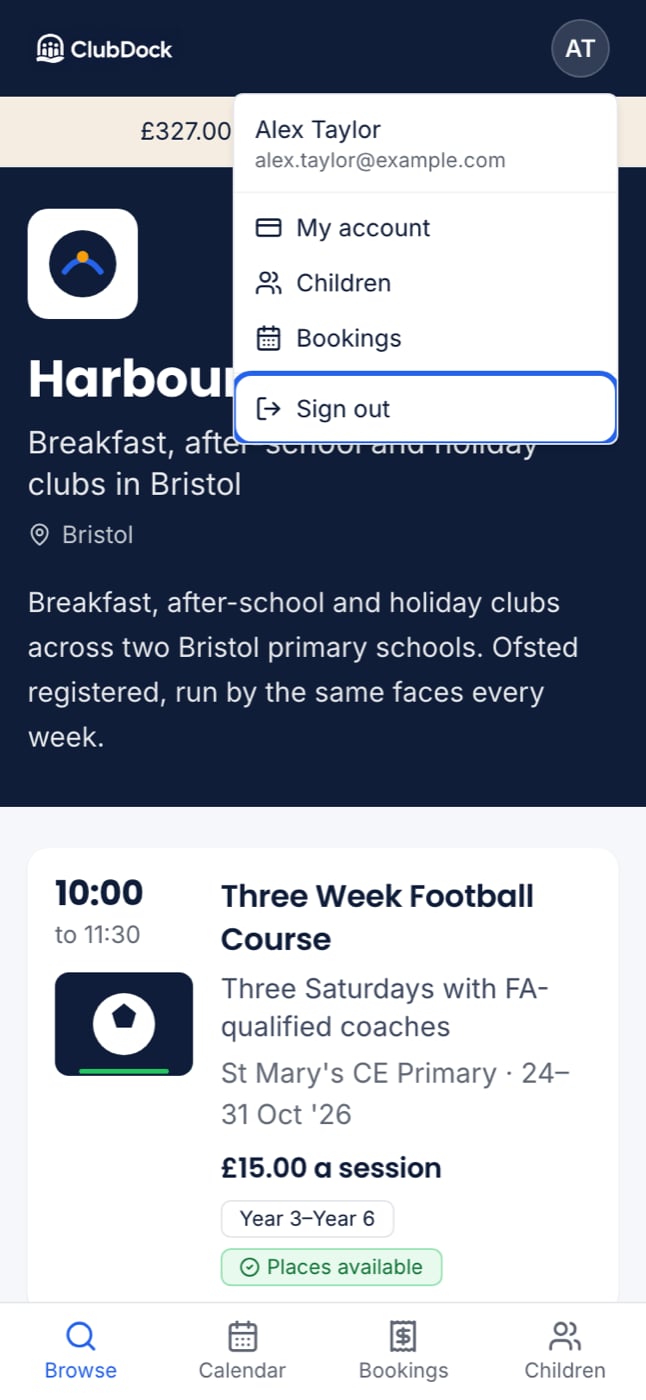
Press your initials in the circle at the top right of any page, then Sign out. You go back to your club’s page. There is no “are you sure?”, which makes it quick on a shared family tablet.