

Staff and Managers can both cancel and change bookings. Every cancellation records who did it, and whether it was inside the parent’s own cancellation window or staff using their discretion.
Cancel a booking
Cancelling takes every remaining place off the booking in one go: one action, one email, one update to the total.1
Open the menu
On the booking, press ⋯ and choose Cancel booking.
2
Say why
Give a reason. It is required, and is kept with the booking.
3
Choose what happens to the money
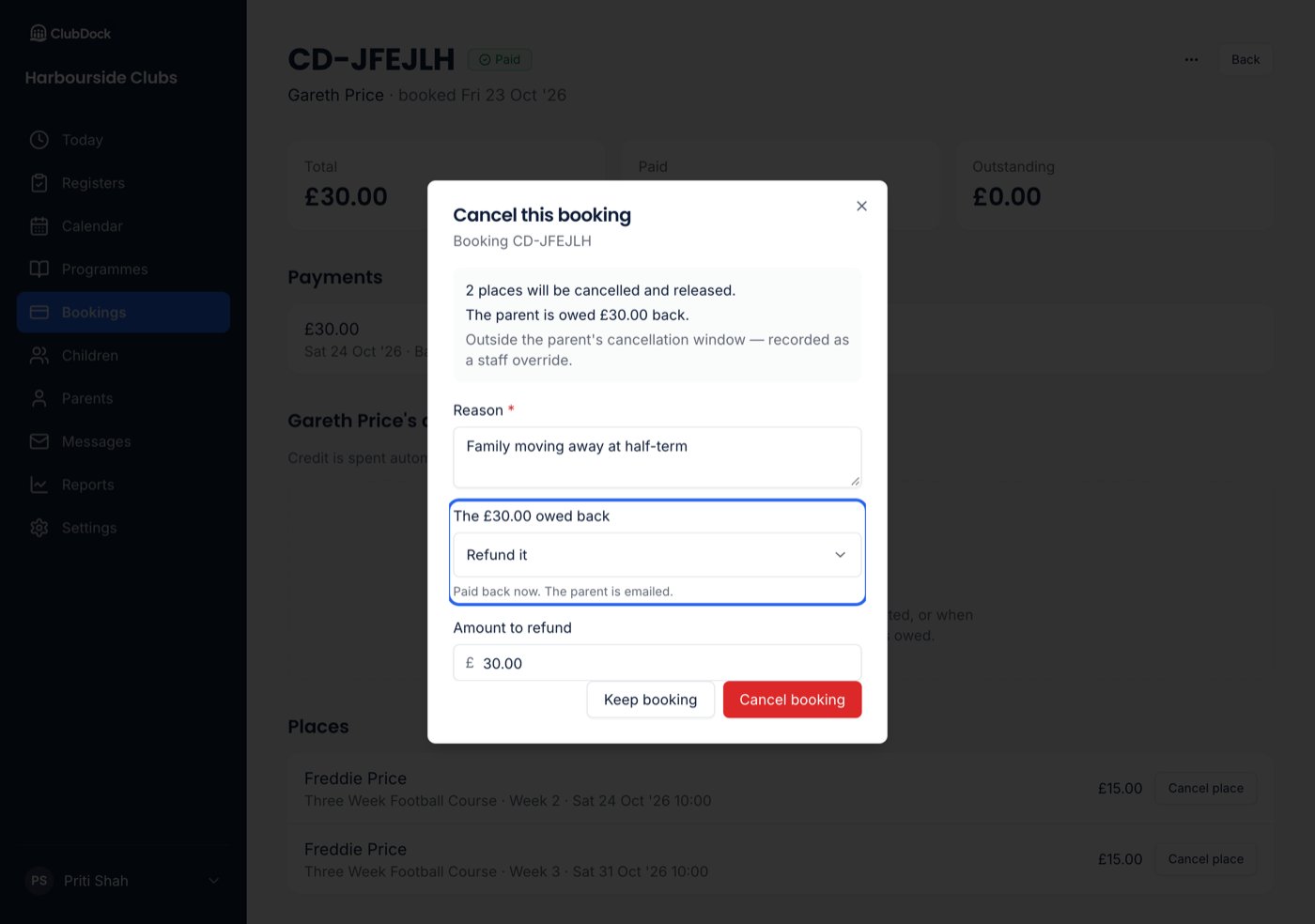
If the parent has paid, the dialog says how much they would be owed back and asks what happens to it. See the choices below.
4
Confirm
Press Cancel booking. To stop, press Keep booking.
What happens to money already paid
The amount starts at everything owed back. If you give back less, the club keeps the rest, and the
dialog says so: “The club keeps the other £140.00”.
If nothing was paid, there is nothing to choose: the places go, the bill is cleared, and the parent is
emailed. Afterwards the booking reads Cancelled.
If you keep the money, the booking reads Cancelled · Paid with its total unchanged, and you are
told, for example, “6 places cancelled and £240.00 kept. The parent was not emailed.” What you kept
counts as revenue for those programmes and dates.
Charges on a cancelled booking
If the booking holds a charge, such as a late collection, cancelling every place does not remove it. The charge is still owed, still chased and still invoiced. Only removing the charge takes it off. See Charges.If the refund does not go through
The booking is still cancelled and the parent is still emailed. A warning stays on screen until you close it: “Booking cancelled, but the refund did not go through.” The money is on the parent’s account as credit; refund it from their record under Credit. You do not need to cancel the booking again.With Xero or QuickBooks connected, a refund or credit becomes a credit note in your accounts. If you keep the money, a paid invoice is left as it is. See What reaches your accounts.
Change a booking
Use Change booking to add or remove places or extras — the lunch a family forgot to book, the late-pickup hour they used without booking, or a day swapped for another.- On the booking, press ⋯ and choose Change booking.
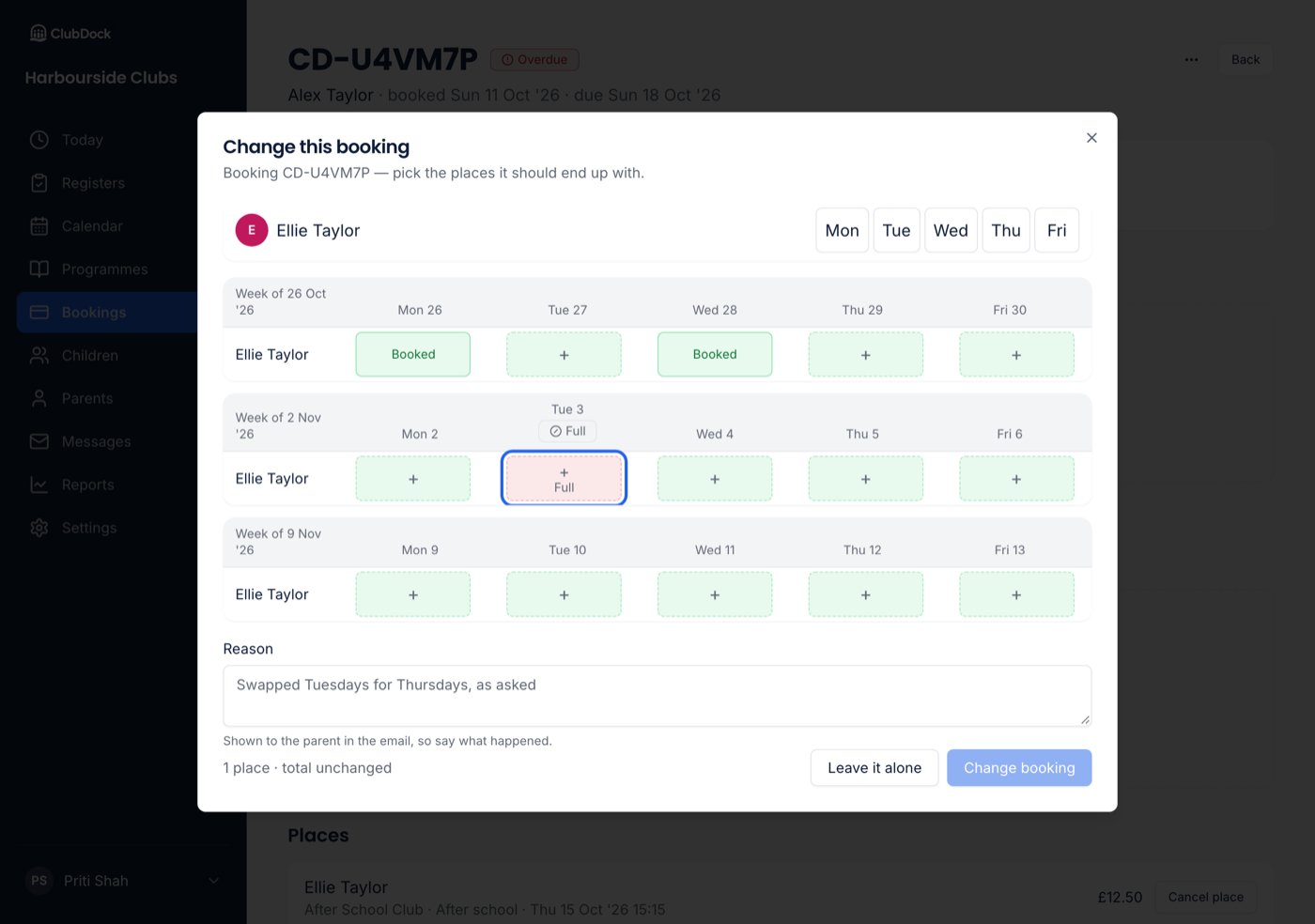
- The parent’s own planner opens with the booking’s places. Change the selection to what it should now be.
- Press Change booking to confirm. You are told whether the total goes up, down or stays the same, and that the parent will be emailed what changed.
What you can change
You are recording what happened, not asking permission, so:- Full sessions, started sessions, and children outside the programme’s ages are all allowed. If you add a child to a full session, its limit rises to fit them, and a message tells you which session and what the limit is now. Parents still see it as full.
- A date the club cancelled cannot be added. The rest of the change still applies.
- An extra added to a day that has already happened raises the total, and the register for that day is kept.
- A booking that covers more than one programme cannot be changed this way.
Prices when you change a booking
- Places already booked keep the price they were bought at. Adding or removing an extra moves only the extra.
- A place you add is charged at today’s price, including an early bird price if one is running.
- A place you add is at full price: discounts are not applied to changes, and nothing already booked is repriced.