

Any Manager can set the club up, not only the person who created it. Staff do not see the setup steps.
Open setup
On Today, a new club sees Finish setting up your club with how far you have got — “7 things to do before parents can book”, then “3 of 7 done”. Press Start, or Carry on if you have begun. Set up your club at the top of the left-hand menu takes you to the same place from any screen. The steps run down the left of the Set up your club page, one at a time. Fill one in and it ticks, and the next unfinished step opens. Come back later and you start at the first thing still to do.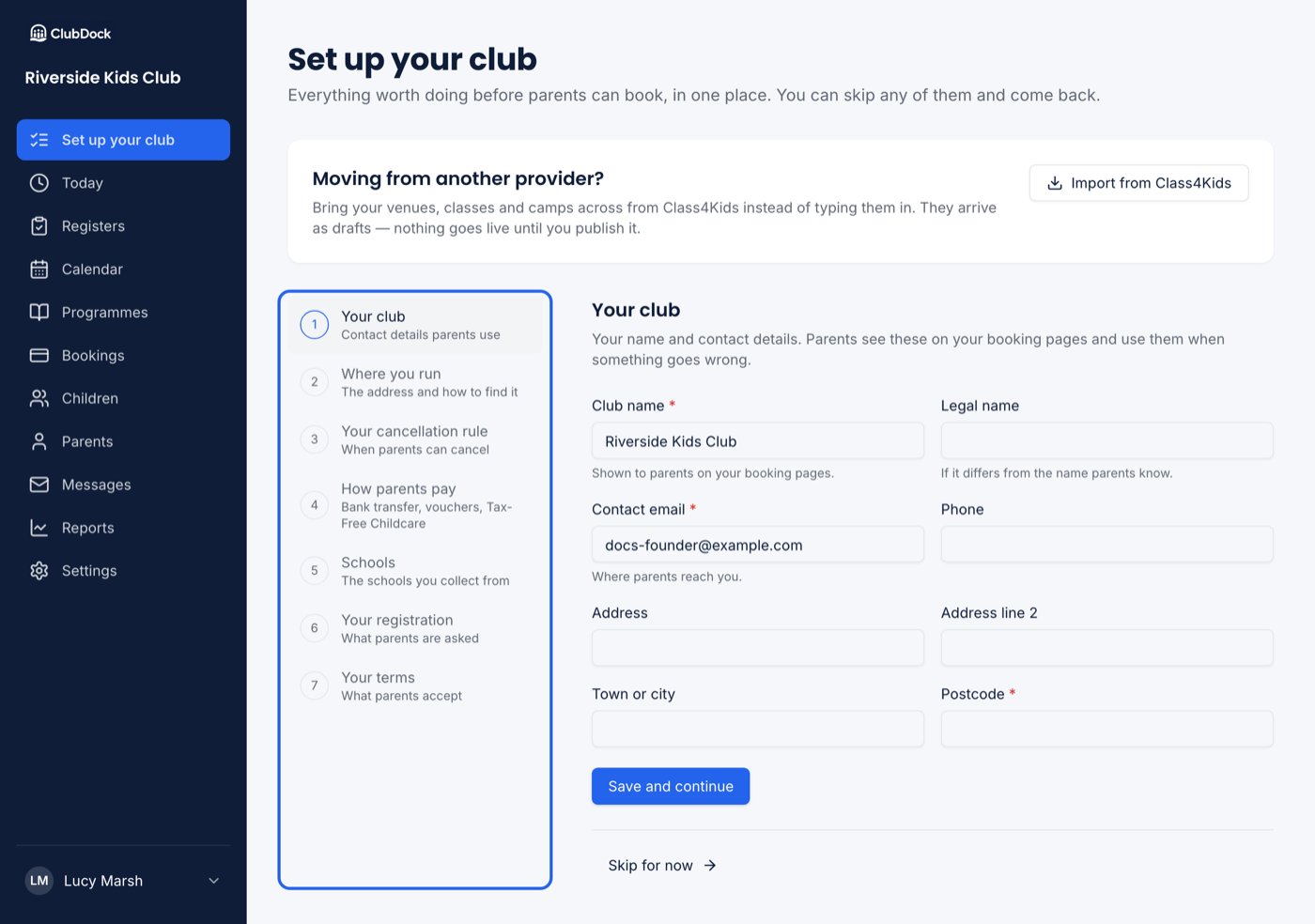
The seven steps
1
Your club
The name and contact details parents see on your booking pages. The contact email starts as the one you signed up with, and you can change it to a shared inbox.Contact email and Postcode are required here, because they go on invoices with your name. Press Save and continue.
2
Where you run
We created a venue named after your club when you signed up. Give it an address. Press Same as your club’s address if you run where you are based.Use Getting here to say how to find the door, where to wait and where to park. Parents see it when they book, and it’s where a first session usually goes wrong. You need at least one address line, a town, a postcode or some directions to save.
3
Your cancellation rule
How long before a session parents can cancel. As you type, a sentence shows what it means for a real session — “For a session on Wednesday at 15:15, parents can cancel until 15:15 on Tuesday”.This is the one step you need before creating a programme, because every programme names a cancellation rule. See Cancellation policies.
4
How parents pay
The ways you take money: bank transfer, childcare vouchers, card and Tax-Free Childcare. Parents choose between them when they book. The button opens Settings → Payment methods. See Payment methods.
5
Schools
The schools you collect children from. If you collect from none — a holiday camp or a Saturday class — press We don’t collect from schools. Undo reverses that. See Schools.
6
Your registration
What parents are asked when they register, about themselves and about each child, read back for you to check. Press These look right, or Change what you ask to edit them. See Registration questions.
7
Your terms
The terms parents accept when they register. ClubDock can write you a starting point from the settings you have already chosen, which you then edit and publish. That’s why this step comes last. See Terms and conditions.
Skipping and coming back
- Skip for now leaves a step unticked and opens the next one. Nothing is saved by skipping.
- When a step sends you to a Settings page, Back to setting up at the top brings you back, and the step has ticked if you finished it.
- If a required box is empty when you press Save and continue, it turns red with what to enter, and the cursor goes to it.
When setup is done
Once you have a programme on sale, Today shows the day’s sessions instead of the setup steps, and Set up your club leaves the menu. Next, create your first programme and add your team.If your club becomes read-only because a ClubDock bill is overdue, the setup steps are replaced by an explanation and Go to billing. See Your ClubDock subscription.