

Only a Manager can see or change discounts and promo codes. They’re money, so Settings doesn’t offer the page to staff.
Programme discounts
Go to Settings → Discounts and codes. Under Programme discounts, every programme that hasn’t finished is listed with its dates and its discounts, such as “10% off 5 or more sessions · 10% off a second child”, or “None”. Programmes not yet published are listed too, marked Not on sale, so you can set up a camp before it goes on sale.1
Press Edit beside the programme
A dialog opens: “Discounts on Easter Adventure Camp”.
2
Set discounts for more sessions
Under The more sessions, the less each costs, add up to three steps. Each is a number of Sessions or more and a Percentage off. For example, 10% off 3 or more and 15% off 5 or more.
3
Set a sibling discount
Enter a Sibling discount percentage, or leave it empty for none.
4
Save
The dialog shows what parents will read as you type. The row then says what is set.
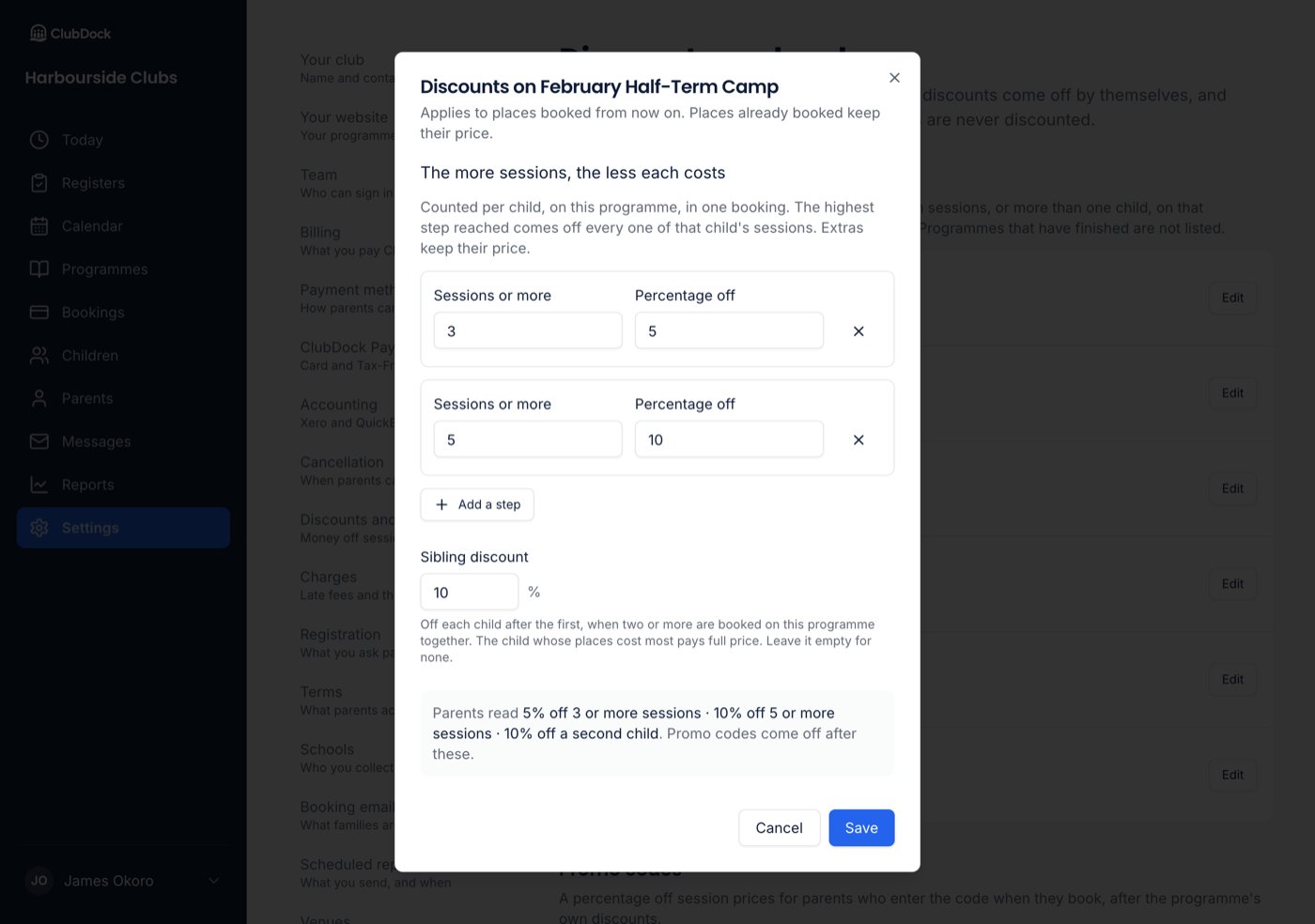
Discounts apply to places booked from now on. Places already booked keep their price.
What parents see
Your club page lists a programme’s discounts on its row, such as “10% off 3 or more sessions” and “10% off a second child”, so parents know before they open it. The programme’s price box shows them too. The confirmation email lists each place with its price and the discount beside it. When staff book for a family, the family’s discounts apply exactly as if the parent had booked. A promo code doesn’t, since codes are entered by parents. The programme’s overview shows its discounts and the codes that work on it, read-only. Change these in Settings → Discounts and codes takes you here.Promo codes
A promo code is a percentage off session prices for parents who enter it when they book. It comes off after the programme’s own discounts.Add a code
Under Promo codes, press Add a code and fill in:- Code: what parents type. 3 to 20 letters, numbers or dashes, such as SUMMER10. It’s stored in capitals.
- Percentage off.
- First day and Last day: optional. Use First day to start a code later.
- Use limit: how many bookings can use it in all. Leave it empty for no limit.
- Once per family: a family can use it on one booking only.
- Programmes: tick the ones it works on. None ticked means every programme, including ones you add later.
What each code’s status means
Switch a code off or delete it
Open the code and switch off Parents can use this code. No new booking can use it, and bookings that already did keep their discount. You can delete a code nobody has used. A code that has been used can’t be deleted: “This code has been used, so it can’t be deleted. Switch it off instead.” You can’t lower a code’s use limit below the number of times it has been used.When a use counts
A use counts when a booking is made with the code. When paying by card or Tax-Free Childcare, it counts when the payment starts, and is given back if the payment doesn’t go through. A cancelled booking keeps its use.A parent who tries more than twenty codes in ten minutes is asked to wait. Codes are worth guessing at.