

Only a Manager can see and set up scheduled reports.
Before you start
- Add each school you want to send to under Settings → Schools, with its office email. A school without one is listed but cannot be chosen. See Schools.
- There is nowhere to type an email address. Reports go only to your schools or to your club’s own address.
Set up a schedule
- Go to Settings → Scheduled reports, or press Scheduled reports on the Reports page.
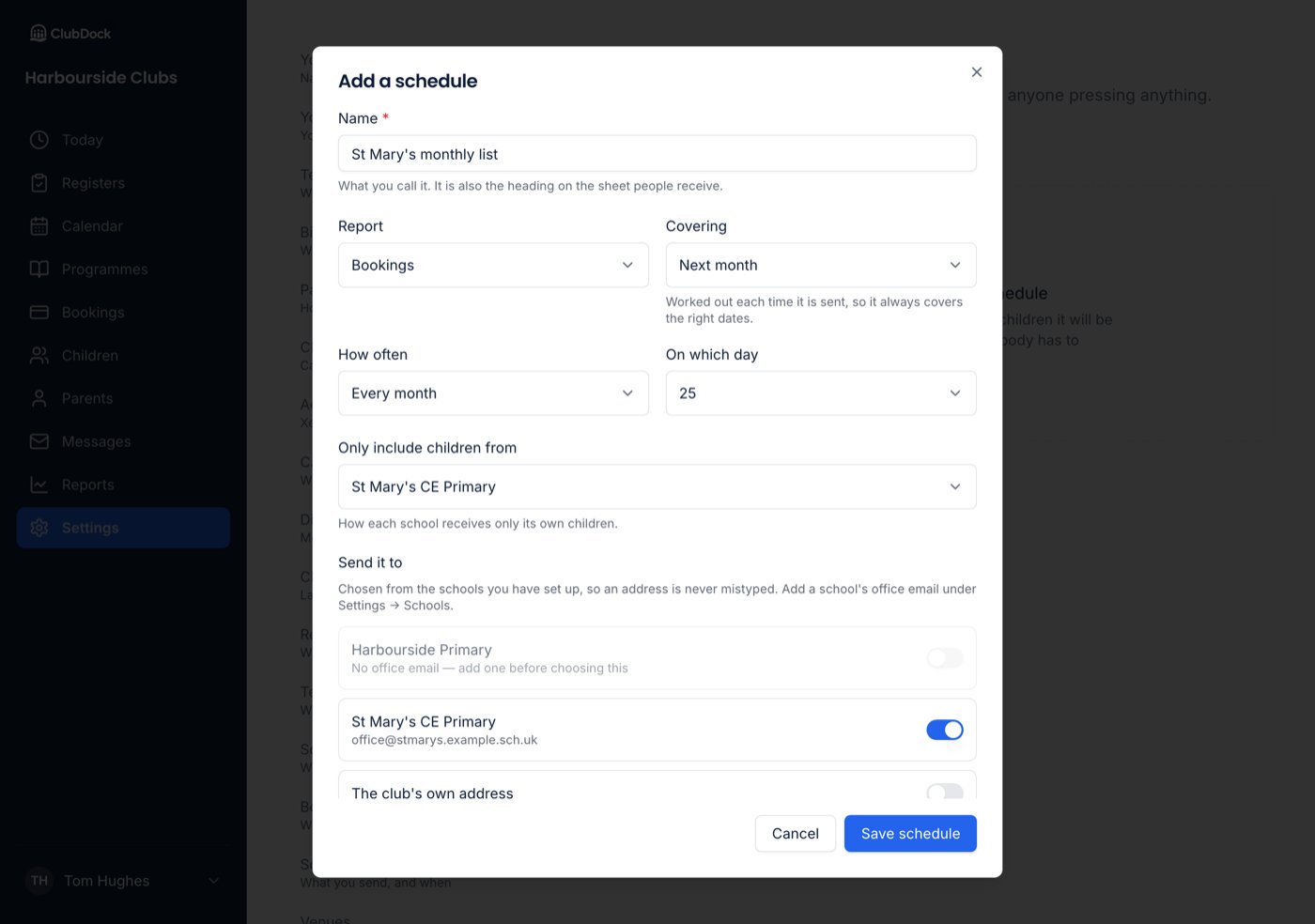
- Press Add a schedule.
- Fill in:
- Name: it is also the heading on the sheet, for example “Oakfield monthly list”.
- Report: Occupancy, Bookings, Attendance, Revenue or Late collections.
- Covering: the period, for example Next month. It is worked out each time it sends, so “next month” set up in September covers October, then November in October.
- How often: Every day, Every week or Every month, and On which day.
- Only include children from: one school, or Every school. Offered for the reports that list children.
- Send it to: one or more schools, and The club’s own address.
- Check What is on it: the columns that will be on the sheet.
- Save.
Things the form will not let you do
- Attendance and late collections can only cover Last week or Last month. They come from the register, which only exists for days that have happened. A blank sheet would read to a school as “nobody came”.
- Occupancy and revenue cannot be limited to one school. Neither has a child on its rows, so the whole club’s figures would be sent.
- Choosing the 29th, 30th or 31st sends on the last day of shorter months. February is not skipped.
Check what you are sending
The form warns you about:- Attendance: absence reasons are written by your staff and can mention a child’s health.
- Late collections: it names children collected late, and by whom.
- Revenue: it shows what the club has taken and what is owed.
Your list of schedules
Each schedule is described in a sentence, for example “Bookings for next month, every month on the 28th.”, with when it was Last sent.- A recipient with no email address is shown in red on the row.
- A run that failed shows Failed with the reason, for example that nobody left on the schedule can receive it.
- Press Edit to change anything. Changing what it covers or how often works out the next run again.
- Turn Send it off to keep a schedule without sending anything. It shows as Paused.
- Remove schedule deletes it.
What the recipient gets
Each recipient gets their own email, so a school never sees another recipient’s address. It has two attachments with the same name: the.pdf to print and the .csv to open in a spreadsheet.
- Bookings: a page per day of who is expected, with their school year and school, the session, the venue and the time. The email says how many children, for which period, and the date the list was produced, because bookings can change afterwards.
- Attendance, occupancy and late collections: a page per day, with the totals and when it was produced.
- Revenue: one table by programme, in pounds.