

Only a Manager can change payment methods.
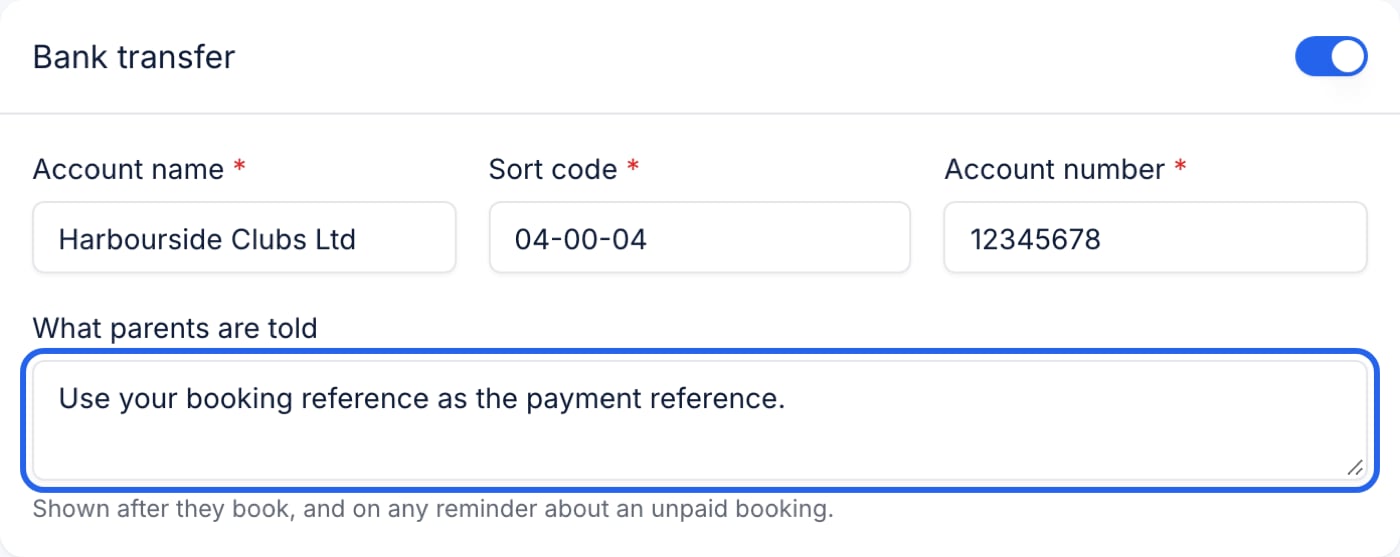
The methods
Switch a method on and it appears at checkout. Whatever you type under What parents are told is shown after they book, in their confirmation email and in any payment reminder.
What each method needs before you can save it
Some methods are refused when you press Save changes if a parent would have nowhere to send the money:- Card cannot be switched on until Stripe can take payments. The switch says why and links to ClubDock Pay. You can always switch it off.
- Bank transfer needs your Account name, Sort code and Account number.
- Tax-Free Childcare needs instructions under What parents are told. For a parent paying from their own childcare account, those instructions are how they find your club.
- Childcare vouchers needs at least one of these: the Providers you are registered with, Your account reference, or your own instructions. Any one of them is enough.
Childcare vouchers
Childcare voucher schemes closed to new families in October 2018, and most parents now use Tax-Free Childcare instead. Only switch vouchers on if families who joined a scheme before then still pay you that way.- Under Providers you are registered with, type each scheme and press Enter. Each one becomes a chip. Pasting “Edenred, Computershare” makes two.
- Under Your account reference, enter what a parent types into their voucher account to find you.
- Press Save changes.
There is no connection to voucher schemes. A voucher payment arrives in your bank like any other, and you record it on the booking as Childcare vouchers.
When payment is due
Under When is payment due?, choose one:- at the time of booking
- within a number of days of booking, then the number of Days
- before the session runs
Payment reminders
Under When to send payment reminders, type a number of days and press Enter. Each one becomes a chip that says what it means, such as “3 days after”, “on the due date” or “the day before”, in the order they will happen.- A positive number is days after the due date. Clubs start with 3, 7 and 14.
- A negative number is days before it. -1 is the day before payment is due, and is often the reminder most likely to get you paid on time.
- 0 is the due date itself.
- Whole numbers only, up to 180 days either way.
Pausing new bookings while a balance is overdue
Switch on Pause new bookings while a balance is overdue to stop a family adding new places while they owe money past its due date. Their existing places are not affected. The pause lifts by itself as soon as they pay. This applies to every family unless you set one family differently on their parent record. See A family’s records.Recording a payment by hand
When bank transfer, voucher, cash or cheque money arrives:- Open the booking from Bookings.
- In its menu, choose Record a payment.
- Enter the Amount, the Date received, How it was paid, and a Reference as it appears on your bank statement.
- Save.
With Xero or QuickBooks connected, Record a payment is not offered. Record the payment in your accounting software and ClubDock reads it back onto the booking. See What reaches your accounts.