

Only a Manager can set up booking emails.
Switch them on for a programme
1
Open the programme's overview
Booking emails says both are Off until you’ve set them up. Press Edit.
2
Switch on the email when booking opens
Choose who gets it: Everyone who can book this, or Families who’ve booked this before. Each shows how many families that is today.
3
Switch on the reminder, if you want one
Choose how many days before booking closes it goes, from 1 to 60, and who gets it.
4
Press Save
One Save saves both emails. Each then says when it goes.
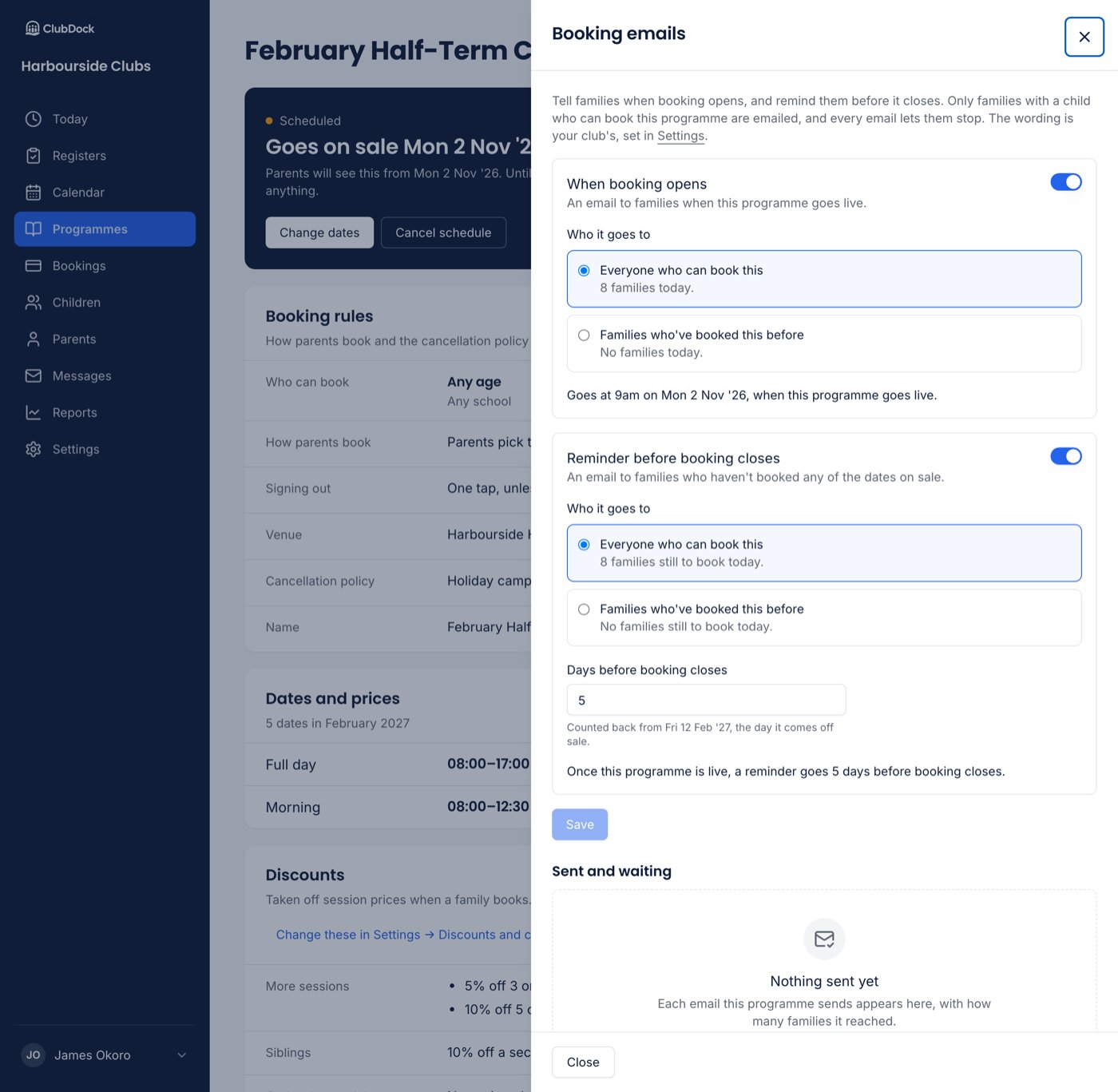
Who gets them
Everyone who can book this means families with a child who fits the programme: the right ages or school years, at a school it’s open to. Families whose children are archived, or waiting for your approval, aren’t included. Families who’ve booked this before means families who have booked this programme, and no one else. A programme you’ve just copied from last year has nobody in this group until someone books it, and the count says “0 families” before you choose it.Families you imported from a spreadsheet aren’t emailed until you’ve pressed Email these families to invite them, or they’ve signed in. The first a family hears of ClubDock should be your invitation. See Importing families.
When booking opens
The email goes at 9am the morning after the programme goes live, and the panel says when. A programme scheduled to go live overnight on 10 October sends it at 9am on the 10th.- Send now sends it within a minute or two instead, and nothing more goes at 9am.
- Unpublishing before 9am cancels it.
- Publishing, unpublishing and publishing again within the hour sends one email, not two.
- Releasing a new set of dates on sale sends a new email, because those dates are new.
- Taking a programme down and putting the same dates back up doesn’t send it again. Press Send again to send it anyway. ClubDock asks first, naming how many families.
The reminder before booking closes
The reminder counts back from the day the programme comes off sale. With a reminder 5 days before and Comes off sale set to Wed 30 Sep, it goes at 9am on Fri 25 Sep, and says “Booking closes on Wed 30 Sep ‘26”. It goes to families with a child who could book a date on sale and holds none. Who is sent it is worked out again on the morning it goes. The panel shows today’s figure, such as “17 families still to book today”. No reminder goes to a family who:- Has a place on any date on sale, whoever booked it.
- Has an unpaid booking. They’re already being reminded to pay.
- Has stopped booking emails from your club.
- The day has already passed.
- It would land on the same morning as the booking-open email. A family is never sent both at once.
Write your club’s wording
Go to Settings → Booking emails. For each email, When booking opens and Reminder before booking closes, write a Subject and Introduction. Every programme uses them. Leave either empty to use ClubDock’s wording, which names the programme.- Press The programme’s name or Your club’s name to put them where you’re typing. They’re filled in for each programme when it sends.
- ClubDock adds each parent’s name, the programme’s real dates on sale, a See dates and book button and a way to stop these emails.
- Send yourself a test sends the wording as it is on screen, even unsaved, marked “[Test]” with a made-up programme and dates. It can only go to someone on your team or to your club’s contact address.
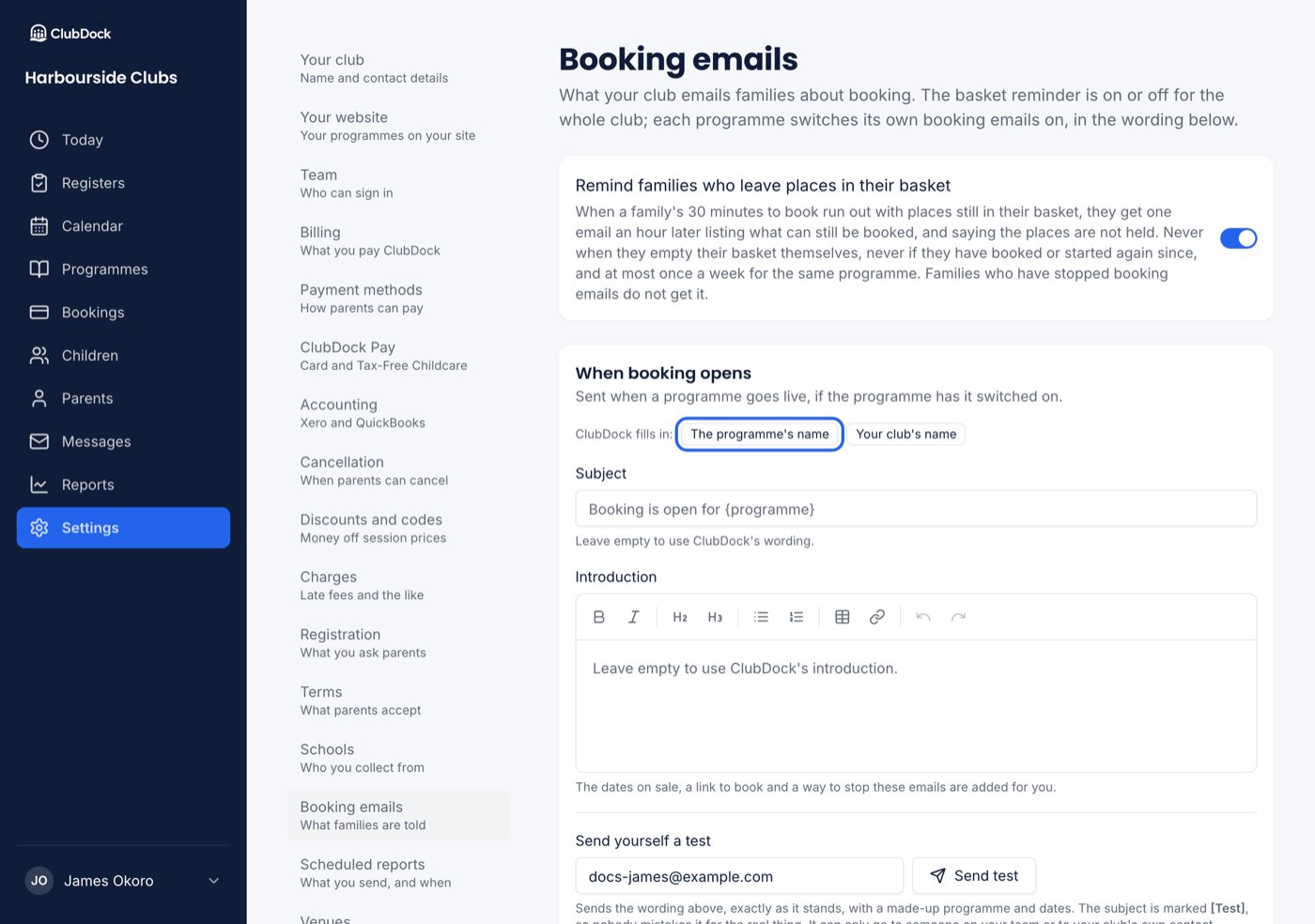
Remind families who leave places in their basket
At the top of Settings → Booking emails is Remind families who leave places in their basket. It’s on to begin with. When a family’s held places lapse, they may get one email about them. The switch saves as soon as you change it.What families receive
The email comes from your club, with your logo, and replies go to your club. Each family gets their own email, so no one sees anyone else’s address. At the foot is why they received it, and Stop booking emails from your club. A parent who confirms is no longer sent booking-open emails, reminders, the email after a trial, or basket reminders from your club. They can switch them back on from their account.Stopping booking emails never stops booking confirmations, cancellations, payment reminders, sign-in codes or messages you send yourself. See Messages.