

A child’s record
Open a child from the register, from a booking, or from the Children list. At the top, a navy header shows the child’s initials and name, the name they go by, their school year and school, and Waiting to be approved or Declined if the club still has to act. Beside it are their parents, each a link to that parent’s record, and Call, which rings the first person on their contacts. Directly under the header, allergies and medical notes appear in a red panel, but only when they say something. A parent’s “None” stays on the record without raising a warning.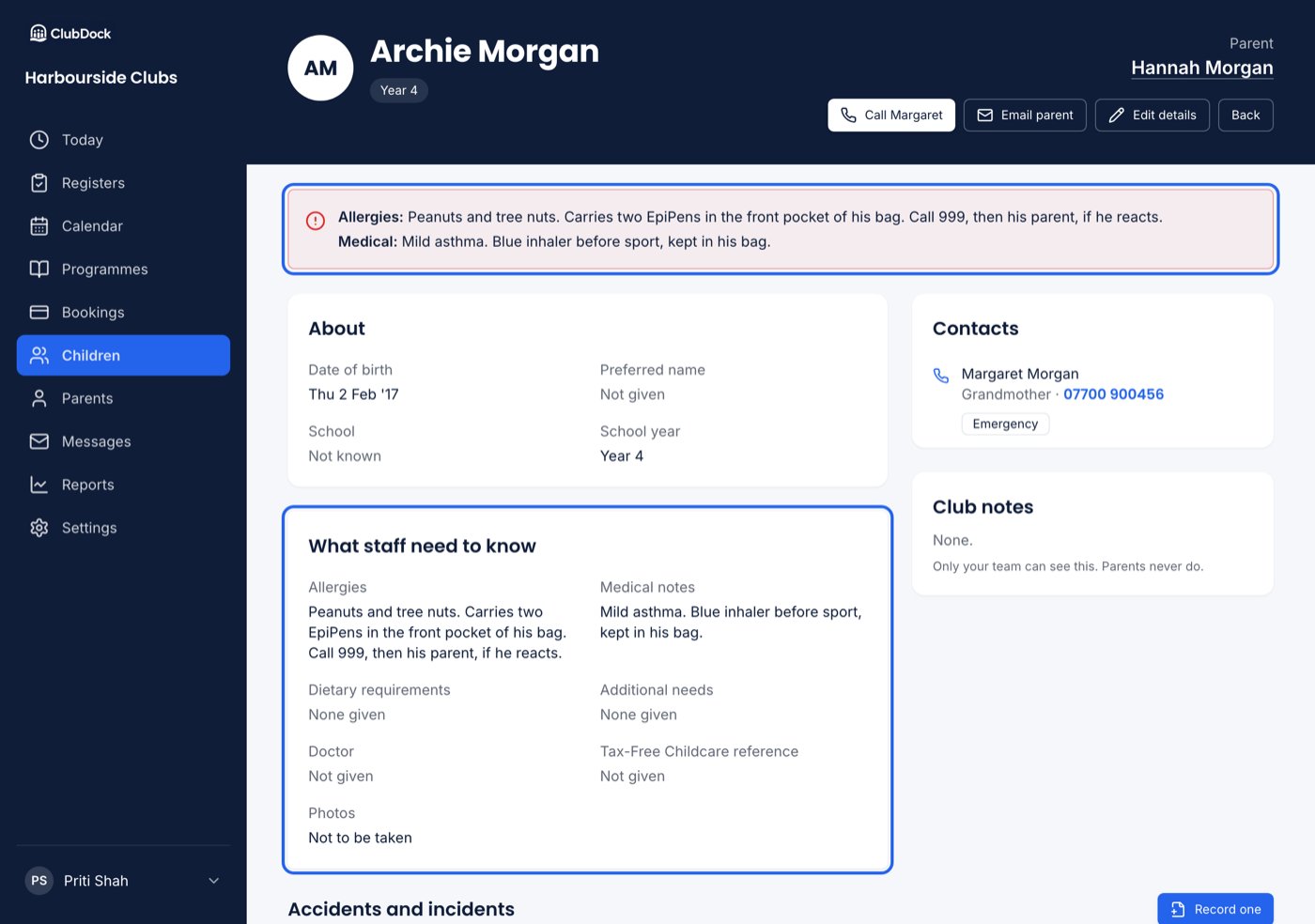
- About — date of birth, preferred name, school and year.
- What staff need to know — allergies, medical notes, dietary requirements, additional needs, doctor, Tax-Free Childcare reference and photo consent.
- Contacts — each phone number is a link, and each contact is marked Emergency or Can collect.
- Club notes — your own notes. Parents never see them.
Collection password
If the parent set one, Collection password — Tap to show appears under What staff need to know. Ask the adult collecting for the word first, then tap to check it. A child without a password shows nothing here.Answers to your questions
Under What staff need to know, Answers to your questions lists each of your own questions with the parent’s answer, or Not answered. Answers to a question you have since removed appear under Questions you no longer ask.Accidents and incidents
Under the record, every accident or incident report about the child, newest first, with Record one. A Manager also sees Download all. See Accidents and incidents.A parent’s record
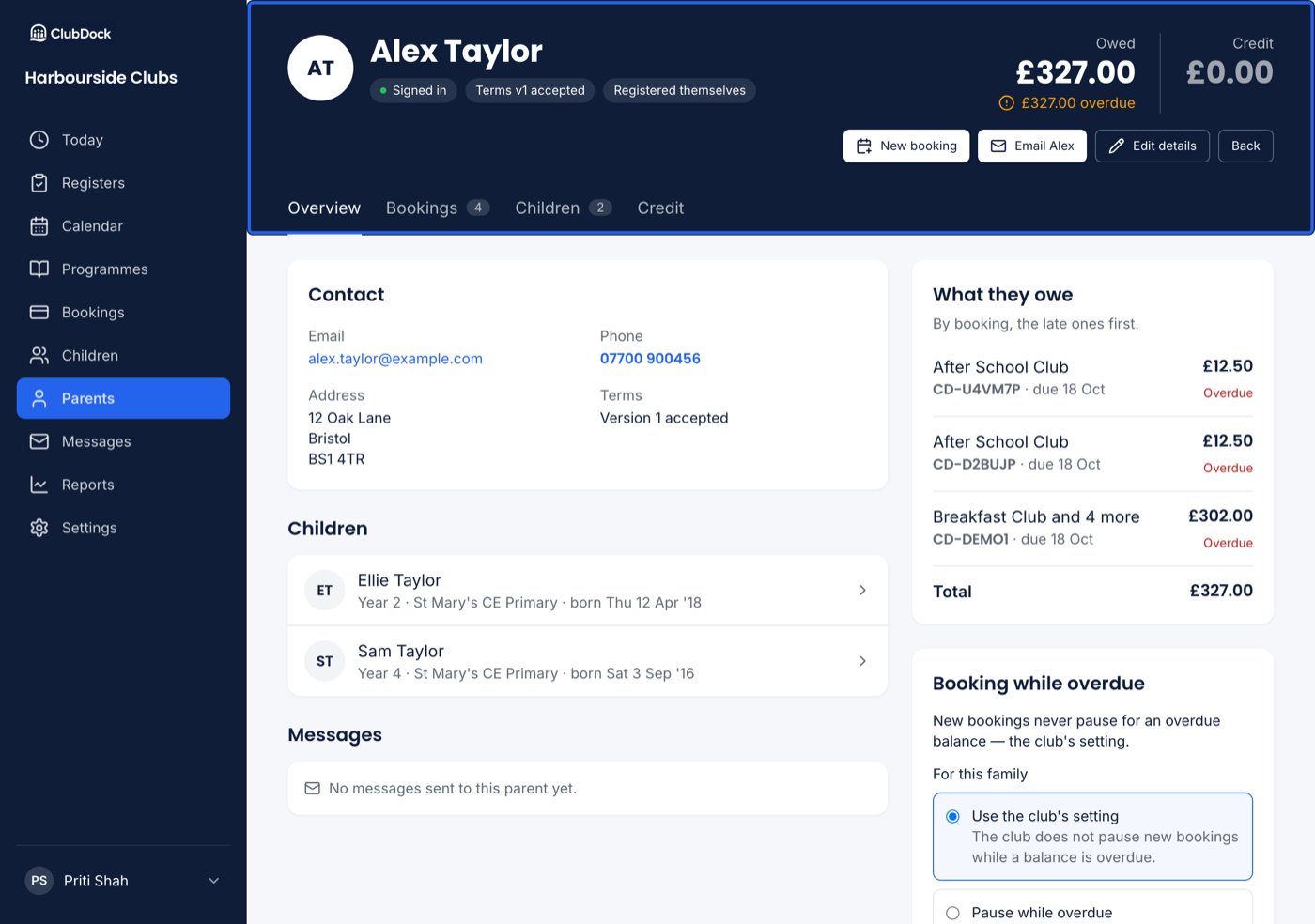
A navy header shows the parent’s name, whether they have signed in (or “Not signed in yet”), which terms they accepted, and how the record came about: added by staff, by an import, or registered themselves. Beside it are what they owe, their credit, and what is overdue. The header carries New booking, Email followed by their name, Edit details and Back.For a Manager, Email followed by the parent’s name writes a message from ClubDock that is kept on the parent’s record. For Staff, it opens your own email app.
The tabs
Along the foot of the header:- Overview — contact details (the email and phone are links), address and terms; their children, each flagged if waiting or declined; What they owe, booking by booking with the late ones first; their credit; and answers to your questions about the parent. Below the children, Messages lists what this parent was sent.
- Bookings — the same booking cards as the bookings list, narrowed by All, Owing, Coming up or Finished.
- Children — the family’s children.
- Credit — credit notes. Credit is spent automatically against the family’s next booking.
Booking while overdue
Under What they owe, one sentence says whether this family’s new bookings pause while they are overdue, and where that rule comes from. If it is stopping them right now, a note says so plainly, for example: “They cannot book at the moment: £42.00 has been overdue since Sun 20 Sep. Their existing places are not affected.” A Manager can choose one of three settings for the family:- Use the club’s setting — follow the switch under Settings → Payment methods.
- Pause while overdue — pause this family even if the club does not.
- Never pause — let this family book while overdue.
Editing a record
- Press Edit details. The record becomes a form.
- Make your changes.
- Press Save to keep them, or Cancel to put the record back as it was.
When staff edit a child, no registration rules run. Staff taking a child on over the phone have already decided. See Rules, warnings and approvals.