Before you start
- Your club records each child’s school and school year. Parents give these when they register, and you set up your list of schools under Settings → Schools. See Schools.
- If your club records neither, nothing on the register changes.
What each row shows
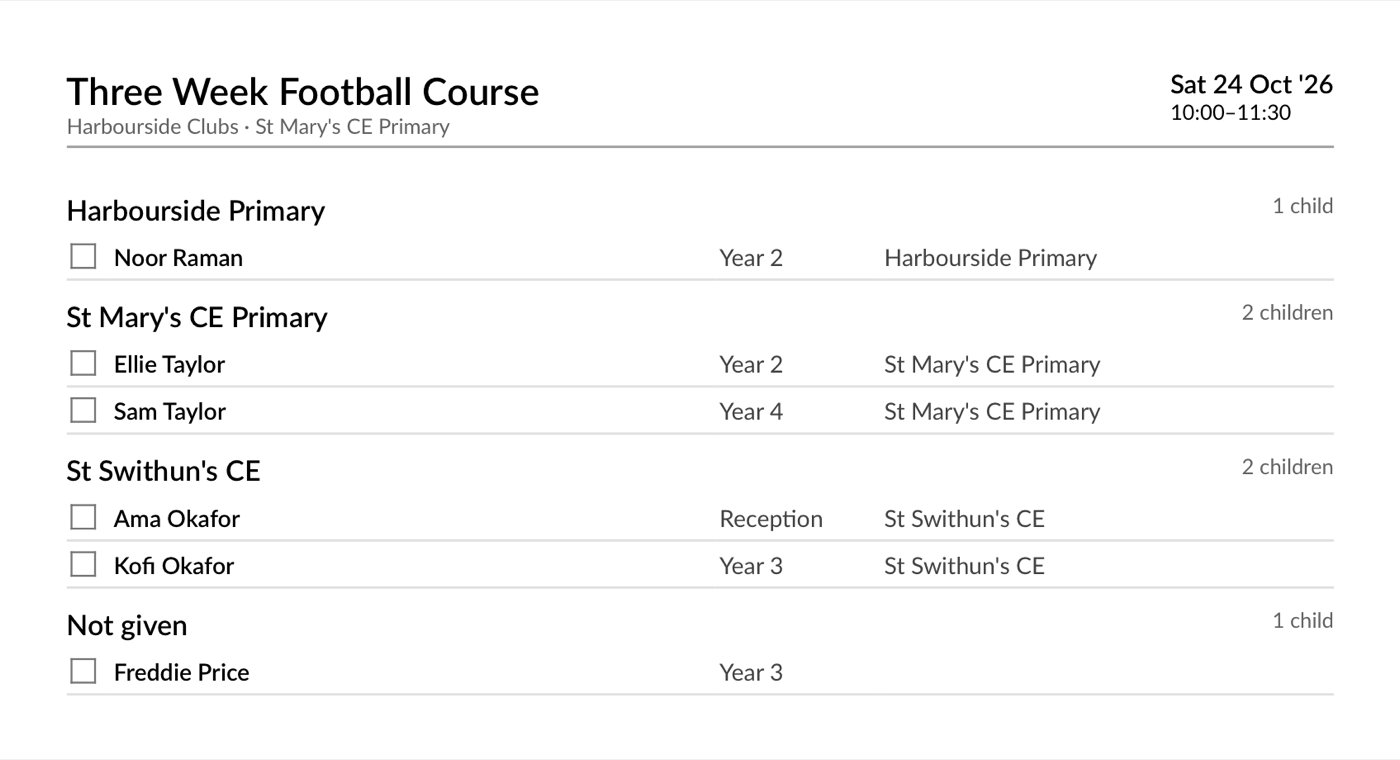
Each child’s row shows their school year and school, muted, under their name, for example “Year 3 · St Mary’s CE Primary”. If a parent typed a school your club has not added, it still shows. The child still goes there, and a list without it would send someone to the wrong gate.Filter by school
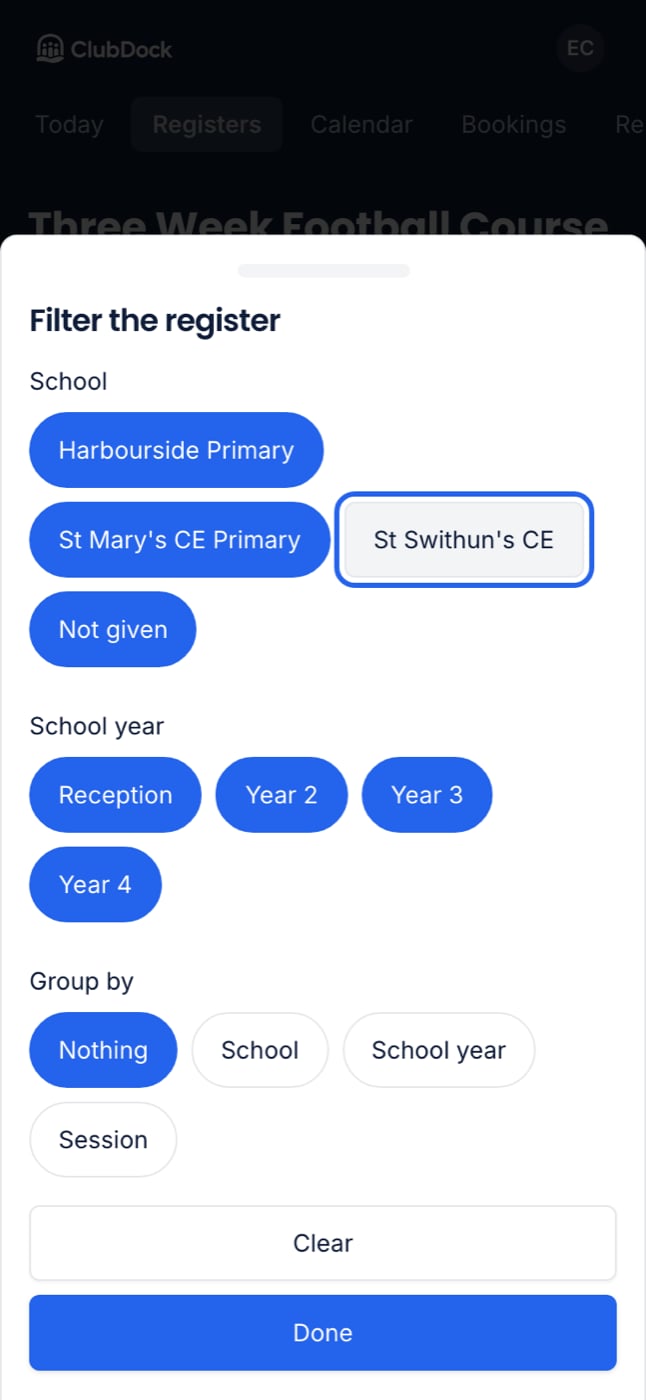
- On the register, press Filter.
- Choose by School, School year or Session. Only values on today’s register are offered, and Session appears only when the register has more than one kind of session.
- Every option starts selected. Turn off the schools you are not walking to.
Group by school or school year
In the same sheet, choose what to group by: School, School year or Session.- By school: a heading per school with its own count. Children whose school nobody recorded are grouped under Not given, always last, so nobody is lost.
- By school year: Nursery, Reception, then Year 1 upwards, in order.
Print a name list for the walk
- Press Print.
- Under Which sheet, choose Name list.
- Check the grouping, which starts the same as the screen.
- Press Print.
list-… so it is not confused with the full register, which does carry medical details.