

Settings → Team lists everyone who can sign in to your club, and what they can do. Adding someone takes a minute. There’s no invitation for them to accept.
Only a Manager can see the team page or change who is on it.

Add someone

1

Open the team

Go to Settings → Team and press Add someone.
2

Enter their details

Their First name, Surname and Email. All three are required, so they appear by name rather than as an email address.
3

Choose what they can do

Staff — run sessions, take registers, see bookings and children.
Manager — everything, including money, programmes and the team.
See Managers and Staff for the full list.
4

Add them

They are on the team straight away and can sign in whenever they like with that email.
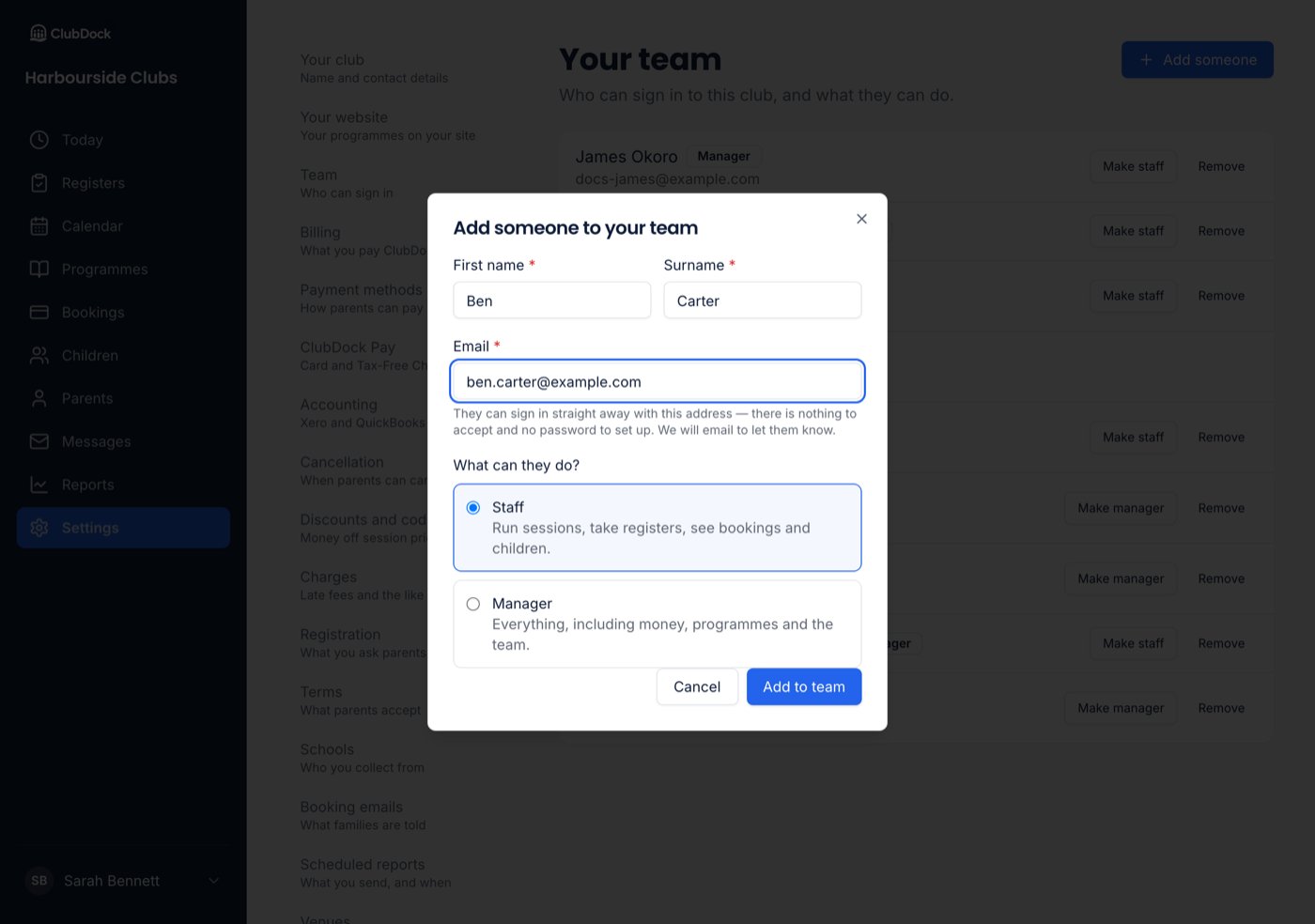
The Add someone to your team dialog, with the Staff and Manager choices
They get an email saying who added them, to which club and as what, with a link to the sign-in page. The email doesn’t grant access itself, so it’s harmless if forwarded and nothing is lost if it goes astray.
  • If they already have a ClubDock account — as a parent at your club, or staff at another club — they join as themselves. Their existing name is kept.
  • If they’re already on the team, you’re told so.

Change someone’s role

Press Make manager or Make staff beside their name. Making someone a manager asks you to confirm first, because managers can see and move money and change the team. The new role takes effect the next time they sign in.

Remove someone

Press Remove beside their name and confirm. They lose access to your club within the hour, the next time ClubDock checks who they are. Anything they recorded — bookings, registers, payments — stays exactly as it is.
A club must always have a manager. You can’t remove or demote the last one, and the reason is shown beneath the team list.