

Only the Manager who created the club can import, as part of setting up, because an import brings in a whole timetable. Other managers can do the rest of setting up. Each club can import once.
What comes across
- Your venues, with their names and addresses.
- Your classes and holiday camps, as draft programmes with their sessions, times, ages and descriptions.
- Your club’s description, email, phone and logo, where those boxes are still empty. Your club’s name and web address are never changed.
- Your terms, as a draft to read and publish, if you have none yet.
Import your timetable
1
Open the import
At the top of the setup page, under Moving from another provider?, press Import from Class4Kids.
2
Paste your Class4Kids address
In Your Class4Kids web address, paste the address parents use to book with you, such as
https://your-club.classforkids.io.3
Choose a cancellation policy
Class4Kids has no cancellation policy we can copy, so choose one you have or create one there and then. Every imported programme uses it.
4
Import
Press Import from Class4Kids. You are told how many programmes and sessions came across, what else was filled in, and a list headed Worth checking.
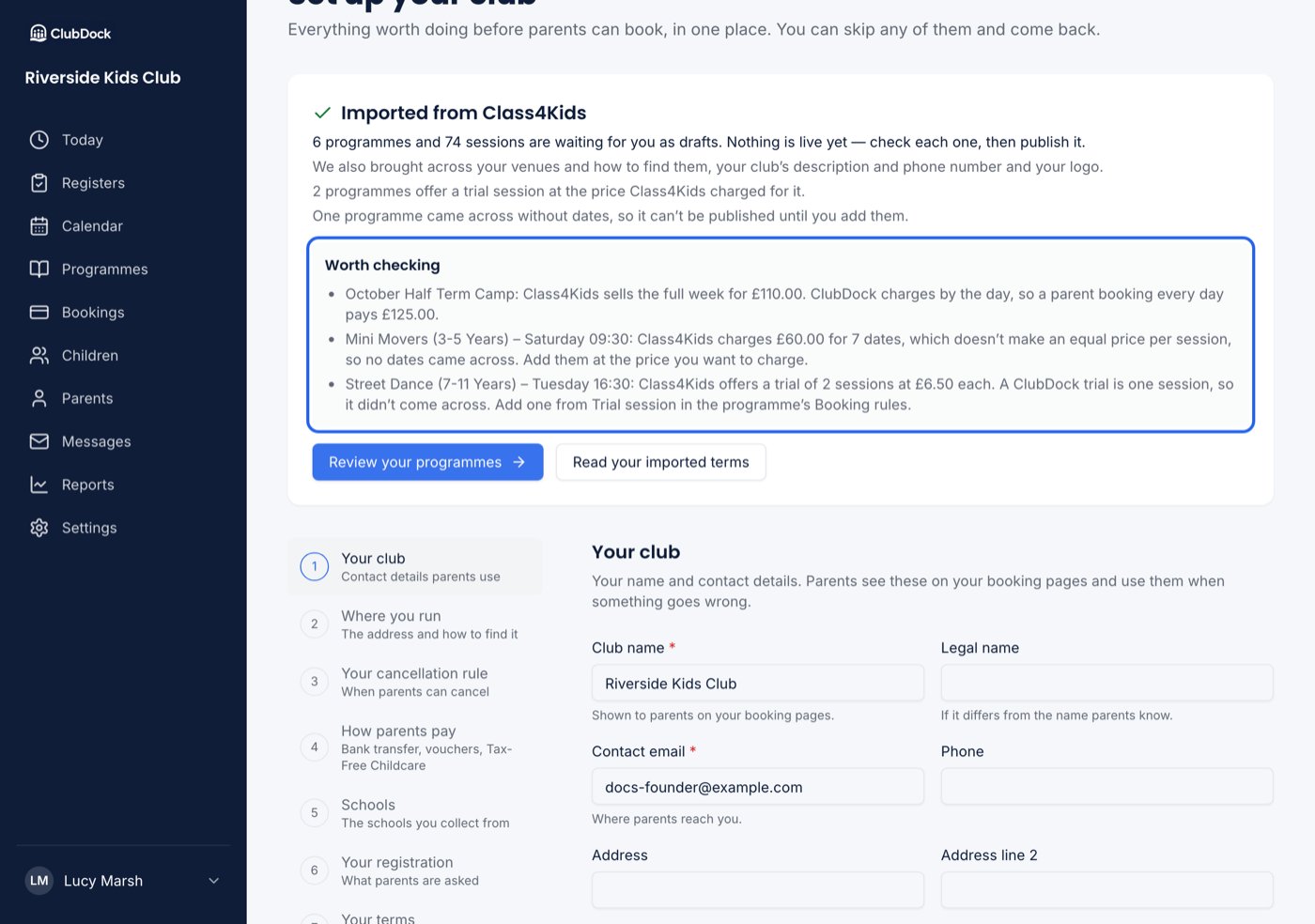
How your classes and camps arrive
ClubDock never picks a price for you. Where a price couldn’t be carried over exactly, the programme waits for you.