

Only a Manager can see and change rules, because a rule can stop a family booking.
The rule every club starts with
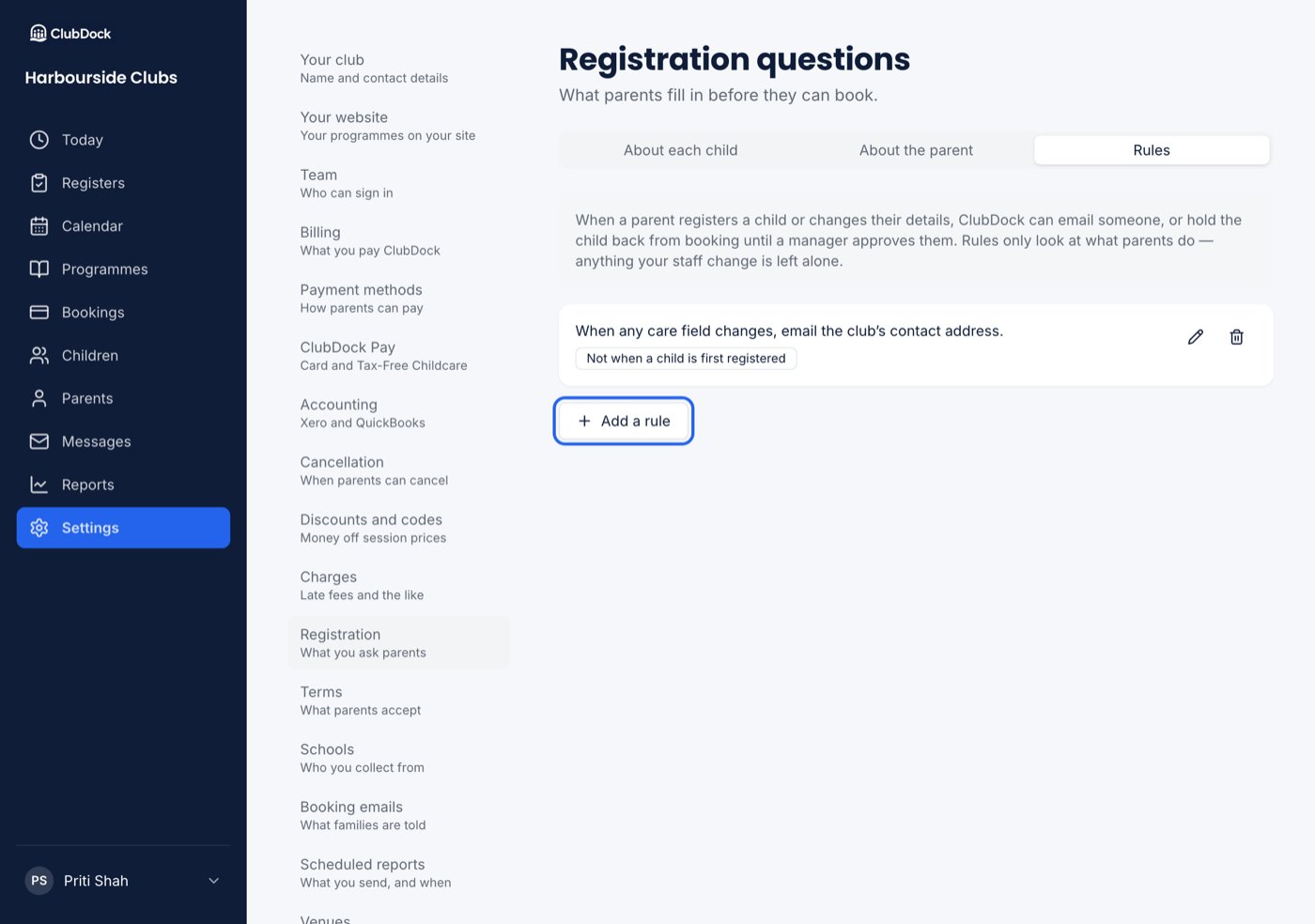
A new club already has one rule: When any care field changes, email the club’s contact address. Care fields are medical notes, allergies, dietary requirements and additional needs. It is not sent when a child is first registered, only when those details change afterwards. Until you set a contact address under your club details, it sends nothing, and the rule says so.Add a rule
- Go to Settings → Registration and open the Rules tab.
- Press Add a rule.
- Pick a field — the child’s or the parent’s, one of the standard fields or one of your own questions.
- Pick what about it: the choices depend on the field (see below).
- Pick what happens: send an email, require approval, or both.
- Save.
Emails can go to the club’s contact address, all managers, or named staff. If you require approval and
your club has no contact address, managers are still emailed.
When rules apply
- Also when first registering is ticked by default, so a child registered with that answer sets off the rule, as does a child whose answer changes to it later. Untick it to act only on later changes.
- A new rule applies from now on. Children already registered are not checked, and the editor says so before you save.
- If you remove a question a rule depends on, the rule stops and is marked “question removed”.
- Rules run only when parents add or change details. When staff add or edit a child, no rules run.
Warnings
A rule that only emails is a warning. The family books as normal and sees nothing different.- A parent who changes several things in one save produces one email per person told, listing every change.
- A change that affects three children, such as an address, produces one email naming all three, with a link to each child’s record.
- An email about a free-text field says which field changed and asks you to look at the record. It never quotes what the parent wrote, so an allergy note does not land in a shared inbox.
- An email about a choice says what it is now, for example “Does your child have a disability? is now Yes”.
Approvals
A rule that requires approval stops the child being booked until a Manager decides.What the parent sees
They are told the club needs to check a few details and will email when it is done. There is nothing for them to fix, so nothing asks them to. They can still finish registering and book their other children.Where you see it
- Managers are emailed, with a link straight to the child: Approve or decline Ellie Mercer.
- On Today, beside what parents owe, a panel names who is waiting and since when, with a link to each. It shows the five who have waited longest, and a count of the rest. Staff who are not managers do not see it.
- On the Children list, the child is marked on their row, and the Approval filter shows just those waiting or declined.
Approve or decline
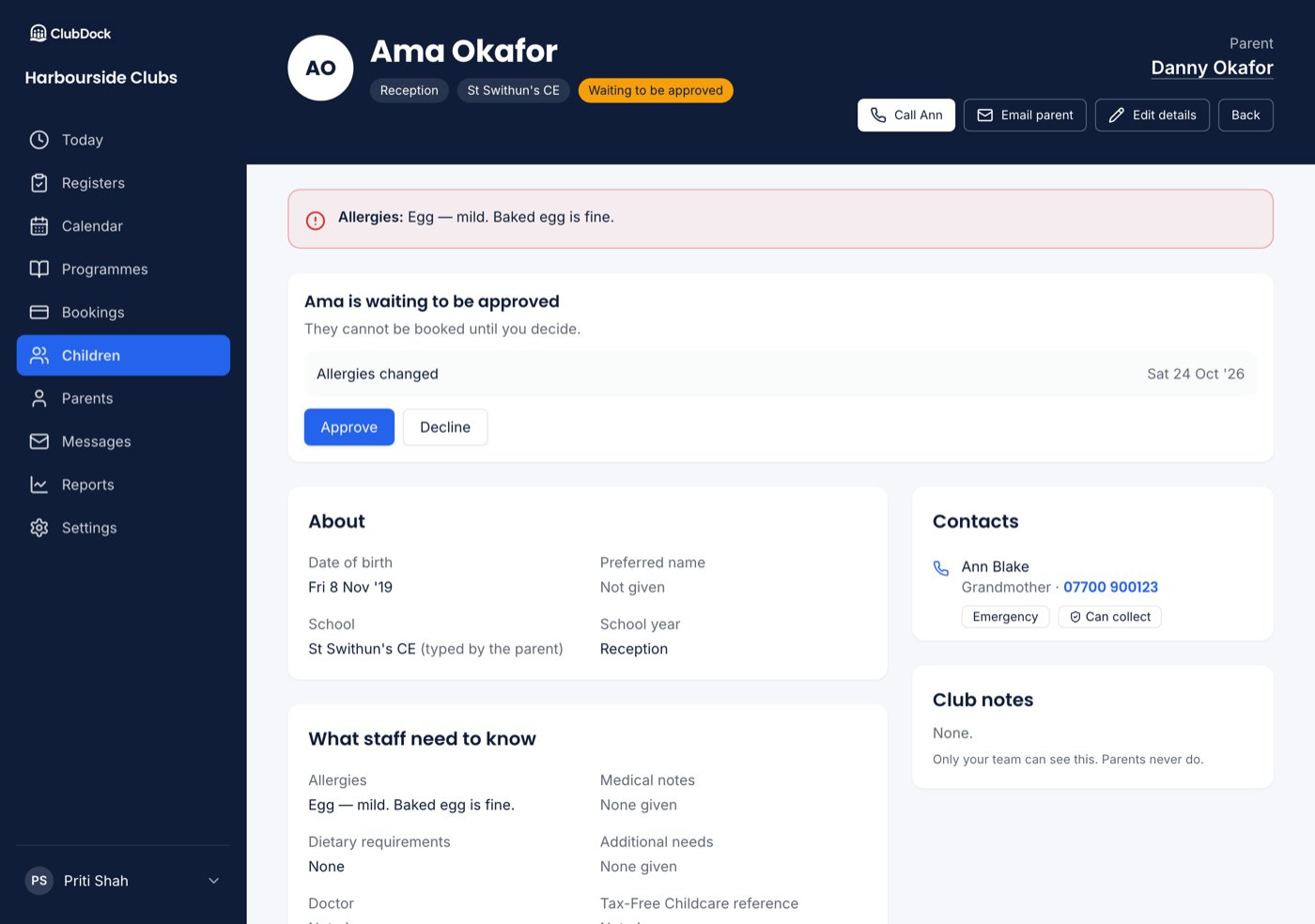
- Open the child’s record. The decision sits at the top, with each rule that fired and when.
- Read the child’s details on the same page.
- Press Approve, or press Decline and say why, in words the parent will read.
- If two rules fired at once, you make one decision for the child.
- Approving emails the parent that the child’s registration is approved and they can book.
- Declining needs a reason. The parent is emailed your reason in your words, and told to contact the club. They are not offered a way to remove the child.
- You can change your mind: a declined child can be approved later, and an approved child declined.
After a decision
- An approved child stays approved when the parent changes an answer, unless a rule fires again.
- A child who said “No” in September and changes to “Yes” in March waits for approval, as if they had said Yes at the start.
- A declined child stays declined, whatever the parent changes.
- A child sent back for approval keeps every place already booked. Only new bookings stop.