

Only a Manager can change a programme’s dates and sessions.
Open the dates page
On the programme’s overview, press Edit dates and prices under Dates and prices, or Add dates if it has none yet. From the Programmes list, the row’s Sessions button opens the same page. Overview beside Back takes you back to the programme. The page has one calendar of dates and a card for each session.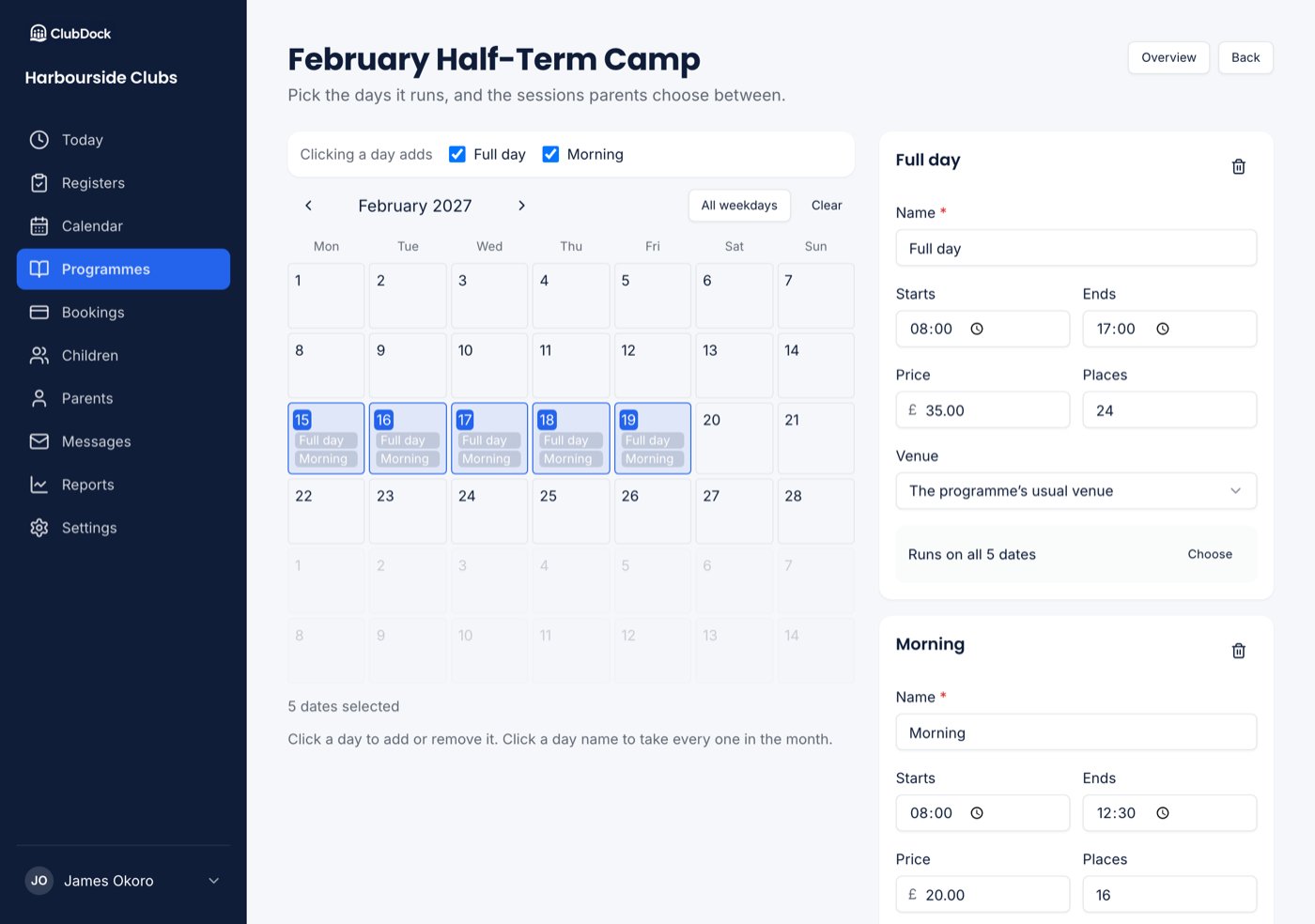
Add a session
Press Add a session (or Add another session). Each session card has:- Name: what parents see, such as “Full day” or “Morning”.
- Starts and Ends: the session’s times.
- Price: what one place costs. See Prices.
- Venue: the programme’s usual venue unless you choose another.
- Extras on this session: tick the extras this session offers.
Choose the dates
Click the days it runs on the calendar. Click a day name to take every one in the month, so every Tuesday is one click. Clicking a selected date again takes it off, so skipping half term is one click.- Moving to the next month keeps what you’ve selected, and the running count stays right.
- The arrow keys move between days, across the end of a week or a month.
- Today is ringed, and days that have passed have grey numbers. You can still pick a past date, for example to take its register.
- Switching to another browser tab and coming back keeps your selection. Nothing is stored until you save.
More than one session on a day
With two or more session cards, the calendar is headed Clicking a day adds, with a tick beside each session. A day you click gets only the ticked sessions. Untick a session to stop it being added. Clicking a date that already has two or more sessions opens a dialog. It names the sessions on that day and offers Remove all sessions, Remove only the ticked ones, or Add a ticked session the day lacks.A session on only some dates
The last day of term might have a short afternoon, or a longer day at a higher price. Each card says which dates it runs on, such as “Runs on 17 of 18 dates”. Open it to see a row of the programme’s dates and tap one off. None takes them all off, so you can then tap the one date you want. Reset puts it back on every date.Set how many places
Under Places, choose one of:- Each session has its own limit: a morning and an afternoon each have their own places.
- One limit across all sessions: places are shared. With 50 places, 25 booked mornings leave 25 full days, and the afternoons stay open.
A lower limit on one date
For a half day with fewer staff, press A different limit on some dates, then Add a date with its own limit. Choose the date and give it a number. That date shows its own limit on the calendar. Clear it to go back to the card’s number.A different limit on some dates only works when each session has its own limit, not when places are shared across sessions. You can’t set a date’s limit below the places already booked on it.