

Only a Manager can change the questions or the rules. Staff can read what is asked, but change nothing.
What is always asked
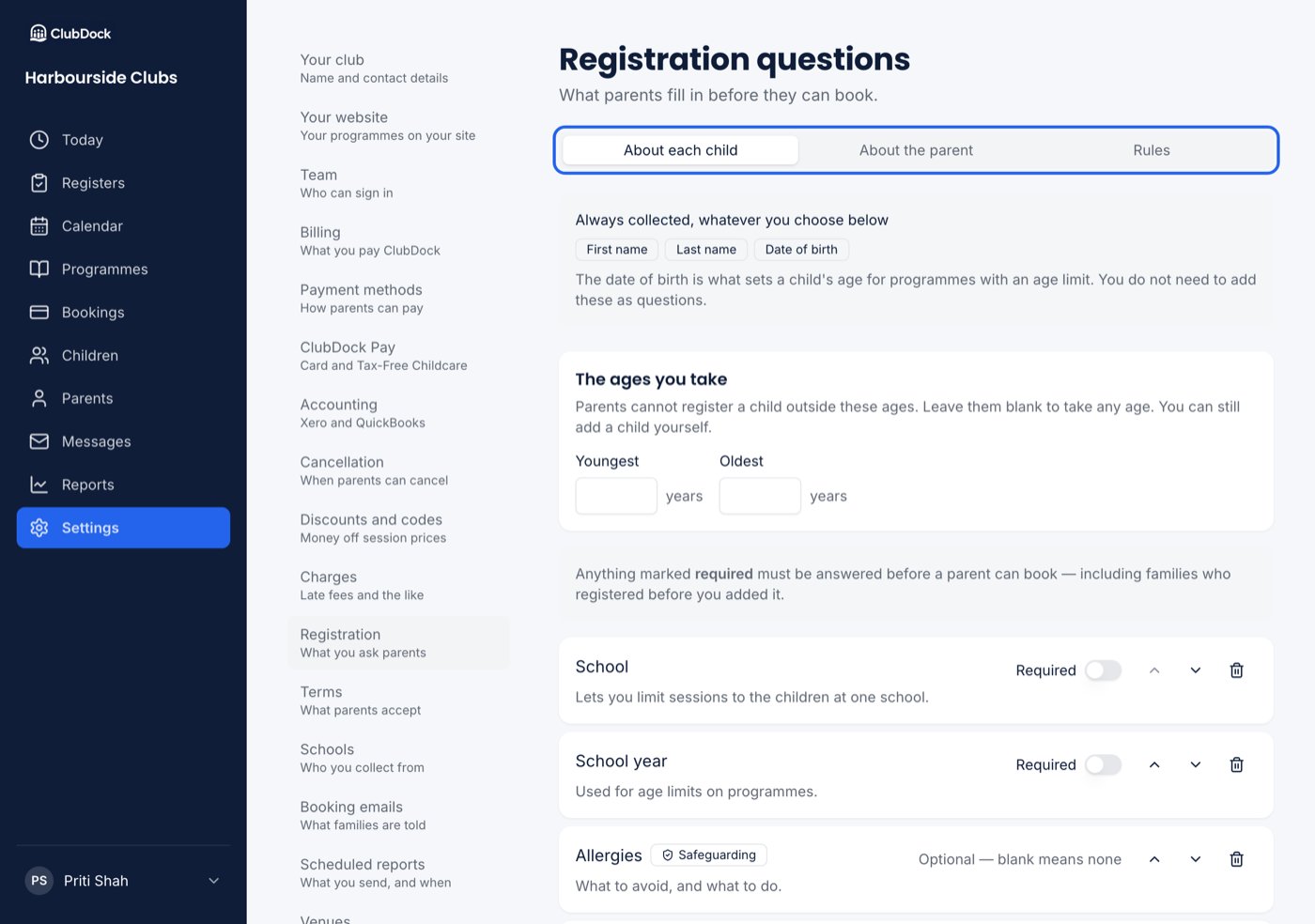
Some details are collected whatever you choose, and cannot be switched off:- About the parent: first name, last name and email address. The email is how they sign in.
- About each child: first name, last name and date of birth. The date of birth sets the child’s age for programmes with an age limit.
The two tabs
The page has a tab for each form a parent fills in:- About each child — asked once for every child.
- About the parent — asked once for the parent’s own account.
- Rules — what happens when an answer changes. See Rules, warnings and approvals.
Where a new club starts
A new club’s About each child form starts with:- School year.
- Allergies, dietary requirements and medical notes, with the care confirmation beneath them.
- Emergency contacts, with three required.
- Photo permission.
The ages you take
The ages you take sits at the top of About each child: the youngest and oldest age, in whole years. Leave it blank to take any age.- A parent who enters a date of birth outside your range is refused on that field, and told the ages you take. They can carry on registering their other children.
- A child who has a birthday and moves outside the range keeps their place and their bookings. The range decides who may be added, not who must leave.
- Staff can still add a child outside the range. Staff know when they are making an exception.
Fields ClubDock understands, and your own questions
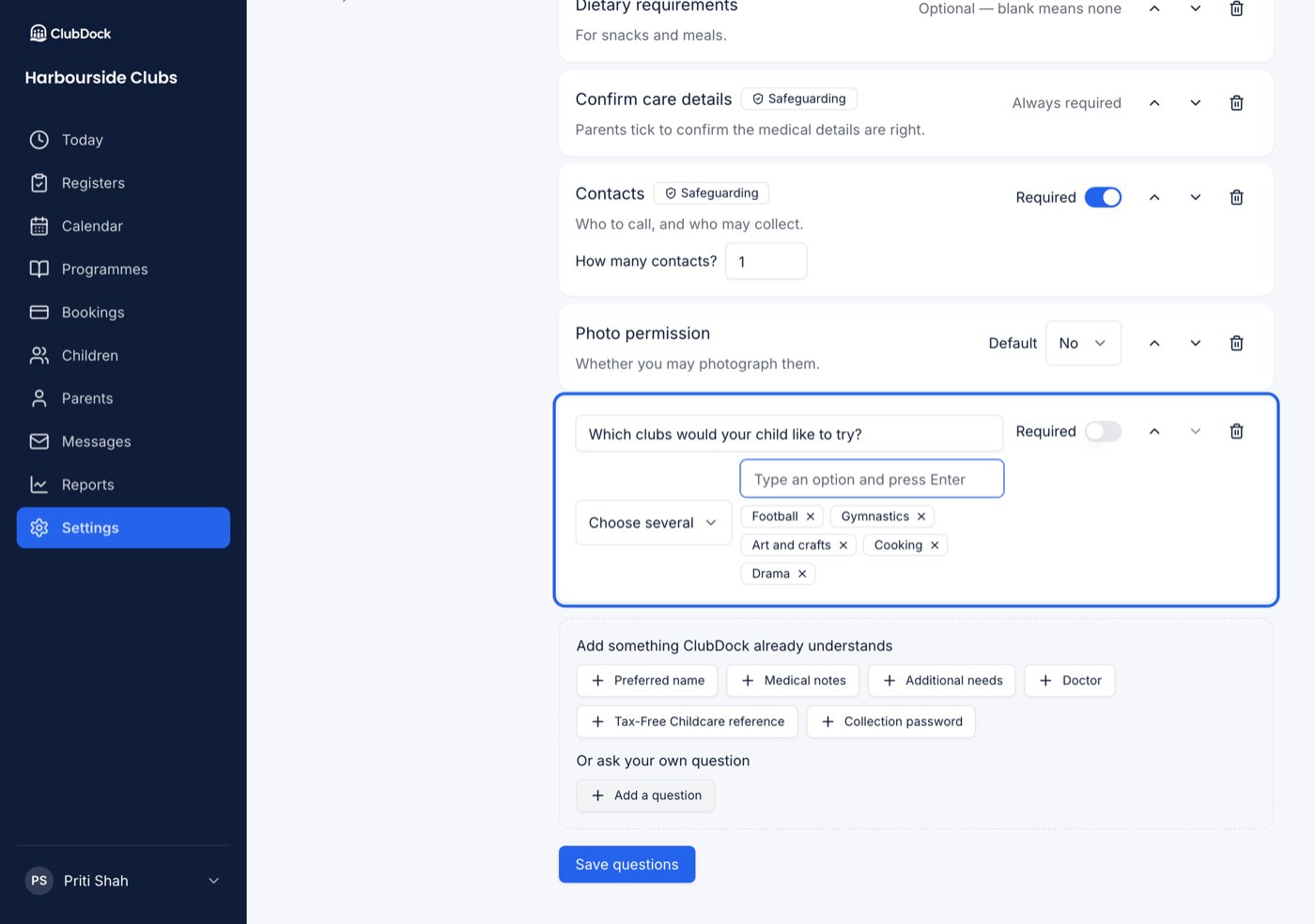
When you add something, you choose between two kinds:- Add something ClubDock already understands — allergies, medical notes, dietary requirements, additional needs, doctor, school, contacts, photo permission, collection password and so on. These can be filtered on the Children list, shown on the register and used for age limits.
- Or ask your own question — anything else, such as “May we give Calpol?” or “How did you hear about us?”.
Care details
Medical notes, allergies, dietary requirements and additional needs read Optional — blank means none. They have no Required switch: an empty box is a real answer, and requiring one only makes parents type “none”. The care confirmation reads Always required. Parents tick “I have checked the medical, allergy and dietary details above. Where a box is empty, my child has none.” That tick is what makes a blank box mean “none” rather than “not answered yet”. If you remove it while asking about care, it comes back when you save.Emergency contacts
You set how many contacts each child needs. The form opens with that many laid out, the first marked to call in an emergency. You cannot set it to zero. Each contact needs a first name, last name and relationship. A phone number is needed only for someone you would ring in an emergency, so a friend’s parent who only collects on Wednesdays needs no number.Collection password
Collection password arrives optional and is marked Safeguarding. It is a word the adult collecting a child gives staff. Staff see it at the door only when they tap to show it, and it is never printed or exported. No new club has it to start with; add it if you check passwords at the door.Your own questions
Pick a type for each question: short text, long text, yes or no, agreement, choose one or choose several.- Yes or no and Agreement questions are a switch. Instead of Required, you choose the Default — No or Yes. A parent who leaves it alone has answered with that default. Photo permission works the same way.
- Agreement asks the parent to agree to something, such as sun cream. Required means they must answer, not that they must agree.
- Choose one and Choose several need their choices. Type each one and press Enter; each appears as a chip. A choice you typed but did not press Enter on is still kept when you save.
Where the answers appear
- On each child’s record under Answers to your questions, and on a parent’s Overview for questions about the parent.
- As filters and columns on the Children list and the Parents list.
Related
Rules, warnings and approvals
Be told when an answer changes, or approve a child before they book.
Terms and conditions
The terms every parent accepts before booking.