

See what you are owed
On Today, the Owed to you panel shows:- the total still owed across every booking with money left on it, unpaid or part paid
- how many bookings that is across
- how much of it is past its due date
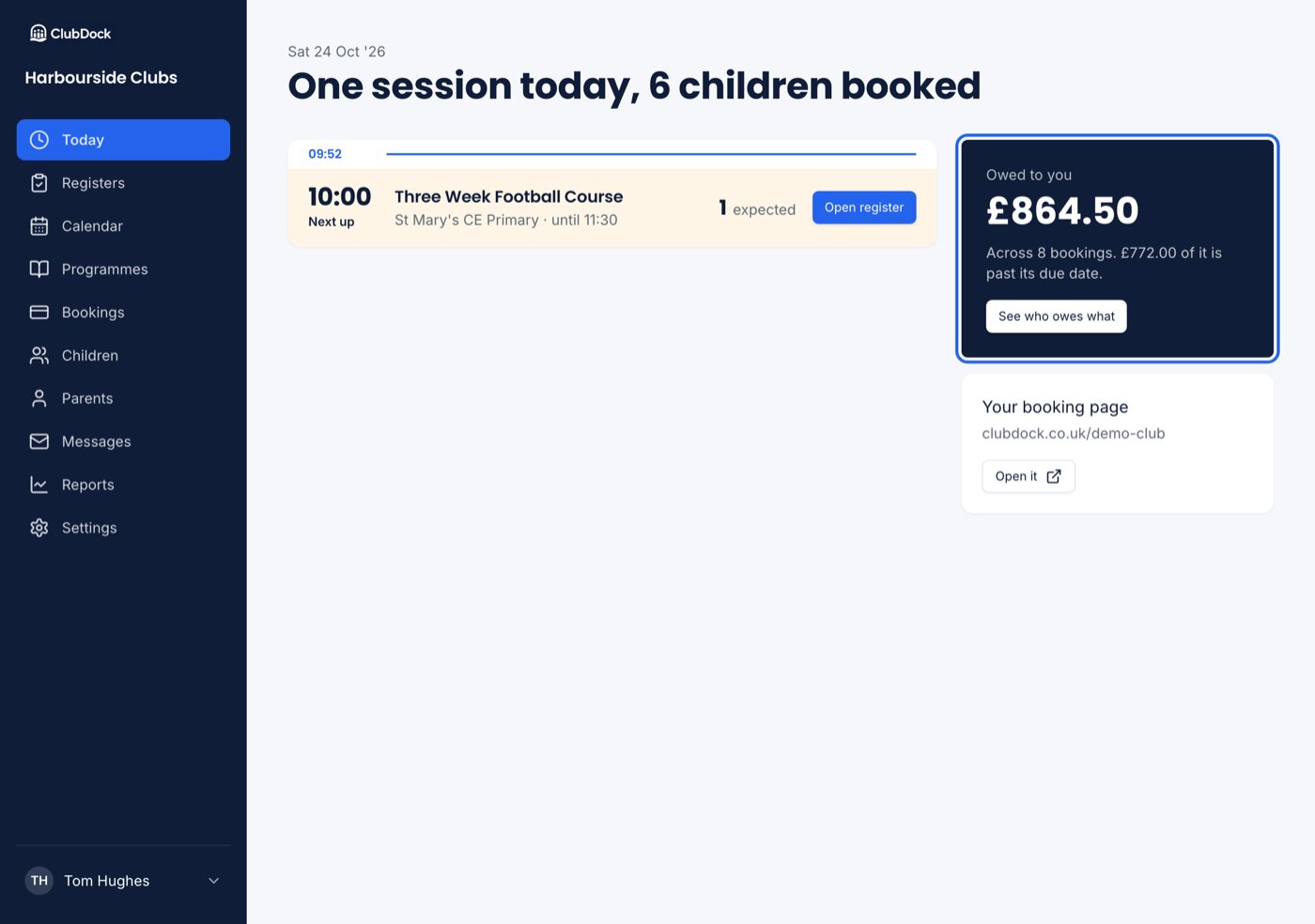
Find who owes what
In Bookings, filter the list by payment status: Unpaid, Part paid or Paid, or narrow it to Overdue. Overdue means past its due date by your club’s own date, never by any other time zone. In Parents, the Owe money and Overdue tiles show how much is owed and overdue across all your families. Press a tile to narrow the list to them. See The Parents list. Each booking in the list says where its reminders stand: “Reminded Wed 23 Sep · next Fri 2 Oct”, or “Reminder next Fri 2 Oct” if none has gone yet. A booking that is paid or cancelled shows neither.Automatic reminders
ClubDock emails the parent on the days you set under Settings → Payment methods → When to send payment reminders. Clubs start with 3, 7 and 14 days after the due date. See Payment reminders. Each reminder comes from your club and says:- the booking, what is outstanding and when it was due, for example “It was due on Mon 21 Sep ‘26, 7 days ago”
- that new bookings are paused until it is paid, but only where they pause for this family
- See what you owe and how to pay, a link to their bookings with your payment instructions open
Send a reminder now
1
Open the booking
Find it in Bookings and open its menu.
2
Choose Send a payment reminder
This is offered only where money is outstanding.
3
Confirm
The confirmation names the parent and the amount, and when the last reminder went, so you do not chase the same family twice in a morning by accident. Press Send reminder.
- The bill is not due yet. You can still send one. It says when payment is due.
- The booking has no due date. You can still send one. It names the amount and says nothing about dates.
- The parent has no email address. It is refused, naming the parent. Add an address to their record first.
Pausing new bookings while overdue
With Pause new bookings while a balance is overdue switched on in Settings → Payment methods, a family with an overdue balance cannot add new places. They are told how much is overdue and how to pay, and that their existing places are not affected. The pause lifts by itself the moment they pay. You can set one family differently on their parent record, under Booking while overdue:- Use the club’s setting
- Pause while overdue, even if the club does not pause
- Never pause, even if the club does. Reminders still go to them