

Occupancy
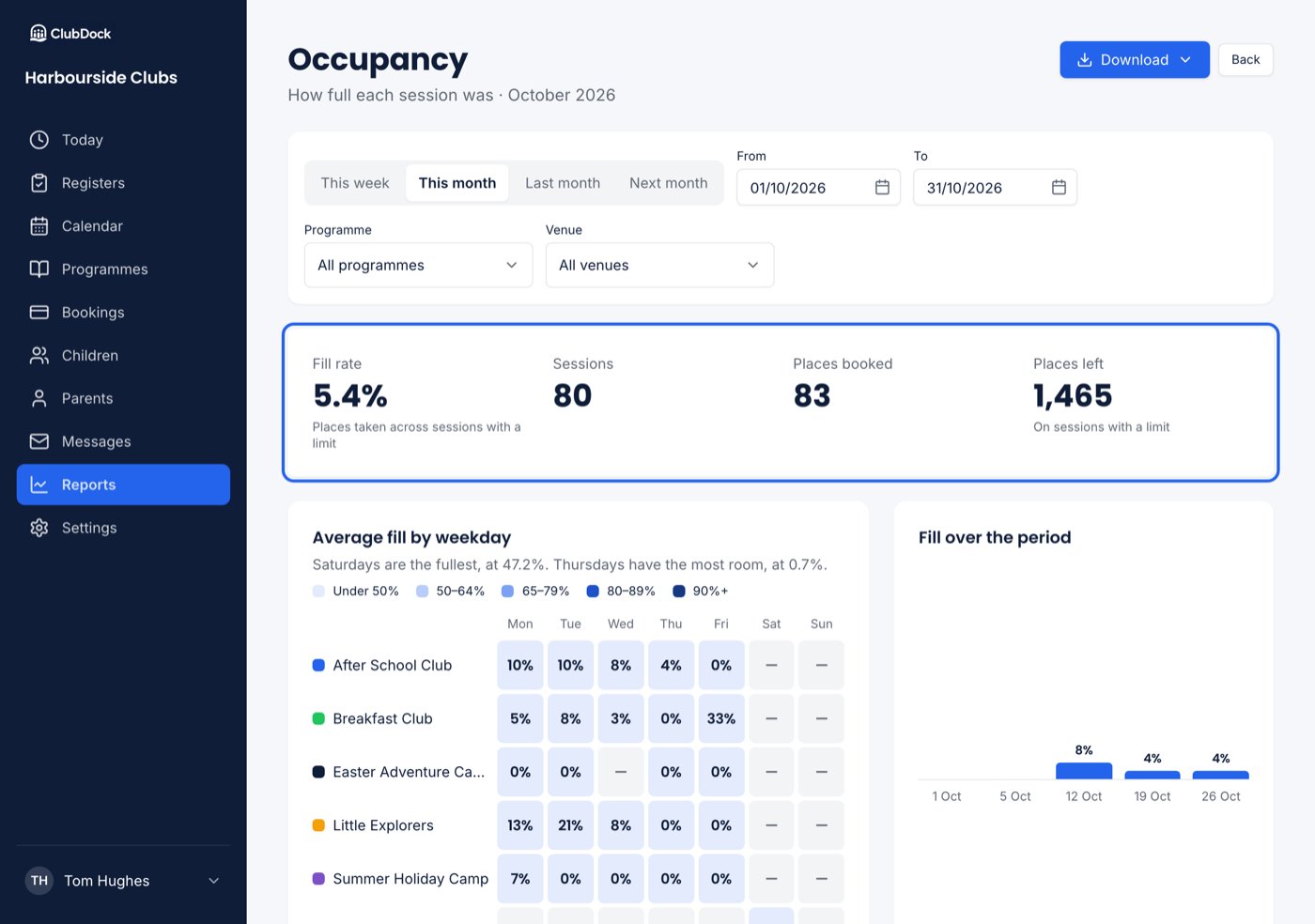
How full each session was.- Headline figures: fill rate, sessions, places booked and places left.
- Grid: each programme by weekday, shaded by how full it runs, with the figure in every cell.
- Fill over the period, and the five fullest and five emptiest sessions, named by programme and session. A holiday camp’s Morning and Afternoon are different sessions.
- Across several sessions it is weighted by size. 30 of 60 places plus 10 of 10 is 57%, not 75%.
- A session with no limit set shows what is booked and no fill rate.
- A programme with one limit shared across overlapping sessions, such as a holiday camp, is measured as one room. It shows the programme’s limit and how many children are in the building during that session’s hours.
- Places left never shows below zero.
Bookings
Who is booked onto what.- Headline figures: children, places, and places per child.
- Charts: places over the period by programme, children in each year group (youngest first), and children from each school. These count children, not places.
Attendance
Who came, from the registers your staff took.- Headline figures: attendance rate, came, absent, and children who came at least once.
- Charts: came against absent, the same over the period, and why children were absent. An absence with no reason is counted as “No reason given”.
Late collections
Children collected after their agreed time.- Headline figures: minutes late, late collections, children, and the longest single collection.
- Charts: minutes late by weekday, and the children collected late most often, with how many times.
Add a late collection charge
Only a Manager can add a charge. Staff see the rows without the charge column.
Revenue
Only a Manager can see revenue. Staff who open its address are told “Revenue is for managers”.
- Headline figures: booked, paid, outstanding and bookings.
- For each programme: a bar of paid against outstanding. Outstanding is hatched, so the two can be told apart printed in black and white.
- Charges, by item: if any charges fall in the period, each item with its bookings, charged, paid and outstanding. A charge is counted on the day it was charged. Booked says how much of it is charges, for example “Including £15.00 of charges”. Removed charges are not counted.
Filter a report
- Programme and venue narrow every report. The venue filter appears only if your club has more than one venue.
- School and year group narrow bookings, attendance and late collections to those children. Occupancy and revenue do not offer them, because a session and its money belong to no one school. A school filter is dropped when you move to one of those reports.
How the charts split time
- A fortnight or less is drawn a day at a time, showing only days with something on.
- Up to about four months is drawn in weeks, from Monday.
- Anything longer is drawn in months.
Download a report
Press Download and choose:- Spreadsheet (CSV): every column, to sort and total.
- Printable sheet (PDF): the same sheet a scheduled report sends, named for the report and its dates, for example
occupancy-2026-09-01-to-2026-09-30.pdf.