

Only a Manager can import families.
Before you start
Your file needs to be:- A .csv or .xlsx file. Save a PDF, an older .xls or an .ods file as .xlsx or .csv first.
- Up to 5 MB and 2,000 rows.
- One row per child, with the parents on the same row.
- With column names in the first row.
Bring the families across
1
Choose the file
Go to Parents and press Import families, then choose your file. If the workbook has several sheets, pick the right one from Sheet.
2
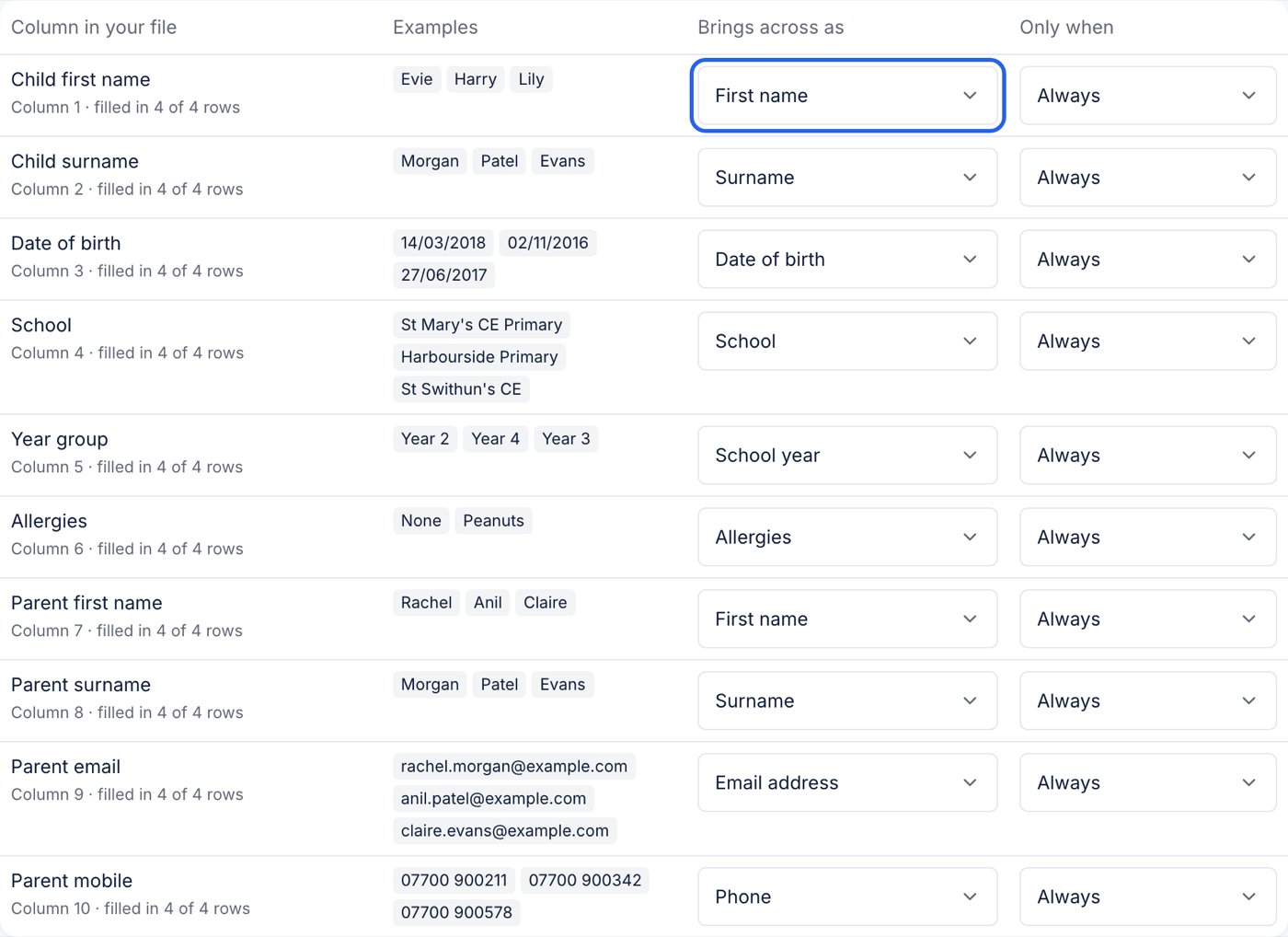
Check the columns
Check the columns lists every column, a few examples from it, and what it brings across as — “Parent 1 / Email address”, “Child / Allergies”, or “Not brought across”. ClubDock’s AI suggests these from the column names and examples. Change any that are wrong.
3
Show the families
Press Show the families. Each family appears as its parents, then its children, in a grid you can type into. Brothers and sisters are put in one family because they share a parent.
4
Fix anything flagged
Anything that needs fixing is flagged on the box itself, and the grid opens on To fix before saving. Type the right value, or untick that child to leave them out.
5
Save
Press Save. You are asked first — “Bring across 8 children?” — with how many families and new parents, and how many are already in ClubDock. Confirm to save.
What is brought across, and how
- Allergy detail columns (“Please detail allergies”) are brought across only when the yes/no column beside them says Yes.
- Several additional needs columns (disability, learning condition, EHCP) are combined into Additional needs.
- Columns of people who may collect become separate contacts. Parents listed again among them are not added twice.
- Phone numbers that lost their first 0 in a spreadsheet are put right: 7700900001 becomes 07700 900001. Anything that is not a phone number is left out and flagged.
- A school not on your list is kept as typed and flagged. It never joins your list.
- No school year? It is worked out from the date of birth, with a 1 September cut-off.
- A parent with only a first name is given the child’s surname, flagged for checking.
- A column you ask about in your own questions can bring across as that question. Add the question first if you want a column kept.
What stops a save
- A date of birth that is not a date, such as 31/02/2018. Enter it as day/month/year.
- A family with no parent who has both a name and an email address. The email is how they sign in.
- The same email address in two families.
Families already in ClubDock
- A parent whose email you already have is marked Already in ClubDock. Their children are added to that parent, and nothing on their record changes.
- A child already at the club with that parent, with the same name and date of birth, is left out. Importing the same file twice brings nothing across the second time.
Telling the families
After saving, the Parents list shows how many imported parents have not been told about ClubDock yet, with Email these families. Each parent gets one email saying you now take bookings on ClubDock, to sign in with this address, and that nothing has been booked or charged. Nobody is emailed twice, and a parent who has already signed in is never emailed.What parents do next
When an imported parent signs in with the email you had for them, they are that record and have nothing to re-type. Before booking, they:- Check their own details, under “Check what Harbourside Clubs has for you”.
- Check each child’s details, especially allergies, medical notes and who may collect.
- Answer your consent questions and accept your terms.