

Only a Manager can preview, publish or unpublish a programme.
Before you start
- The programme has dates. You can’t publish or preview one without them. See Sessions and dates.
- Check how parents book it and its cancellation policy. Both are fixed once it’s live.
Preview it
On the programme’s overview, press See it as parents do. From the Programmes list, choose Preview from the row’s menu. The preview opens in a new tab and shows the programme page as a parent who hasn’t signed in sees it: photos, name and tagline, dates and times, who it’s for, the description, Need to know, What to bring and the venue. A banner says it’s a preview and whether parents can see it yet. Nothing in the preview books, holds a place or signs anyone in. It works on a draft, which is the best time to check your page.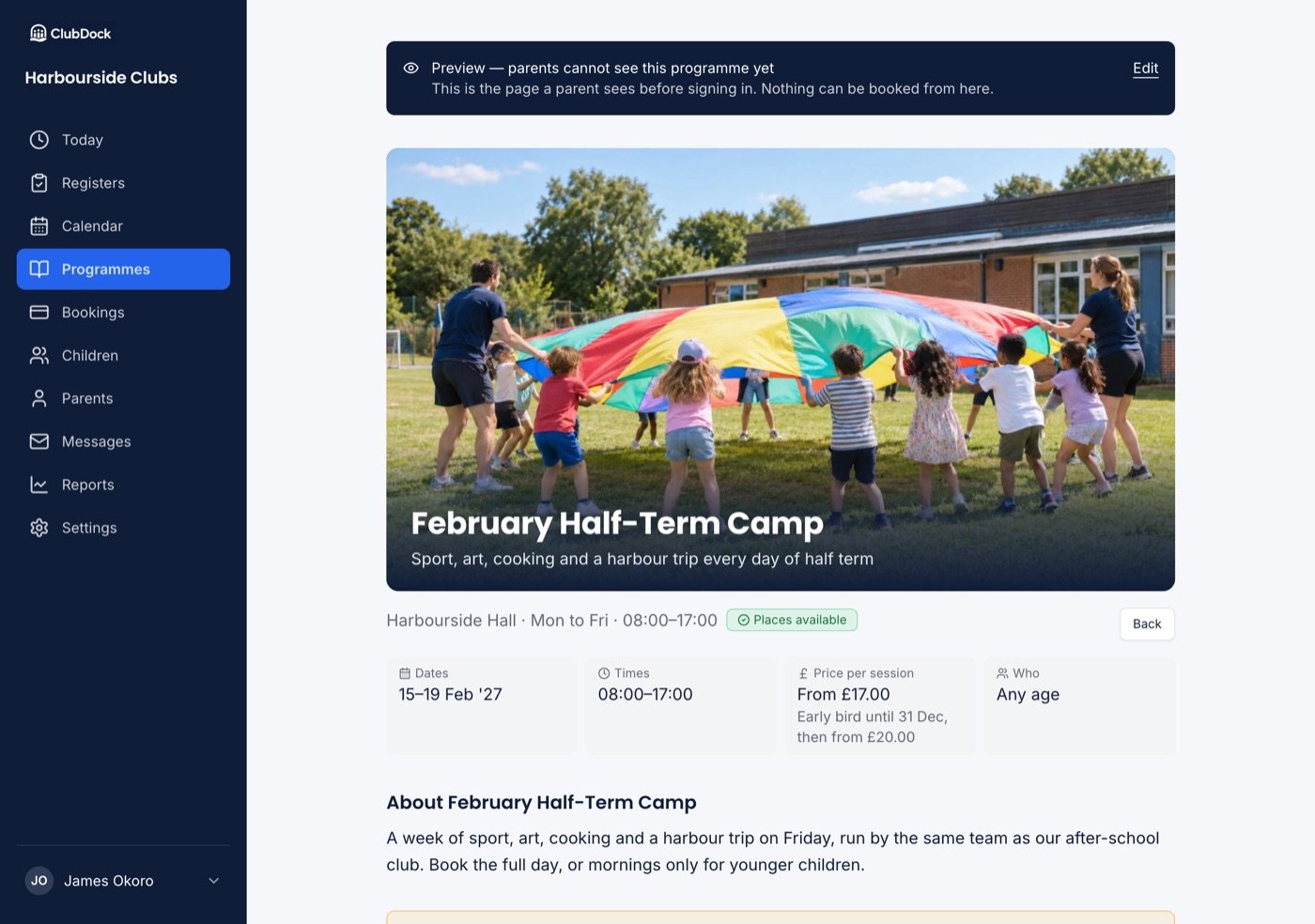
Publish it
1
Press Publish
On the Programmes list or on the Publishing plate at the top of the programme’s overview.
2
Choose when it goes live
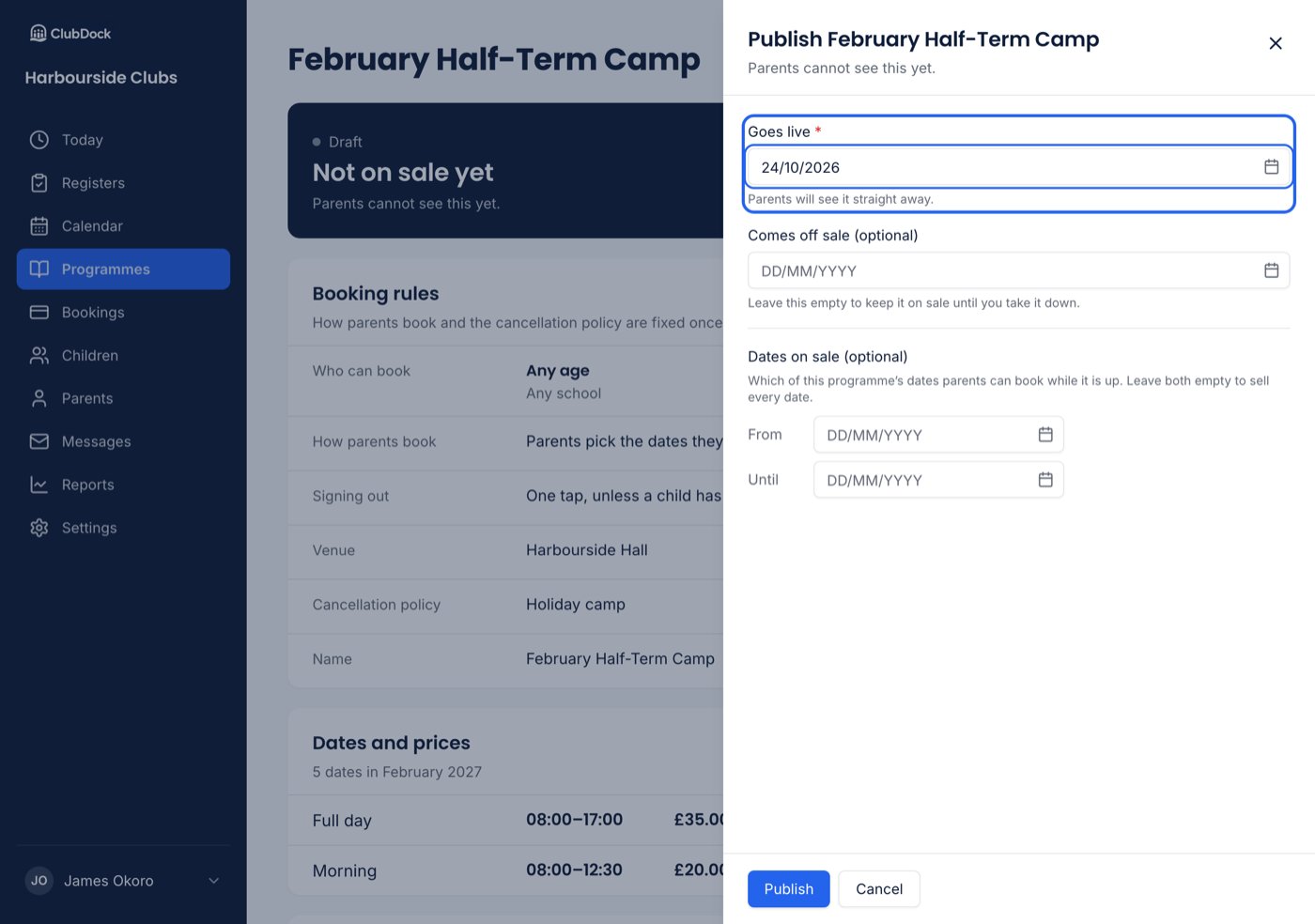
Goes live defaults to today. Choose a later day to schedule it.
3
Choose when it comes off sale (optional)
Leave Comes off sale empty to keep it on sale until you take it down. If you set it, the programme is on sale all day on that date and gone the next. It’s the last day, not a deadline.
4
Choose which dates are on sale (optional)
Leave First date on sale and Last date on sale empty to sell every future date. See Sell only some dates below.
5
Press Publish or Schedule
The button reads Publish when it goes live today and Schedule when it’s later.
Once it’s live
The Publishing plate says where the programme stands: “Not on sale yet”, “Goes on sale Sat 10 Oct ‘26”, “On sale to parents” or “Off sale”. On a live programme it says “Live since Thu 24 Sep ‘26. Parents can see this and book it.” While a programme is live:- You can change its name, venue, who can book, and everything parents read: the tagline, photos, description, Need to know and What to bring. Parents see the change straight away.
- You can’t change how parents book it or its cancellation policy. They read Fixed while live, because places already booked follow them. To change them, unpublish first.
- You can change its sale dates with Change sale dates on the plate, then Save dates. This doesn’t take it down, and “Live since” doesn’t change.
There’s no “visible but not bookable” setting. A programme is in front of parents or it isn’t. To show a programme without selling some of its dates, use the dates on sale.
Sell only some dates
Some clubs release dates a month at a time. Under Dates on sale, set First date on sale and Last date on sale, such as 1 to 30 September. The two settings answer different questions:- Goes live and Comes off sale say when the programme is on sale.
- Dates on sale says which of its dates parents can book while it is.
- Parents see only the dates on sale. Others aren’t shown at all, not greyed out.
- The card on your club page shows only those dates and their prices, such as “5–8 Oct”.
- A parent who had the page open and tries to book a date no longer on sale is refused, and told which dates are: “This programme is taking bookings for 1–30 Sep ‘26.”
- Before you save, the dialog says what it means, such as “Selling 4 of 8 dates. 4 dates that are still to run will not be bookable.” Setting a new range replaces the old one.
- A range with none of the programme’s dates in it is refused before publishing.
Taking a date out of the range stops new bookings only. A child with a place on that date keeps it: the session runs and the register expects them.