

Only a Manager sees Children in the menu. Staff reach the child they need from the register, and a child’s record stays open to them.
Narrow by programme
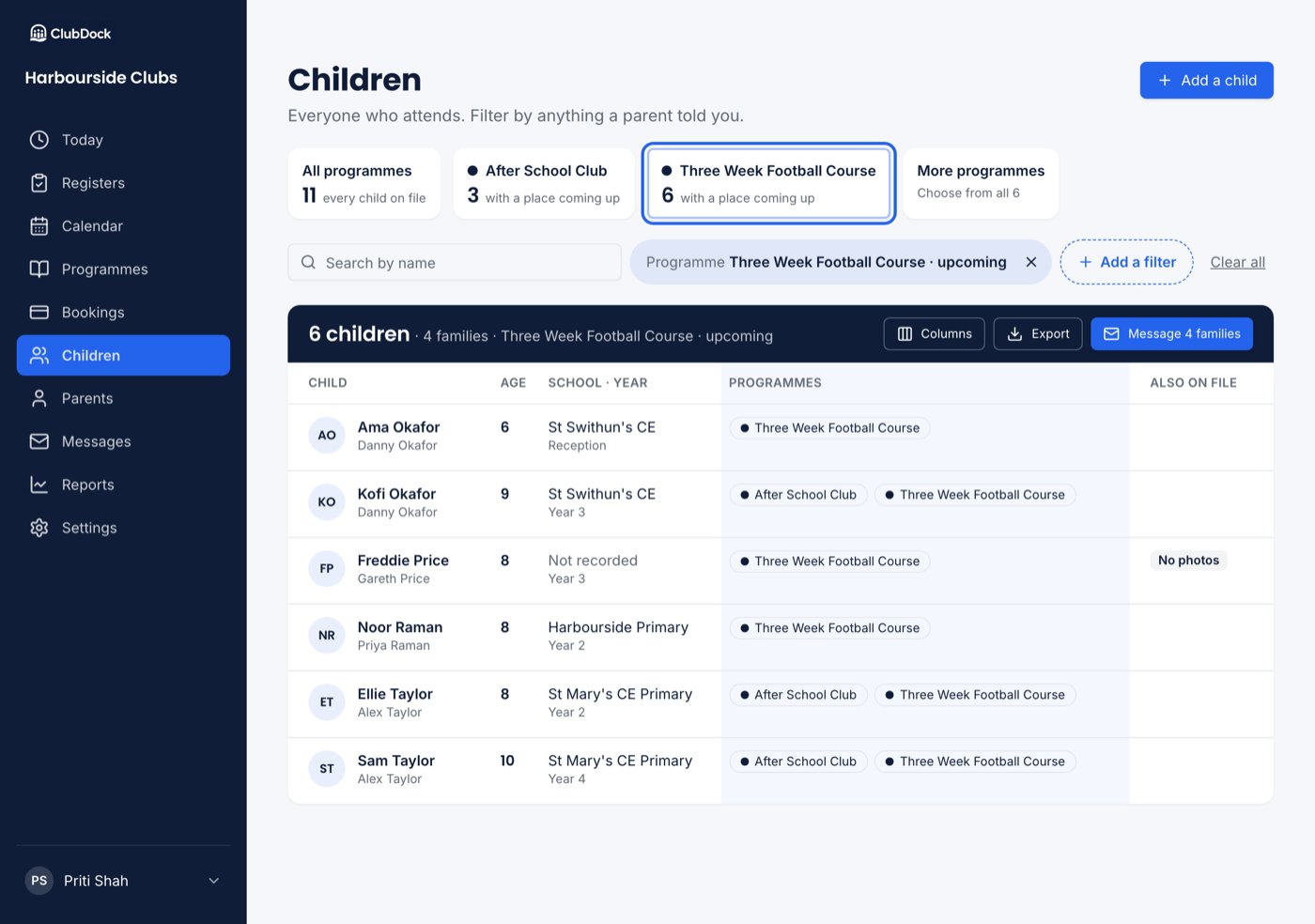
Across the top are programme tiles: All programmes, then the five busiest programmes, each with how many children have a place coming up on it, then More programmes.- Press a tile to show only children with a place coming up on that programme.
- Press All programmes to show everyone again.
- More programmes opens the Programme filter with every programme in it.
Add a filter
Press Add a filter to see every field, grouped: Bookings, About the child, What staff need to know, and your own questions. Type in the find box to look for one, such as “allergies”. Each choice says how many children it would leave, so you can see the effect before you apply it. Press Show 6 children (or however many) to apply it.
Two filters must both hold: “Age 3” and “Dietary requirements has some”. Two choices inside one
filter mean either: “Riverside or St Anne’s”.
Each filter shows as a chip above the list. Press a chip to change it, or its × to remove it.
Clear all removes every filter.
Reading the list
When the list is filtered, a navy bar above it says how many children and families it holds, and what the filters are.- Each filter adds a shaded column, so every row shows why it is there.
- Also on file badges show what else a child carries: Allergy, Medical, Additional needs, No photos. A parent’s “None” raises no badge.
- Children waiting for approval or declined are marked on their row.
- Press Columns to add or remove any field as a column. Your choice is remembered in this browser.
Export
Press Export to download a spreadsheet of every child the filters match, not only the page on screen. It holds name, date of birth, age, school, year, programmes and the columns you have shown. Collection passwords are never in the filters, the columns or an export.Message the families
Press Message 4 families (or however many) to write to the families of the children on the list. You need a programme in the filter, with Upcoming chosen, because messages go to families with a place. Without one, the button is greyed and says why. The message goes to every parent linked to those children, once each. If it is scheduled for later, the list is worked out again when it sends, so a family who books in the meantime is included. See Messages.Add a child
Press Add a child to add one yourself. Type a parent’s name or email to find their family, then fill in the child’s details. Saving takes you back to the list.On a phone
The tiles become a row of pills, the filters sit behind Filters, and the count, Export and Message are pinned to the foot of the screen.When the list is empty
- Nobody matches that — the search or filters leave nobody. Press Clear search and filters.
- No children yet — nobody has registered. Press Add a child, or import your families.