

Staff and Managers can both take a register. Only a Manager sees Email families.
Open a register
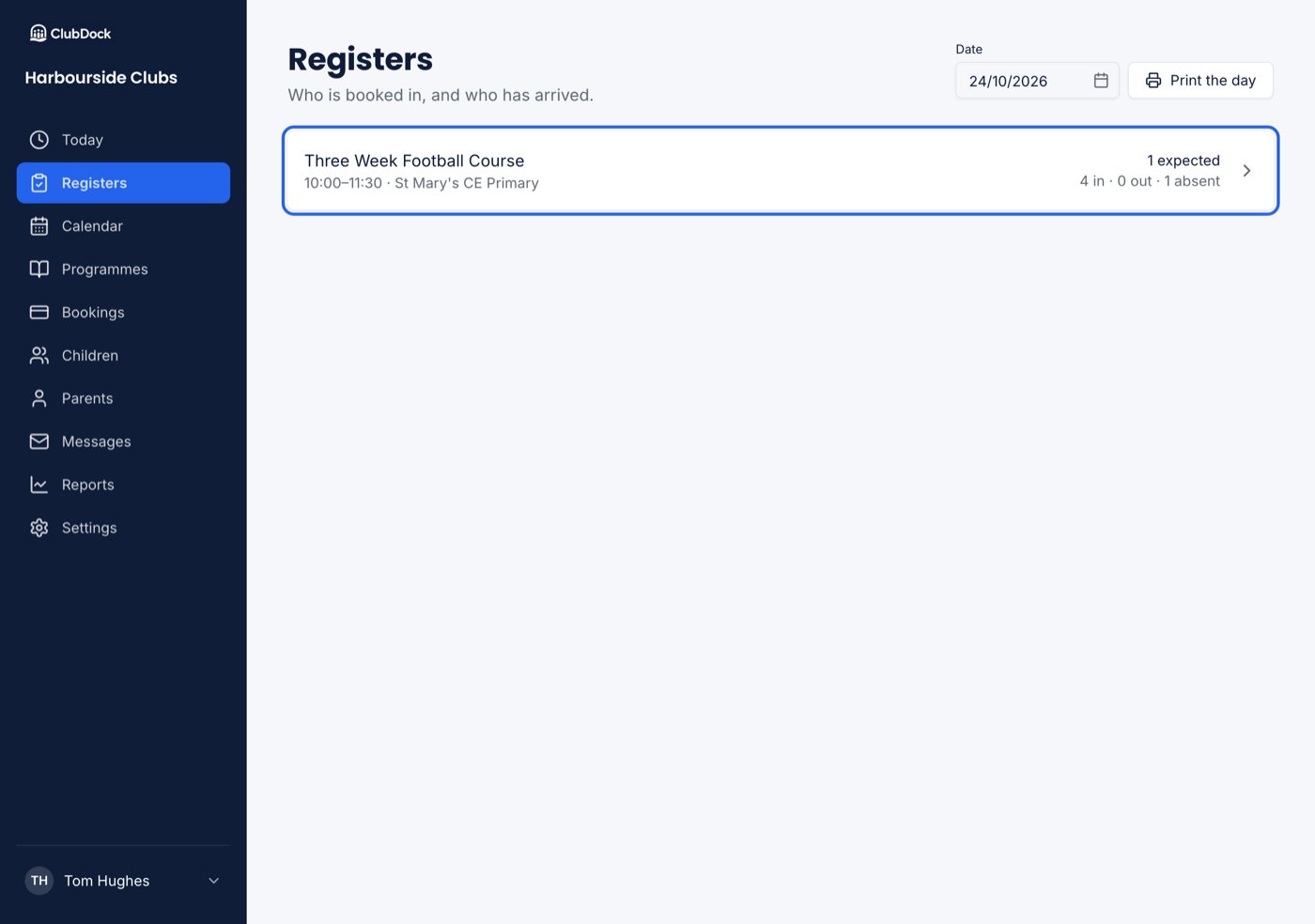
- Go to Registers. It opens on today, and Date picks another day.
- Press the session.
What the register shows
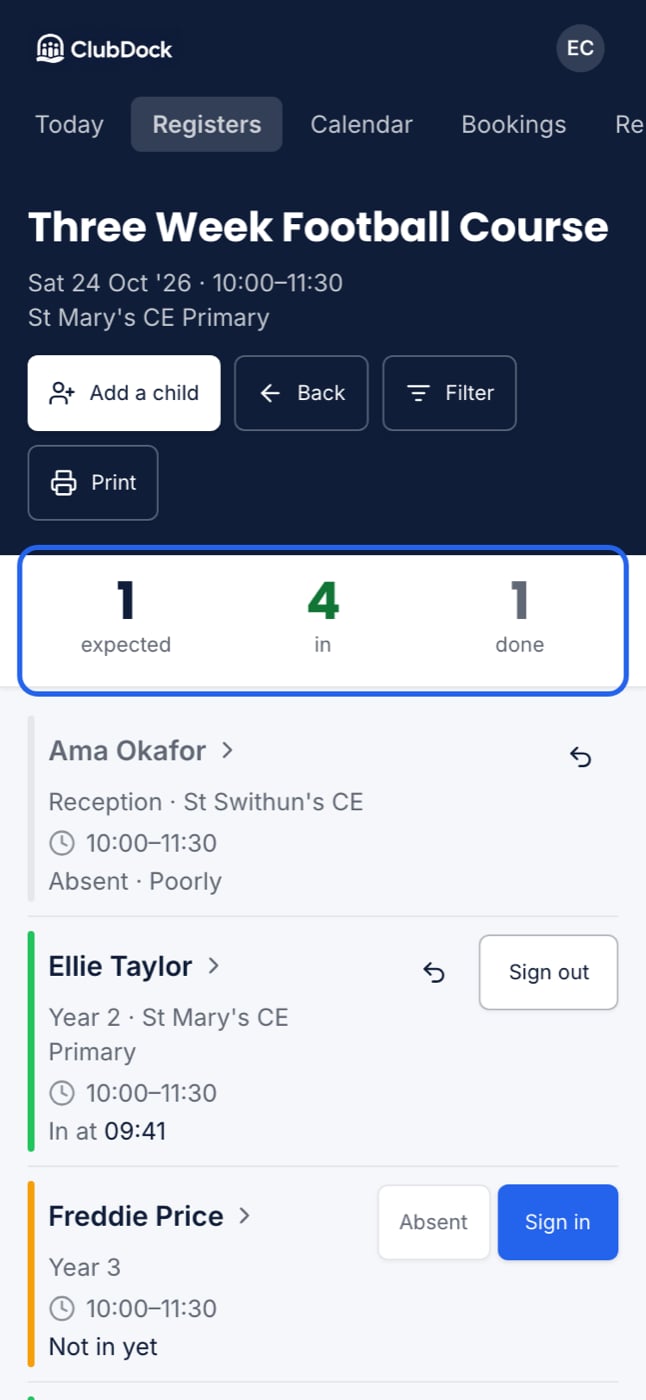
The session’s name, date, hours and venue sit on a navy band at the top, so you can tell at a glance which door you are on. Below it are three large counts, expected, in and done. They stay in place as you scroll. Each count is also a filter, so press expected to see only who has not arrived. Children are listed in the order they are expected, then by name. Each row shows:- Not in yet, in words, for a child who has not arrived
- Allergy and medical flags in red, without tapping. A parent who answered “none” gets no flag, so a red flag always means something
- Dietary requirements, muted, because they are a catering instruction rather than a safety warning
- Trial session under the name for a child trying the club for the first time
- Extras such as lunch, shown as a chip, and any extra that widens the child’s day, such as a late pickup, with the wider hours
- their school year and school, if your club records them
Children booked on more than one session
- Morning and afternoon, back to back: one row, one arrival, one departure. They never left.
- Breakfast and after school: two rows, each signed in and out on its own. They left the premises for school in between.
- Booked only on another programme that day: not on this register. Nobody is counted at two doors.
Sign a child in
Press Sign in. The time and who did it are recorded. If you tap twice by mistake, the arrival time does not move. If two staff tap the same child at once, the first tap counts. To reverse a sign-in, press Undo. The child goes back to expected and the record is removed. For a child on a trial session, signing them in is what sends their family the follow-up email after the trial.Mark a child absent
Press Absent. You can give a reason (Poorly, Appointment, Holiday, Collected early) or type a note. Absent is different from not yet arrived. You can mark the same child absent again to correct the reason. Marking a child on a trial session absent gives the family their trial back.Sign a child out
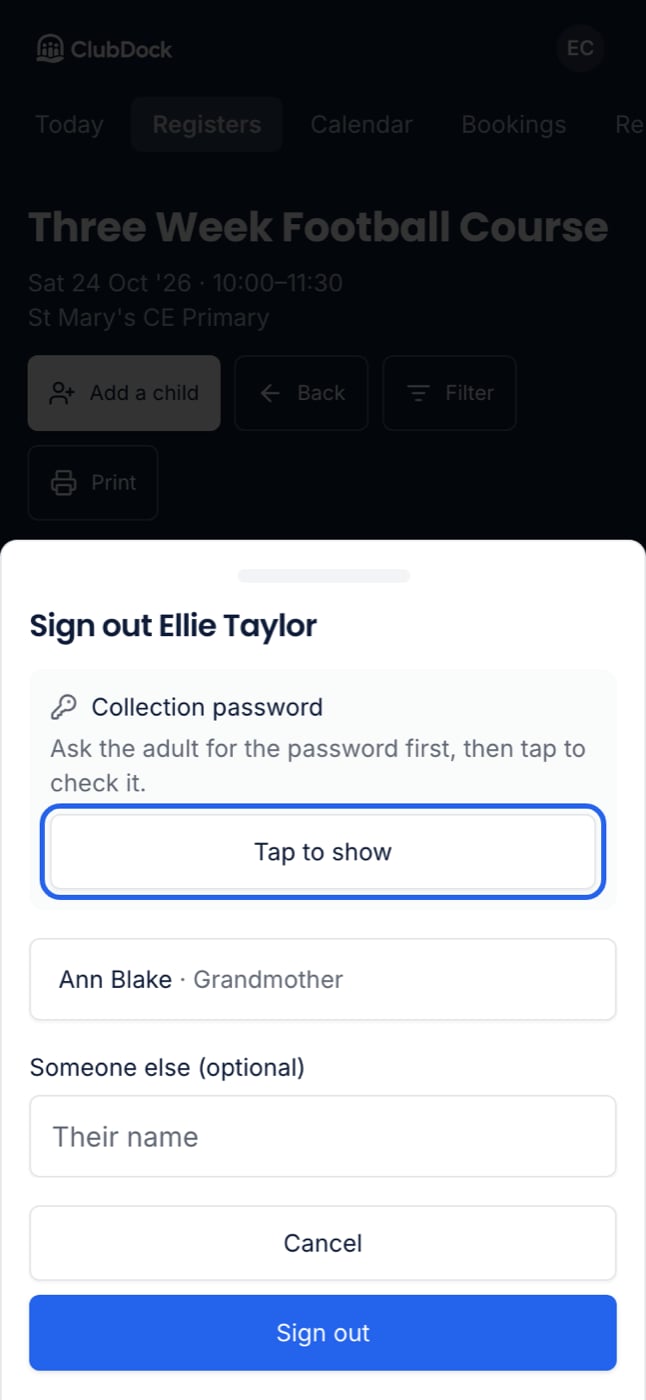
Press Sign out. What happens next depends on the child and how your club is set up.- No collector needed: one tap, and they are signed out.
- The programme asks who collected each child (a manager turns this on in the programme’s Booking rules → Signing out): you choose from the child’s authorised contacts, or type a name under Someone else. A grandparent nobody listed still turns up. You cannot sign out without answering.
- The child has a collection password: the sign-out sheet always opens, showing Collection password — Tap to show. Ask the adult for the word first, then tap to check it. The password is loaded at that moment and hidden again when you close the sheet. If it cannot load, for example with no signal at the door, nothing is signed out. Check your connection and tap again.
- The child had an accident or incident today: the sign-out sheet always opens, saying the child had an accident or incident today, so you can tell whoever collects them. Their parents are emailed, but the adult at the door may not be the one who reads it.
Late collections
A child collected after their expected end is flagged as a late collection. The end is the child’s own agreed time, so an extra the club sold, such as a late pickup, is not counted as late. No charge is raised automatically. A Manager can add one from the late collections report. See Charges. A child signed out without ever being signed in is still recorded as having arrived, at the time they were expected.Add a child who turns up
When a child arrives who is not booked:- Press Add a child on the navy band.
- Type two letters of their name. ClubDock lists the club’s children who are not already on the session, with who would be billed.
- If the programme has more than one session that day, such as breakfast and after school, choose which under Book them onto.
- Press Add beside the child. If both parents can book, choose which one is billed.
- The session was full: the child is still added, and the session’s limit rises to fit. You are told the new limit.
- The child cannot be booked: for example, their parent has not accepted your terms or is waiting for approval. The child is listed greyed with the reason and no Add button. Sort it out with the family first.
- A whole-block programme: a single session cannot be added at the door. Book the child from their parent’s record instead. See Booking for a family.
- A child new to the club: their parent adds them, or you add the family from Parents.
Filter and group the register
Press Filter to narrow the register by school, school year or session. Only values actually on this register are offered. You can also group it by School, School year or Session. Grouping by school puts children whose school nobody recorded in their own group, Not given, always last. When the register is narrowed, the button reads Filtered. The three counts at the top always count the whole register. See The school run for using this on a walk to school.Print the register
Press Print and choose a sheet:- Full register (already selected): landscape, with medical notes, contacts, authorised collectors, and blank columns for arrival, departure and signature. This is the sheet for a fire drill.
- Name list: a one-page tick list for the school run. See The school run.
Email the families on a register
Only a Manager can email families from a register.