

clubdock.co.uk/ followed by your club’s name, such as clubdock.co.uk/your-club. Anyone can open it without signing in. It shows your club at the top and every published programme beneath, with prices, dates, times, venue and whether places are left.
Share the link anywhere: your website, a newsletter, a message to parents. When it’s shared in a message, the preview shows your cover photo, or your logo if you have no photos.
Only a Manager can change how the club page looks. A manager who opens the club page sees exactly what a member of the public sees.
Set up the top of the page
Go to Settings → Your club. Your logo and colour are under the club’s details, and the Shopfront section beneath has the tagline, introduction and photos.
Press Save shopfront to save the tagline, introduction and photos together. Saving your club’s contact details with Save changes never touches them, and the other way round.
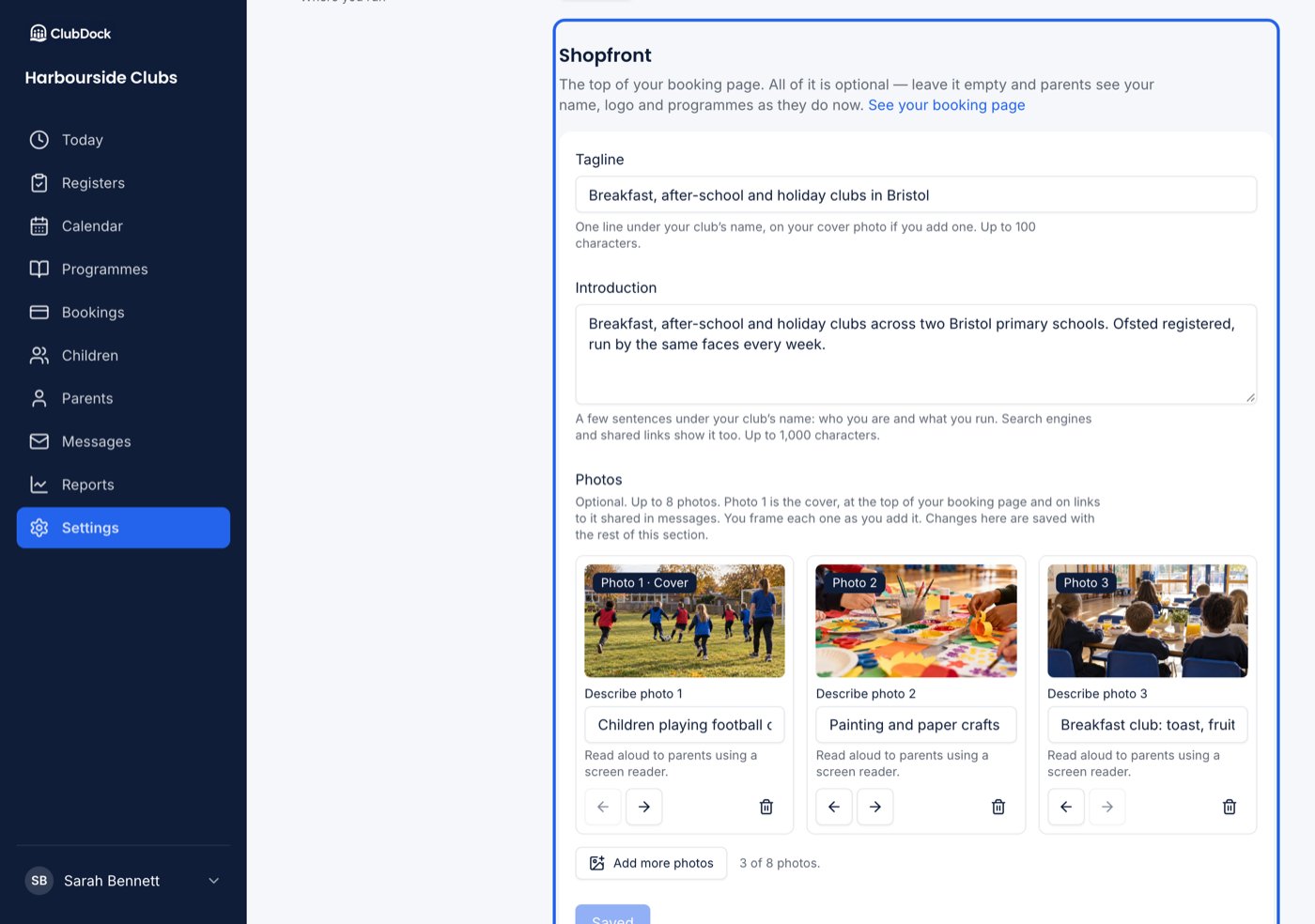
Photos
Photos work as they do on a programme: choose one or several, frame each one, put them in order with Move earlier and Move later, and describe each for parents who use a screen reader. See Create a programme. Leaving the page with unsaved changes asks “Leave without saving?”. Leaving keeps your club page as it was last saved.Your colour
Enter a colour as a hex value. Bright and pale colours are fine: where white text wouldn’t read on your colour, the button’s text switches to navy. A mid-grey is refused, because neither white nor navy text would be readable on it. Your colour is for the people your club is talking to. The staff app looks the same for every club, and emails carry your logo and name, not your colour.What parents see
At the top
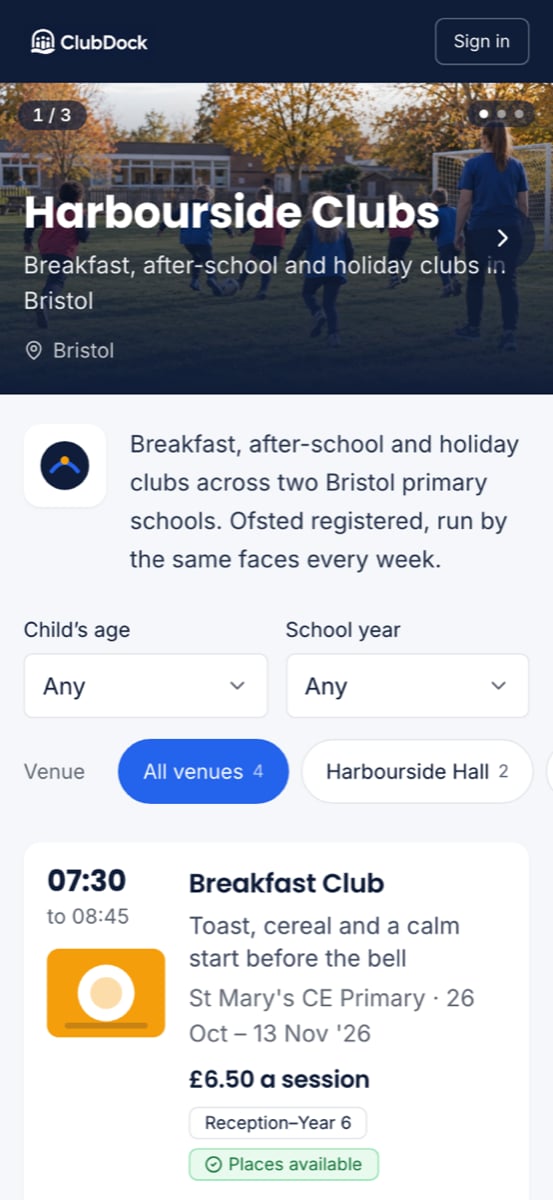
With photos, the page opens on your cover photo across the full width of a phone, with your club’s name and tagline on it and your town beneath. Several photos swipe, with dots and arrows. Your logo and introduction sit just under the photo. Without photos, the page has a navy header with your logo, name, tagline, town and introduction. Anything you haven’t written is simply left out.Your programmes
The list reads as a timetable. Each programme leads with the time its sessions usually start (07:30, 08:00, 15:15), earliest first, because that’s what a parent matches against their day. Each row shows:- Its name and tagline, and photo 1 as a small picture if it has photos.
- Extras with times, such as “Early drop-off from 07:45 · Late pickup until 17:30”.
- The price per session, with any early bird price and when it ends.
- Its discounts, such as “10% off 3 or more sessions”.
- Who it’s for, such as “Ages 5–11” or “Only children at St Mary’s”.
- Whether places are available, limited or sold out. Never a number, so families aren’t racing for the last place.
Filters
Filters appear only when they help:- Venue chips, if your club runs at several venues.
- Child’s age and School year, if your programmes are for different children. A parent answers whichever they know.
- No filters at all if you run one programme at one venue.