

Sign in with a code
1
Go to the sign-in page
Go to clubdock.co.uk/sign-in, or press Sign in at the top of the site.
2
Enter your email
Type your email address and press Continue. If you have signed in on this browser before, your email is already filled in.
3
Enter the code
We email you a code from ClubDock. Type or paste it into Your code. The sixth digit signs you in, so there’s nothing else to press. A code lasts ten minutes.
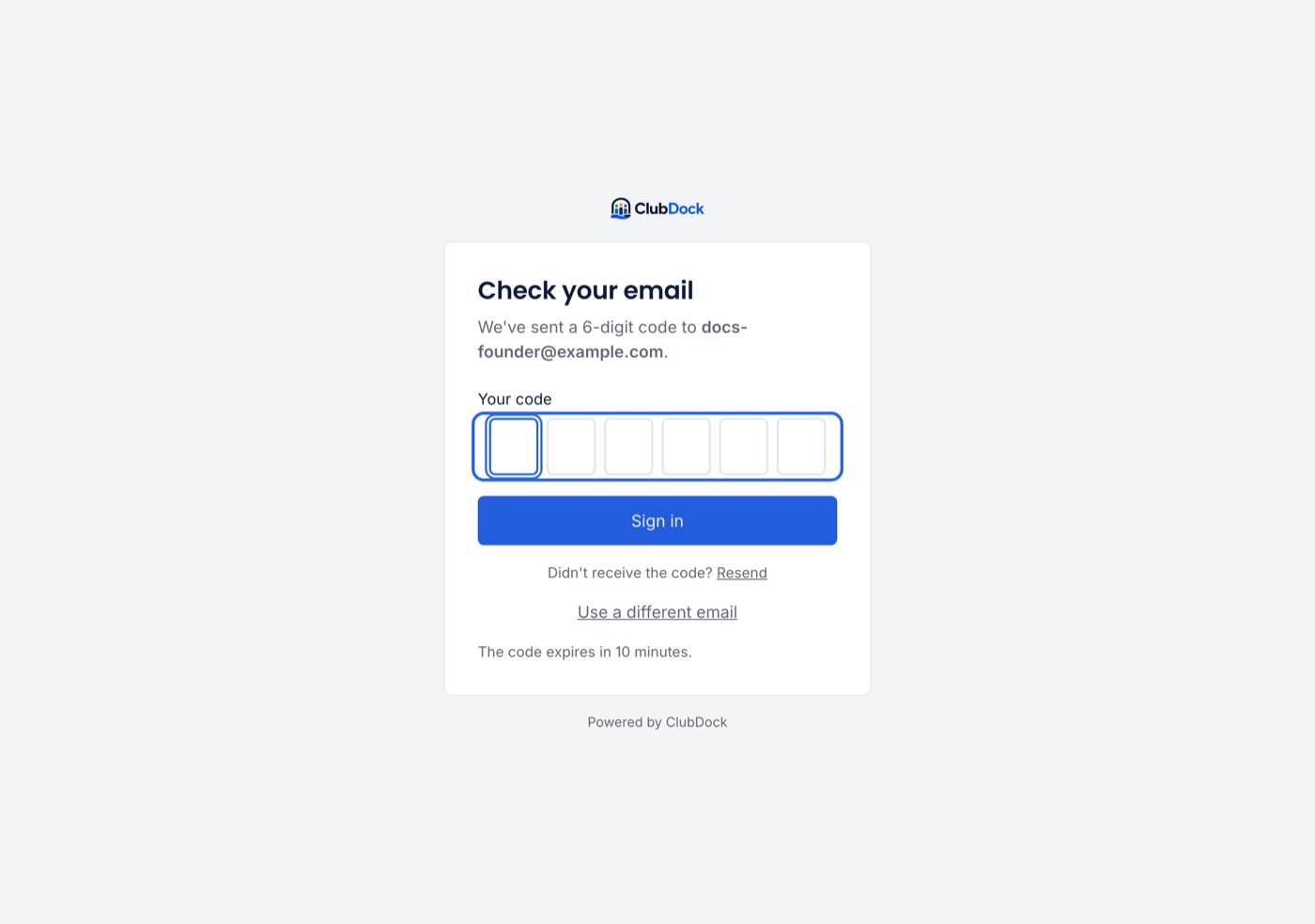
Sign-in codes always come from ClubDock, never from a club. Parents get the same email, so they can trust it whichever club they book with.
Sign in faster with a passkey
After signing in with a code, you are asked Sign in faster next time? Press Save a passkey and use your fingerprint, face or device PIN. Next time, after entering your email, you are asked How would you like to sign in? Choose Use my passkey or Email me a code.- Not now skips it, and you aren’t asked again on that device.
- On a borrowed laptop, choose Email me a code. A passkey only works on the device that saved it.
- To add or remove passkeys later, open Your account from your initials at the bottom of the menu. Remove one straight away if you lose a phone. An emailed code always works, so removing your last passkey can’t lock you out.
How long you stay signed in
You are signed out after eight hours, so a computer left on in the club office overnight doesn’t stay signed in. If that happens mid-task, you are asked to sign in again. Signing out is immediate. It also forgets your email and selected club on that browser, so the next person on a shared computer starts fresh.If you can’t sign in
Signing in as a parent
Parents sign in from their club’s own page, such asclubdock.co.uk/your-club, not from the main sign-in. For a new parent, the same code also creates their account. Send parents to Finding your club and signing in.