

Record an accident or incident
Any member of Staff can record a report.
- Open the form in either of two ways:
- On the register, tap the child’s name, then Record an accident or incident.
- From the child’s record under Children.
- Fill it in:
- Time: the day and time. It starts at now.
- What happened: what happened, where, and what led up to it.
- Injury and Where on the body. Leave them blank if there was none.
- Bump to the head: turn this on for any knock to the head.
- What was done: first aid given, who was called, how they are now.
- Who dealt with it: it starts as you.
- Who saw it.
- Press Save report.
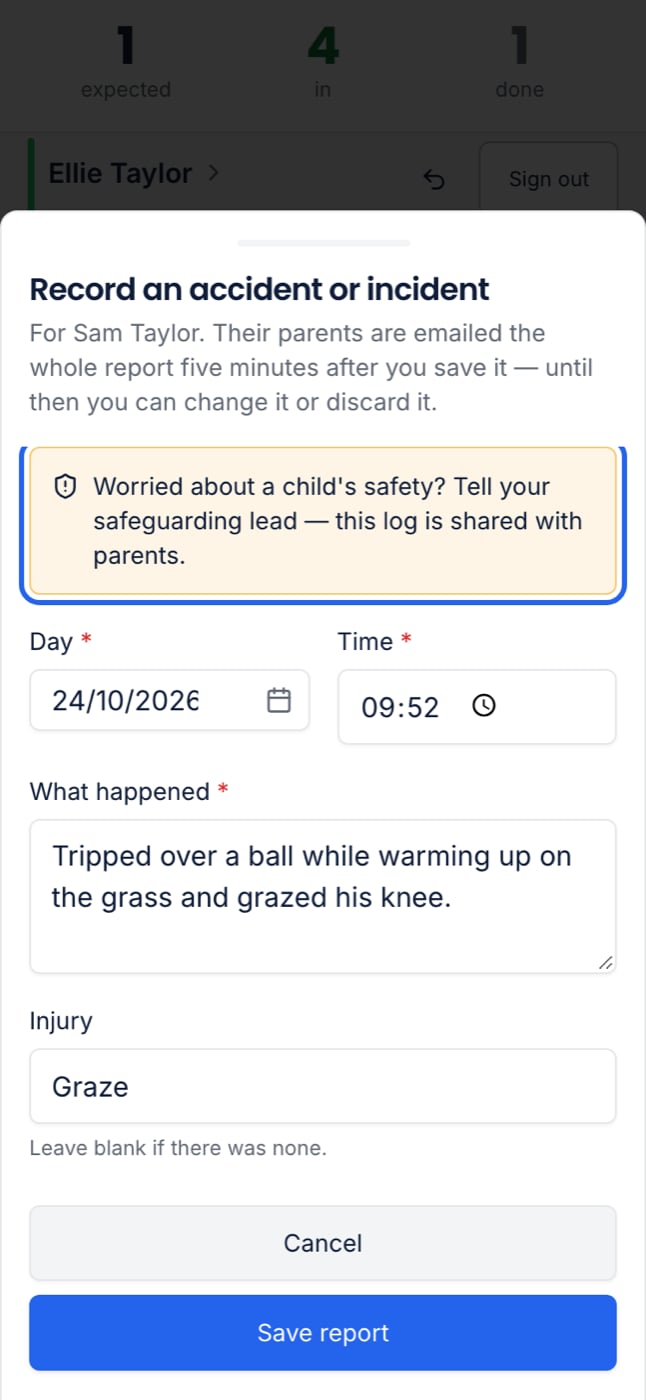
The first five minutes
For five minutes after saving, the report is a draft.- You, the author, see “You can change this until 16:42, then it goes to the parents”, with Change and Discard.
- Anyone else, a Manager included, sees the whole report and Sending at 16:42. Nobody but the author can change or discard it.
What parents receive
After five minutes the report is fixed and emailed within about a minute:- One email to each parent who can book the child. Separated parents each get their own.
- It has the whole report, who recorded it, your club’s contact details, and a link to the child’s page in their account.
- If Bump to the head was on, the email adds what to watch for over the next 24 hours, when to go to A&E or call 999, and NHS 111.
When an email does not arrive
If an email bounces, is marked as spam or cannot be sent, the report appears on Today for Managers. It names the child, when it happened, and each parent not reached, with their phone number. Ring them, then press Told by phone. If no parent who can book the child has an email address, the report is still fixed and appears on Today as Nobody could be emailed.At collection time
For the rest of the day, signing the child out always opens the sign-out sheet with a reminder that they had an accident or incident today, so you can tell whoever collects them. See Taking a register.Add a note
Once a report has been sent, any member of staff can press Add a note, for example “Ava’s mum rang back: the bump has gone down.” The note is dated and signed. The parents are emailed “An update to Ava’s accident report”, with the note and the whole report again. A sent report cannot be changed. Add a note instead.Withdraw a report sent in error
Only a Manager can withdraw a report.
Download reports
Only a Manager can download reports.