

Only a Manager can change or publish the terms.
Generate a starting point
1
Go to Settings → Terms
A new club’s page says “Not published yet”.
2
Press Generate a starting point
Answer a few questions, such as Photographs and Who can collect a child?, then press Generate.
3
Read and edit the draft
It’s written from your club’s real settings: your name and contact details, your cancellation policies, and how and when you take payment. It arrives in the editor unsaved, for you to read and change.
4
Publish
Press Publish. You don’t need to save first: it publishes what’s on screen.
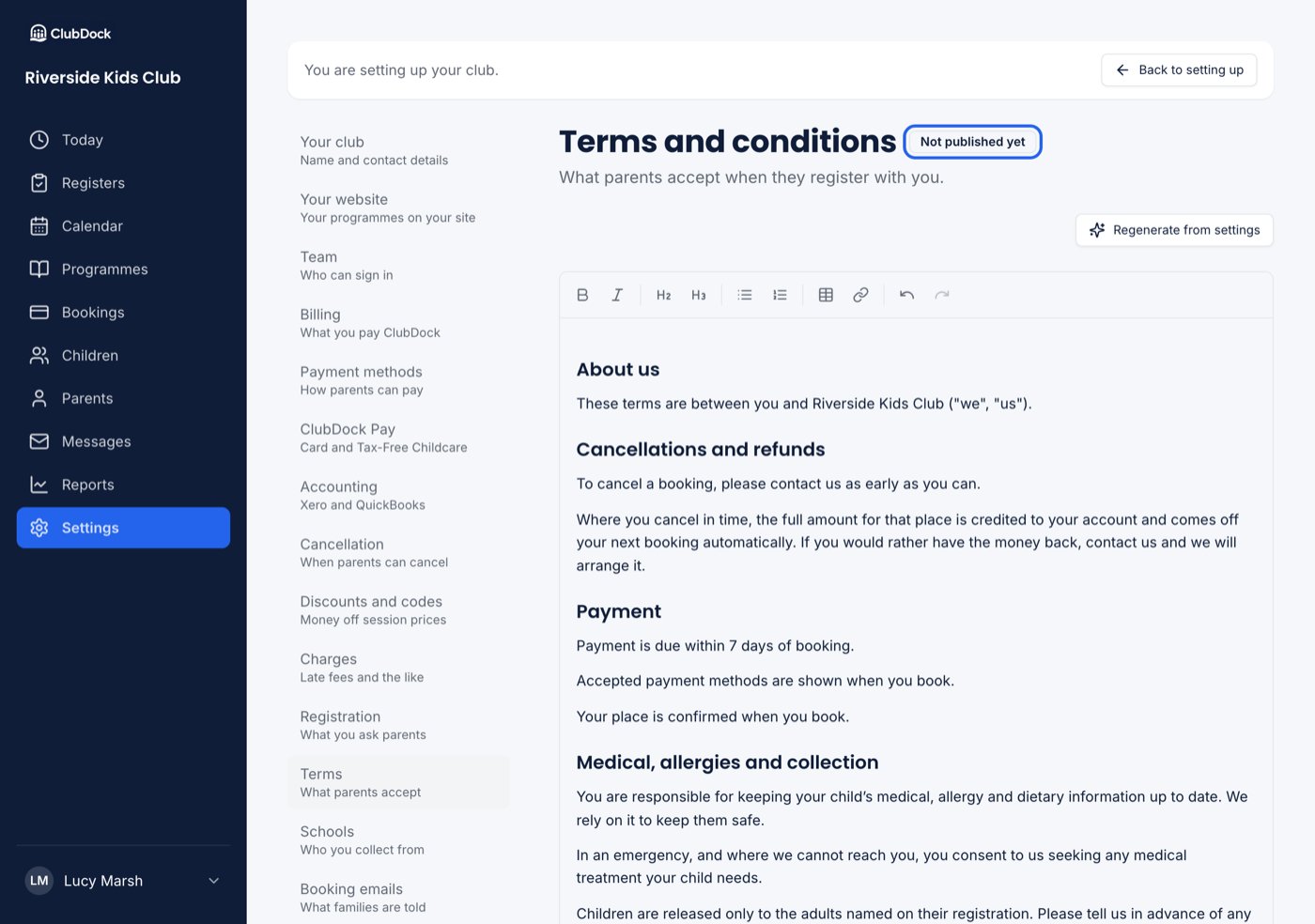
What the generated terms say
- Cancellations. Each cancellation policy is described by the programmes it covers, not its name: “After School Club, Breakfast Club: you may cancel up to 1 day before the session”. A cut-off of whole days reads in days, in the same words as your club page and the basket.
- Money back. When a place is cancelled, the full amount comes back as account credit, applied to the next booking, and the club will arrange money back on request.
- Changes. The version in front of a parent applies, and a new one is put to them to accept before they book again.
- Your address. If your club has only a postcode or a town, the terms give your email and phone only.
Edit and save a draft
Change anything in the editor. Once you do, the page says your changes are a draft, and that parents keep seeing the published version until you publish. Save draft keeps your changes. The draft notice stays until you publish, even if you come back the next day. To add a link, select the words and enter the address. “www.example.com” becomes https://www.example.com. Anything that isn’t a web address, an email address or a phone number is refused, so a link in your terms always goes somewhere.Publish a new version
Press Publish. ClubDock asks first: “Publish your terms?”. Every parent will be asked to accept the new version before they can book again. Existing bookings are not affected. Afterwards the version number moves on and the draft notice goes. Publish stays unavailable until you change something.If you edit the terms and then change them back to the published wording, there’s nothing to publish. Republishing identical text would ask every family to accept again for no change.
You can’t publish empty terms. Write your terms, or generate a starting point, before you save or publish.