

Only a Manager can send messages. Staff do not see Messages, and a parent’s Email button opens their own email app.
Write a message
1
Start a message
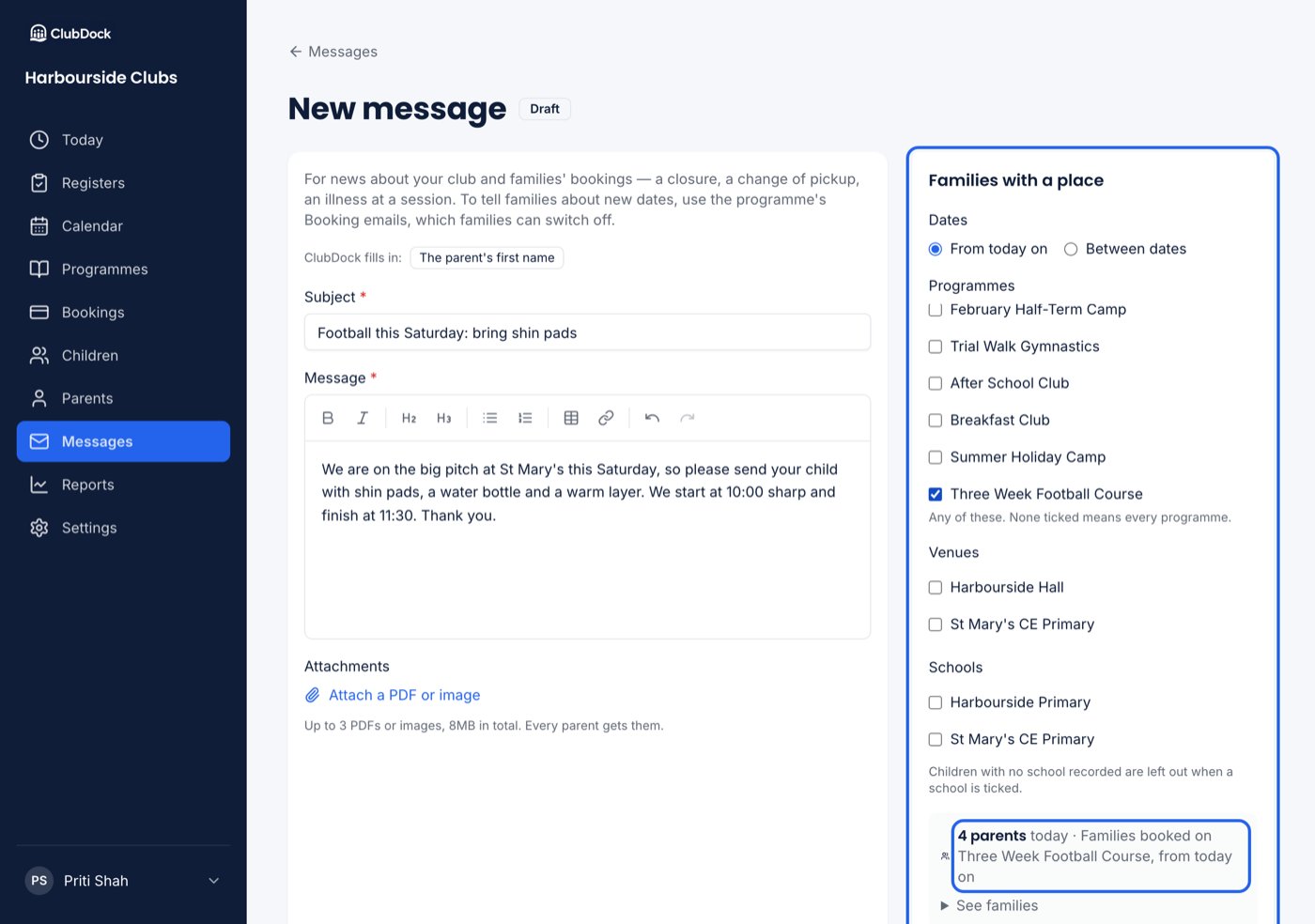
Go to Messages and press New message. A draft opens addressed to families with a place from today on, with how many parents that is.
2
Choose who it goes to
Narrow it by programme, venue, school, one session, or dates. Press See families to check the list.
3
Write it
Give it a subject and write the message. Press The parent’s first name to put each parent’s own name where you are typing.
4
Attach files, if you need to
Up to 3 PDFs or images (JPEG or PNG), 8MB in total.
5
Test it
Press Send me a test. It goes to your own sign-in address only, marked [Test].
6
Send or schedule
Press Send now, or Schedule it for later.
- A register — Email families writes to everyone with a place on that session.
- A child’s record — Email parents writes to all of the child’s parents.
- A parent’s record — Email followed by the parent’s name writes to that parent only. Their child’s other parents are listed, unticked.
- The Children or Parents list — Message writes to the families on the filtered list. See The Children list.
Who receives it
- Families with a place. There is no “everyone at the club”: a family with nothing booked is not reached.
- Several filters together. Ticking two venues and a school reaches families with a place at either venue and a child at that school.
- Past dates. You can choose dates up to 30 days back — for example, to tell the families at Tuesday’s session about chickenpox. Children marked Absent that day are left out.
- Both parents. If a child has two parents, both receive it, once each, however many of their children match.
- Parents who stopped booking emails still receive it.
- A cancelled session’s families are not reached; they were told by its own email.
- Families you imported but have not invited yet are left out, and the composer says how many, with a link to Email these families.
Sending
Send now asks first — “Send to 3 parents?” — because a sent message cannot be recalled. It then goes as one email per parent, from your club’s name. Replies go to your club’s contact email. If you have not set one, the email says replies are not read and to contact the club directly. Schedule sends it at the time you choose, UK time, up to 60 days ahead. It goes to the families with a place at that time, so a family who books in between receives it.- To change a scheduled message, edit it and save.
- To stop it, press Stop and move to drafts.
- If nobody has a place by the time it goes, it is not sent, and the Sent tab says so.
After it is sent
The Sent, Scheduled and Drafts tabs each list subject, who it went to, when, and how many parents. Open a sent message to see what it said, who sent it and when, and every parent it went to, with where their copy got to: Delivered, Not delivered, Marked as spam and so on. The ones that did not arrive are listed first.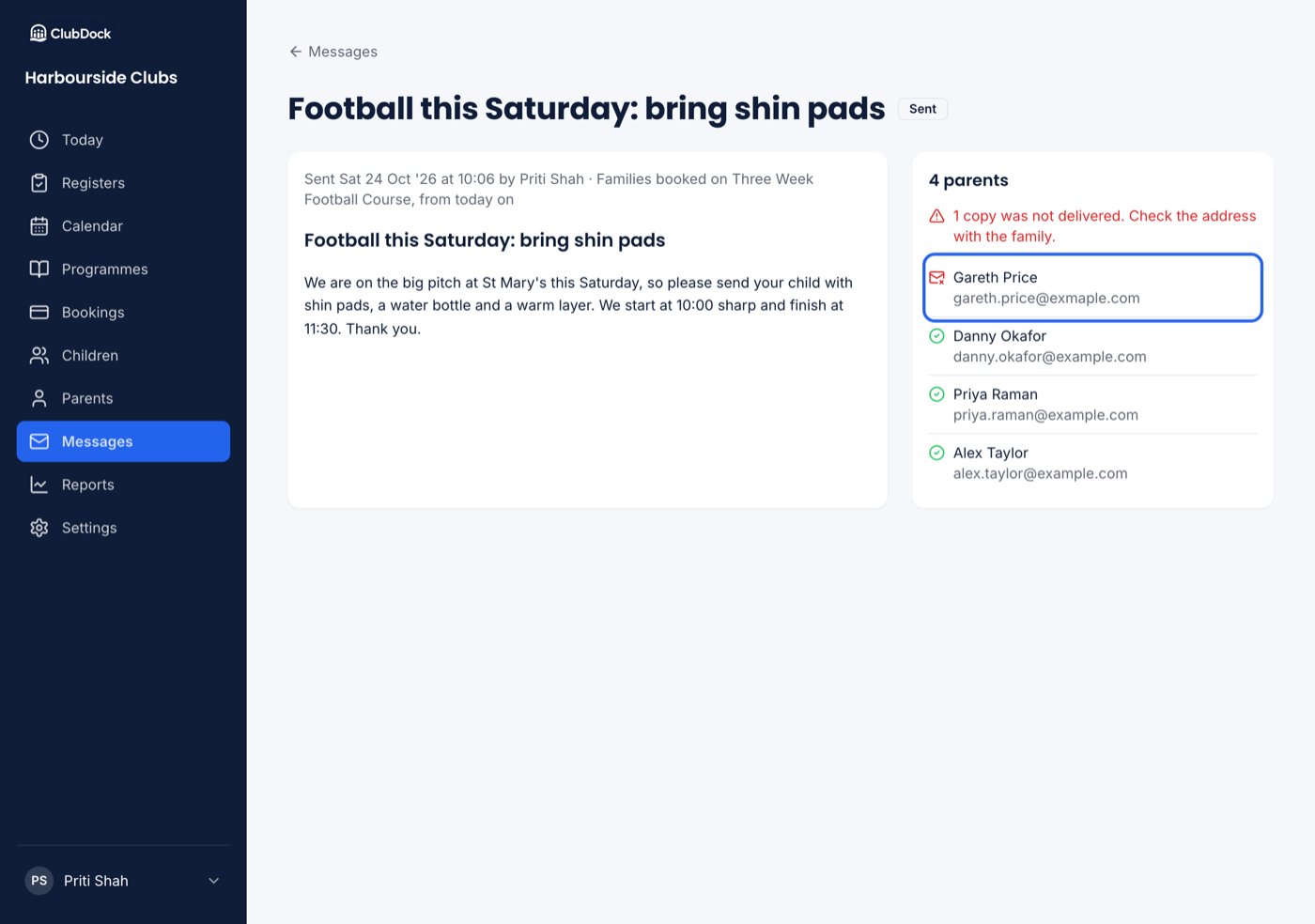
Drafts and keeping
- Delete removes a draft you no longer want, and its files.
- Sent messages are deleted after two years, with who received them and their files.